




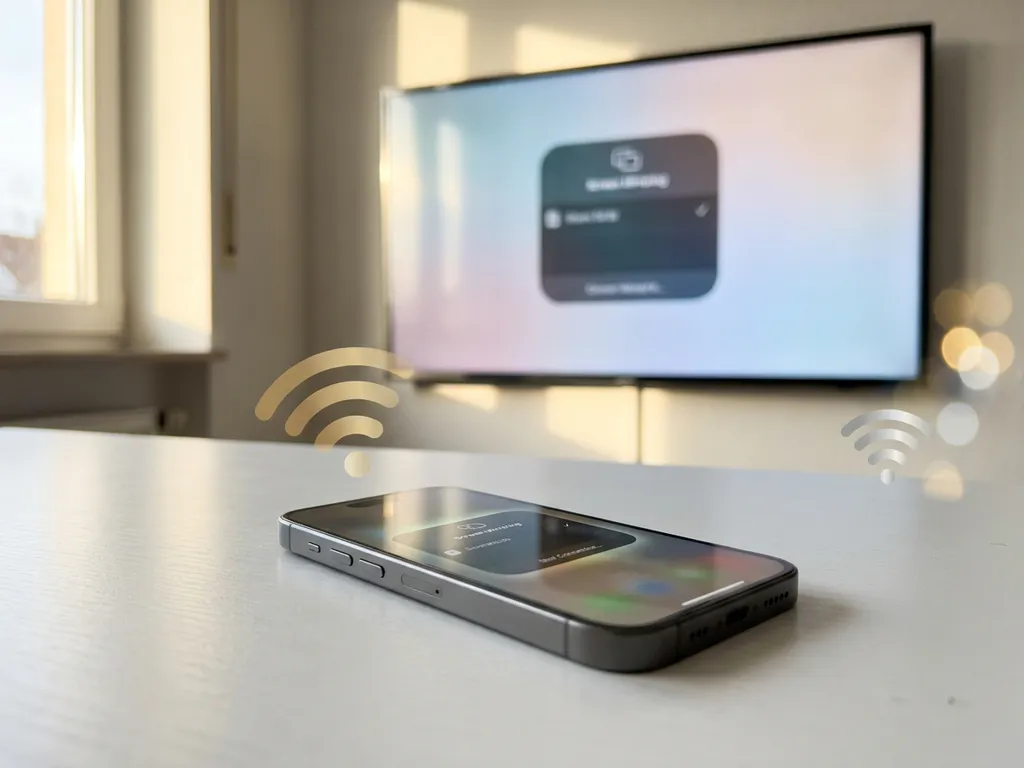
Yes, you can mirror your iPhone to a Samsung TV using a mobile hotspot. It takes a couple of extra steps compared to a regular home Wi-Fi setup, but once everything is connected to the same network, mirroring works just the same. This guide walks you through exactly how to do it.
What you need before mirroring over hotspot
Before you start, it helps to have everything in order. Mirroring over a hotspot works because both your iPhone and your Samsung TV need to be on the same network. Your iPhone creates that network, and your TV connects to it. That is the whole trick.
Here is what you need to have ready:
- An iPhone with a working cellular data connection (the hotspot uses your mobile data)
- A Samsung Smart TV with Wi-Fi capability
- A screen mirroring app installed on your iPhone
- Your iPhone’s hotspot name and password (you can find these in Settings)
One thing worth knowing: mirroring uses a fair amount of data, especially if you are streaming video. If you are on a limited data plan, keep an eye on your usage. Also, some mobile carriers restrict hotspot speeds, which can affect mirroring quality. A strong cellular signal gives you the best results.
Connect your Samsung TV to your iPhone hotspot
This step is where most people get stuck, so take it one action at a time. Your Samsung TV needs to join the hotspot network your iPhone creates. Turn on your iPhone’s personal hotspot first, then switch over to your TV.
- On your iPhone, go to Settings, tap Personal Hotspot, and toggle Allow Others to Join on.
- Note your hotspot name and the Wi-Fi password shown on that screen.
- On your Samsung TV, press the Home button on your remote and navigate to Settings.
- Go to General, then Network, then Open Network Settings.
- Select Wireless and wait for the list of available networks to appear.
- Find your iPhone’s hotspot name in the list and select it.
- Enter your hotspot password and confirm.
Once connected, your Samsung TV will show a confirmation message. You should also see a new device listed under your iPhone’s hotspot settings, which confirms the TV joined the network successfully. With both devices now sharing the same connection, you are ready to start mirroring.
Start mirroring your iPhone screen to the TV
With the network connection in place, open the screen mirroring app on your iPhone. The app will scan for available TVs on the same network. Because both your iPhone and Samsung TV are now connected through your hotspot, your TV should appear in the list within a few seconds.
- Open your screen mirroring app on your iPhone.
- Tap the option to search for or select a TV.
- Choose your Samsung TV from the list of detected devices.
- Follow any on-screen prompts to confirm the connection.
- Once connected, swipe down from the top-right corner of your iPhone to open Control Center.
- Tap Screen Mirroring and select your Samsung TV again if prompted.
Your iPhone screen should now appear on your Samsung TV. Whatever you do on your phone, including browsing, playing videos, or showing photos, will show up on the big screen in real time. If the connection takes longer than usual, give it up to 30 seconds. Hotspot connections can be slightly slower to establish than home Wi-Fi.
Fix connection problems when mirroring over hotspot
If something is not working, the issue is almost always one of two things: the TV is not properly connected to the hotspot, or the app cannot detect the TV on the network. Here is how to work through the most common problems.
TV not showing up in the app
Check that your Samsung TV is actually connected to your iPhone hotspot and not a saved home Wi-Fi network. Samsung TVs sometimes reconnect to a previously used network automatically. Go back to your TV’s network settings and confirm it shows your iPhone hotspot as the active connection.
Connection keeps dropping
A dropping connection usually points to a weak cellular signal. Try moving your iPhone to a spot with better reception, or reduce the distance between your iPhone and the TV. Walls and large objects between devices can also weaken the hotspot signal.
Mirroring is laggy or choppy
Hotspot speeds depend on your carrier and signal strength. If the picture is stuttering, close any other apps running in the background on your iPhone to free up bandwidth. You can also lower the video quality in your streaming app to reduce the data load.
Here is a quick reference for the most common issues:
- TV not found: Confirm the TV is connected to your hotspot, not another network
- Connection drops: Move your iPhone closer to the TV or to a better signal area
- Lag or stuttering: Close background apps and lower video quality if streaming
- App not connecting: Restart both the app and the hotspot, then reconnect the TV
How AirBeamTV helps with mirroring iPhone to Samsung TV
We built our Samsung screen mirroring app specifically for situations like this. Whether you are on home Wi-Fi or a mobile hotspot, our app detects your Samsung TV automatically once both devices are on the same network. There is no complicated setup, no cables, and no extra hardware required.
Here is what you get with our app:
- Automatic TV detection as soon as you open the app
- HD mirroring with audio, so you see and hear everything on the big screen
- Works across all Samsung Smart TV models
- No Apple TV or AirPlay needed
- Simple three-step process: download, open, mirror
If you have been struggling to get your iPhone screen onto your Samsung TV, our app removes the guesswork. Download the AirBeamTV app for Samsung TV, follow the steps above to connect your TV to your hotspot, and you will be up and running in minutes.