




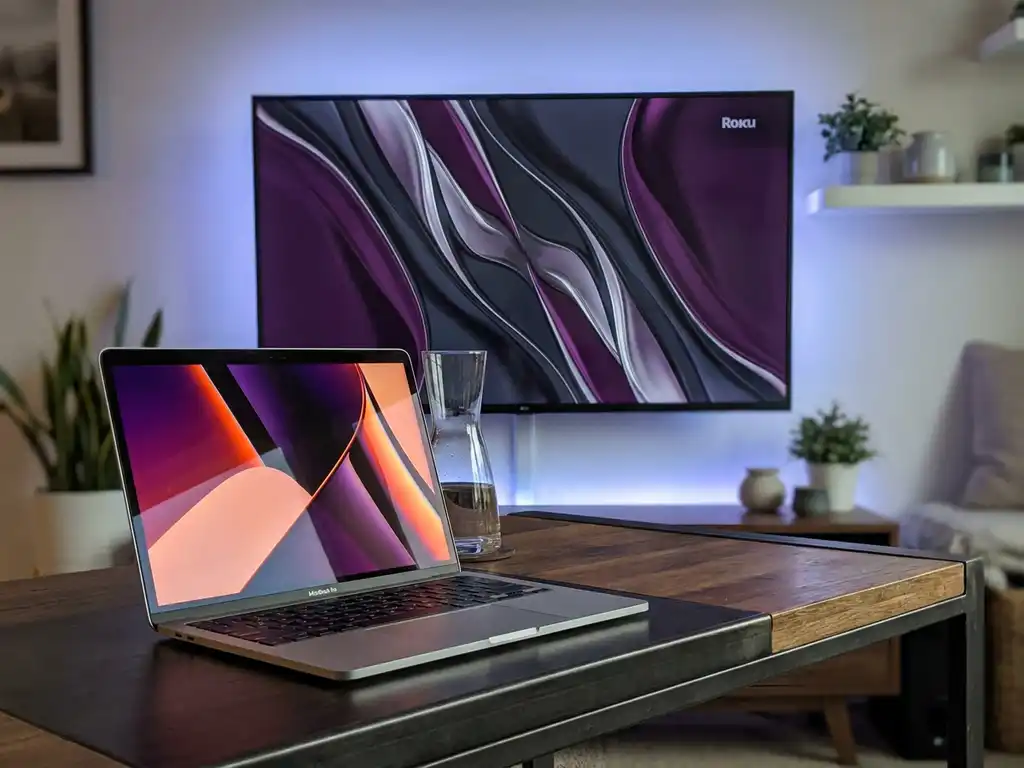
Yes, you can mirror your Mac screen to a Roku device. It takes a few minutes to set up, and once everything is in place, you can enjoy your Mac’s content on the big screen without any cables or extra hardware. This guide walks you through exactly what you need, how to connect, and what to do if something goes wrong.
What you need before mirroring your Mac to Roku
Before you start, it helps to have everything in order. Roku screen mirroring from a Mac works through a third-party app because Roku does not natively support AirPlay on most older models, and Macs do not have built-in Roku casting. That means you will need an app to bridge the two devices.
Here is what you need to get started:
- A Mac running macOS 10.14 (Mojave) or later
- A Roku streaming device or Roku TV connected to your television
- A screen mirroring app installed on your Mac
- A stable Wi-Fi connection (more on this in the next step)
You do not need an Apple TV, any cables, or additional hardware. As long as your Mac and Roku are on the same network, you are ready to move forward.
Connect your Mac and Roku to the same Wi-Fi network
This step is the most common reason mirroring fails, so it is worth double-checking before anything else. Your Mac and your Roku device must be connected to the same Wi-Fi network for screen mirroring to work. If one is on your main network and the other is on a guest network, they cannot communicate with each other.
- On your Mac, click the Wi-Fi icon in the top menu bar and note the network name you are connected to.
- On your Roku, go to Settings, then Network, then About. You will see the network your Roku is currently using.
- Compare the two network names. If they match, you are good to go. If they do not, connect one of the devices to the other’s network.
Once both devices show the same network name, you have cleared the most common hurdle. A strong Wi-Fi signal on both devices also helps keep the connection stable during mirroring. If your router is far away, try moving closer or restarting the router before continuing.
Set up screen mirroring on your Mac with AirBeamTV
With your network sorted, it is time to get the mirroring app running. We built our Screen Mirroring for Roku app specifically for this, so you do not have to wrestle with complicated settings or technical workarounds.
- Download the AirBeamTV app for Roku from the Mac App Store and install it on your Mac.
- Open the app. It will automatically scan your Wi-Fi network for available Roku devices.
- Select your Roku from the list of detected devices.
- Click Start Mirroring. Your Mac screen will appear on your TV within a few seconds.
You should see your Mac’s display show up on your television almost immediately. The app mirrors everything on your screen, including video, audio, and any apps you have open. If your Roku does not appear in the list, make sure the network connection from the previous step is correct, then close and reopen the app to trigger a fresh scan.
Fix common Mac-to-Roku mirroring problems
Even when everything is set up correctly, you might run into a hiccup or two. Here are the most common issues and how to sort them out quickly.
Roku not showing up in the app
If your Roku does not appear when you open the mirroring app, the most likely cause is a network mismatch or a temporary connection glitch. Try these steps in order:
- Confirm both devices are on the same Wi-Fi network (revisit the previous section if needed).
- Restart your Roku by going to Settings, then System, then System Restart.
- Restart your Mac’s Wi-Fi by turning it off and back on from the menu bar.
- Reopen the mirroring app and let it scan again.
Video is lagging or choppy
A slow or unstable Wi-Fi connection is usually behind choppy video. Move your Mac and Roku closer to your router if possible. You can also try switching your router to the 5 GHz band, which tends to be faster and less congested than the 2.4 GHz band for short-range connections.
No sound coming through the TV
Check that your Mac’s audio output is not muted and that the volume is turned up. Also confirm that the mirroring app has permission to access audio on your Mac. You can check this under System Settings, then Privacy and Security, then Screen Recording.
How AirBeamTV Helps with Roku Screen Mirroring
Getting your Mac onto a Roku TV does not have to be complicated. We designed our app to make it as straightforward as possible: download the app, open it, and start mirroring. No cables, no Apple TV, and no technical setup required.
Here is what you get with our Roku mirroring app:
- Wireless casting with no additional hardware needed
- HD quality mirroring so your content looks sharp on the big screen
- Audio included, so you hear everything through your TV speakers
- Automatic device detection that finds your Roku on the network for you
- Support for all major Roku devices, including Roku sticks, boxes, and Roku TVs
We also support a wide range of other TV brands, so if you ever switch to a Samsung, LG, Sony, or another smart TV, you will find an app ready for that too. Ready to get started? Download the AirBeamTV Screen Mirroring app for Roku from the Mac App Store and put your content on the big screen today.