
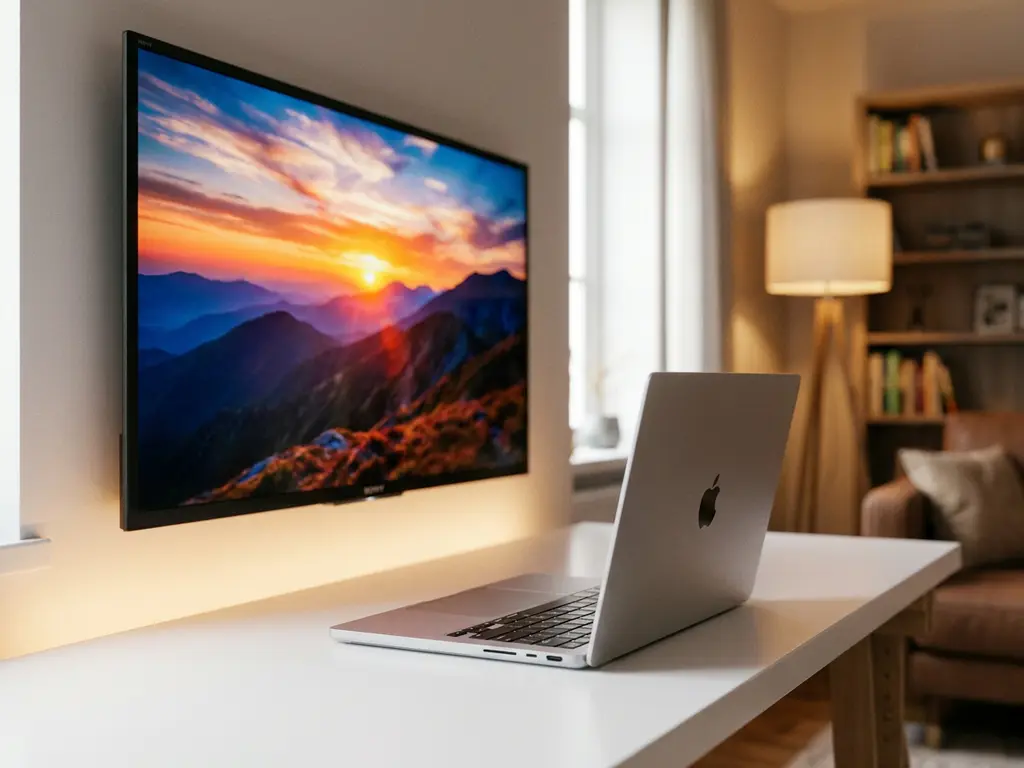
Yes, you can mirror your Mac to a Sony TV wirelessly, and it is easier than you might think. Whether you want to watch a movie on the big screen, run a presentation, or just browse the web without squinting at your laptop, getting your Mac and Sony TV talking to each other wirelessly is completely doable in 2026 without cables or extra hardware.
This guide walks you through everything you need, from setup to troubleshooting, in plain English.
What you need before mirroring your Mac
Before you start, a quick check of a few basics will save you a lot of frustration later. Most connection problems come down to one of these things being off, so it is worth spending two minutes here.
- A Mac running macOS 10.14 (Mojave) or later
- A Sony Smart TV with Wi-Fi capability
- Both your Mac and Sony TV connected to the same Wi-Fi network
- A screen mirroring app installed on your Mac
The same Wi-Fi network part is the one people most often overlook. If your Mac is on a 5 GHz band and your Sony TV is on a 2.4 GHz band, they may not see each other even though both show as “connected.” Check your router settings or temporarily connect both to the same band before you start.
Connect your Mac to Sony TV wirelessly
With your network sorted, you are ready to set up the actual Sony screen mirroring connection. The most reliable method is using a dedicated screen mirroring app, which handles the communication between your Mac and Sony TV without requiring AirPlay or any extra hardware.
- Download a screen mirroring app on your Mac that supports Sony TVs.
- Open the app. It will automatically scan your Wi-Fi network for compatible devices.
- Select your Sony TV from the list of available screens.
- Accept any connection prompt that appears on your TV screen.
- Your Mac display should now appear on your Sony TV within a few seconds.
Once the connection is established, you should see your Mac desktop mirrored on your Sony TV in real time. If the TV shows up in the app but the image does not appear, try turning your Sony TV off and back on, then reconnect. This refreshes the TV’s network connection and resolves most first-time hiccups.
Adjust display and audio settings for best results
Getting the picture on screen is just the first step. A few quick adjustments will make the experience noticeably better, especially if you are watching video or presenting to a group.
Display settings
Open System Settings on your Mac and navigate to Displays. Here you can set the resolution to match your Sony TV for the sharpest image. Most Sony TVs work best at 1080p. You can also choose whether to mirror your screen exactly or extend it as a second display, which is useful if you want to keep private tabs on your Mac while showing something specific on the TV.
Audio settings
By default, your Mac may still send audio through its own speakers rather than the TV. To fix this, go to System Settings, then Sound, and under the Output tab, select your Sony TV as the audio output device. If your Sony TV does not appear as an option, check that your mirroring app supports audio mirroring, as not all of them do.
With display and audio both routing to your Sony TV, you are set up for a smooth, full experience whether you are streaming, presenting, or sharing photos.
Fix common Mac-to-Sony TV mirroring problems
Even with everything set up correctly, you may run into the occasional snag. Here are the most common issues and how to sort them out quickly.
- TV not showing up in the app: Confirm both devices are on the same Wi-Fi network and the same band (2.4 GHz or 5 GHz). Restart your router if needed.
- Laggy or choppy video: Move your Mac closer to the router, or reduce the number of other devices using the network at the same time.
- Connection drops mid-session: This usually points to a weak Wi-Fi signal. A Wi-Fi extender or switching to a 5 GHz connection can help stabilize things.
- No sound on TV: Go back to System Settings and manually set the Sony TV as your audio output, as described in the previous section.
- Black screen on TV: Some apps with DRM protection (like certain streaming services) block screen mirroring by design. Try a different video source to confirm this is the cause.
If none of these steps resolve the issue, restarting both your Mac and your Sony TV and reconnecting from scratch fixes the problem in the majority of cases.
How AirBeamTV helps with Mac-to-Sony TV mirroring
We built our Sony screen mirroring app specifically to make this process as straightforward as possible. No AirPlay, no Apple TV, no cables. Just download, open, and start mirroring.
Here is what you get with our app:
- Automatic detection of your Sony TV on the local network
- HD picture quality with audio mirroring included
- Works with all popular Sony Smart TV models
- Simple three-step setup that takes under a minute
- Compatible with macOS 10.14 and later
With over 20 million downloads and a 4.8 App Store rating, our screen mirroring apps are trusted by everyday users who just want things to work without a technical headache. Download our universal remote control TV app today and get your Mac on the big screen in minutes.