




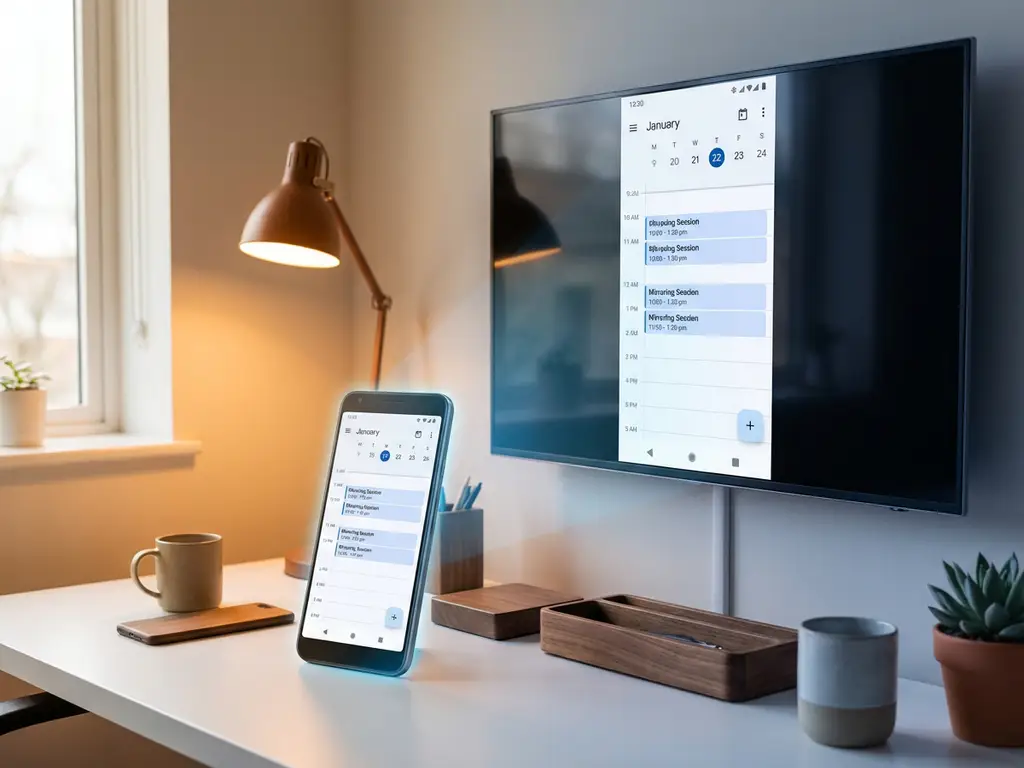
Android screen mirroring lets you wirelessly display your phone or tablet screen on your TV, making it perfect for sharing videos, photos, and apps with friends and family. While most screen mirroring happens on demand when you want to share something specific, you might wonder whether there’s a way to automate this process for regular viewing sessions.
The idea of scheduled screen mirroring appeals to users who want their Android devices to automatically connect to their TV at specific times—perhaps for daily news briefings, workout routines, or entertainment sessions. Let’s explore what automatic scheduling means for Android screen mirroring and what options are actually available.
What is automatic Android screen mirroring scheduling?
Automatic Android screen mirroring scheduling would allow your device to wirelessly connect to your TV at predetermined times without manual intervention. This feature would enable your phone or tablet to automatically start broadcasting its screen to your television based on a set schedule, similar to how you might schedule recordings or reminders.
The concept involves setting up recurring mirroring sessions that activate automatically, potentially displaying specific content such as news apps, weather updates, or streaming services at designated times. For example, you might want your Android device to automatically mirror to your kitchen TV every morning at 7:00 a.m. to show the news while you prepare breakfast.
However, this type of automated scheduling presents technical challenges. Screen mirroring typically requires active user interaction to initiate the connection, including selecting the target TV, confirming the broadcast, and often unlocking the device. Most Android screen mirroring apps prioritize security and user control, requiring manual approval for each mirroring session.
Can AirBeamTV schedule automatic mirroring sessions?
AirBeamTV does not currently offer automatic scheduling features for Android screen mirroring sessions. The app requires manual initiation each time you want to mirror your device screen to your TV, following the standard process of opening the app, selecting your TV, and tapping “Start Mirroring.”
This manual approach aligns with AirBeamTV’s focus on user control and security. Each mirroring session begins when you download the AirBeamTV app, open it on your Android device, select your TV from the drop-down menu, and tap “Start Mirroring,” followed by “Start Broadcast.” Your device screen then appears instantly on the TV display.
The current AirBeamTV process works consistently across different Android devices, including Samsung Galaxy, Google Pixel, OnePlus, and Xiaomi smartphones. While you cannot schedule automatic sessions, the app does remember your TV preferences, making it quick to reconnect to previously used televisions. Once you’ve set up the connection initially, future mirroring sessions require only a few taps to start.
How do you set up recurring Android screen mirroring?
Setting up truly recurring Android screen mirroring requires manual initiation each time, as most apps, including AirBeamTV, don’t support automated scheduling. However, you can streamline the process by keeping your mirroring app easily accessible and maintaining a consistent Wi-Fi connection between your devices.
To create the closest thing to recurring mirroring with AirBeamTV, establish a routine in which you open the app at your desired times. Keep the AirBeamTV app on your home screen for instant access, ensure both your Android device and TV stay connected to the same Wi-Fi network, and select your preferred TV from the drop-down menu.
For content-specific recurring sessions, consider using your Android device’s built-in scheduling features alongside screen mirroring. You can set alarms or reminders that prompt you to start mirroring at specific times, then manually launch AirBeamTV to display your desired content. This approach works well for daily routines such as morning news viewing or evening entertainment sessions. If you need additional help setting up your mirroring routine, you can check the knowledge base for detailed guides.
What are the alternatives to scheduled screen mirroring?
Instead of automatic scheduling, consider using smart TV apps directly for recurring content viewing, or leverage your Android device’s notification and reminder systems to prompt manual mirroring sessions. Many streaming services offer dedicated smart TV applications that can display content without requiring phone mirroring.
Smart TV automation is one alternative approach. Popular TV brands such as Samsung, LG, and Sony offer built-in scheduling features for specific apps and content. You can schedule your TV to automatically open Netflix, YouTube, or news applications at designated times, eliminating the need for phone mirroring altogether. This approach works similarly to how you might mirror iPhone or iPad screens or mirror Mac screens for specific content viewing.
Android automation apps such as Tasker provide another option for creating mirroring reminders. While these apps cannot automatically start the mirroring process due to security restrictions, they can send notifications, open the AirBeamTV app, or even launch specific content on your device at scheduled times. You would still need to manually confirm the mirroring connection, but the setup process becomes more streamlined. For even greater convenience, a universal remote control TV app can help manage your devices from a single interface.
For business or presentation use, consider using wireless display adapters or casting devices that maintain persistent connections. While these require additional hardware, they can provide more automated connectivity options for conference rooms or regular presentation scenarios where Android screen mirroring happens frequently. If you need personalized assistance with your specific setup requirements, feel free to contact us for expert guidance.
