




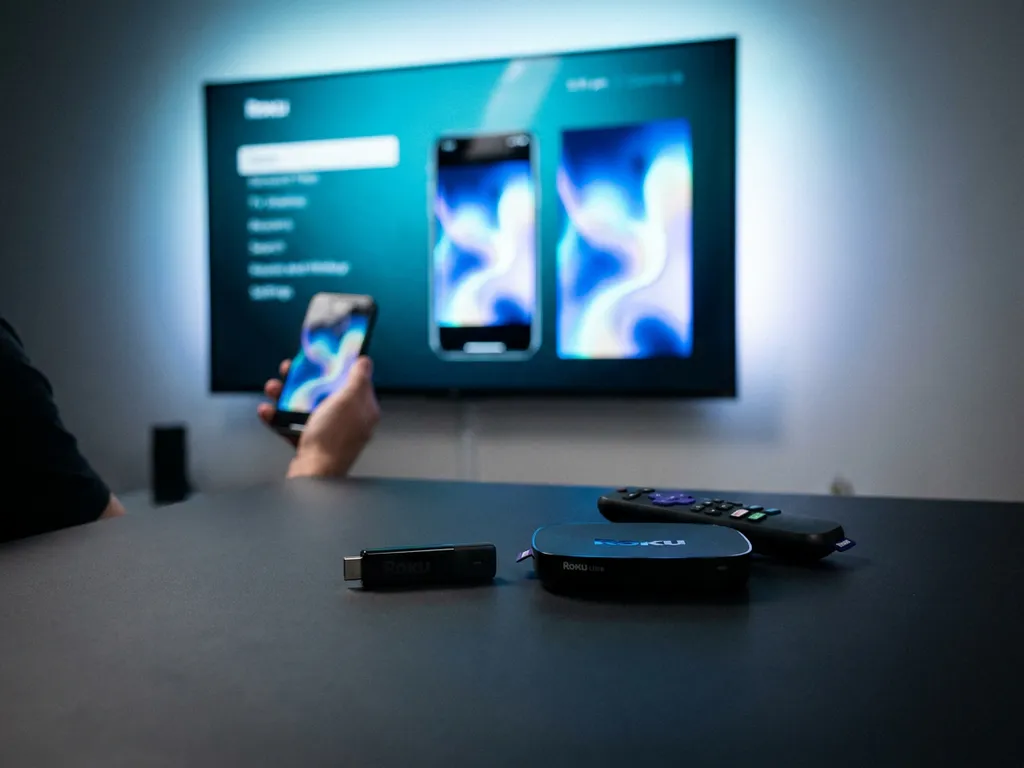
If you have a Roku Express or Roku Ultra and want to mirror your phone or Mac screen to your TV, you are in the right place. Roku devices are popular, affordable, and widely used, but they do not support AirPlay or Chromecast natively, which leaves a lot of people wondering how to get their screen onto the big screen. The good news is that Roku screen mirroring is absolutely possible, and this guide walks you through every step to make it happen.
Below you will find exactly what to prepare, how to set things up, how to start casting, and what to do if something goes wrong.
What you need before mirroring to Roku
Before you start, take a moment to make sure you have everything in place. Skipping this step is the most common reason people run into problems later on.
- A Roku Express or Roku Ultra connected to your TV and powered on
- An iPhone, iPad, Android phone, or Mac you want to mirror from
- A WiFi network that both your Roku and your device are connected to (this is important, they must be on the same network)
- The screen mirroring app installed on your phone or Mac
One thing worth double-checking: your Roku and your phone or Mac need to be on the same WiFi network. If your phone is on a guest network and your Roku is on the main network, mirroring will not work, even if both show a WiFi connection. This catches a lot of people off guard.
Also, confirm your Roku device is updated to the latest software version. You can check this by going to Settings > System > System update on your Roku. Older firmware can sometimes interfere with screen mirroring connections.
Set up AirBeamTV on your Roku device
With your Roku and device on the same network, the next step is getting the receiver app onto your Roku. Think of this as the “listening” side of the connection. Your phone or Mac sends the signal, and the Roku needs something installed to receive it.
- On your Roku remote control app for TV, press the Home button to go to the main screen
- Scroll down and select Streaming Channels
- Select Search Channels and type in AirBeamTV
- Select the AirBeamTV channel from the results and click Add Channel
- Once installed, open the channel and leave it running on your Roku
After opening the channel, you should see a screen on your TV that says the app is ready and waiting for a connection. That confirmation screen is your signal that the Roku side is set up correctly. Leave it open and move to your phone or Mac.
Start screen mirroring from your phone or Mac
Now that your Roku is ready and waiting, it is time to start mirroring from your device. The steps vary slightly depending on whether you are using an iPhone, Android, or Mac.
Mirroring from iPhone or iPad
- Download the AirBeamTV app for Roku from the App Store on your iPhone or iPad
- Open the app and tap Start Mirroring
- Select your Roku device from the list of available screens
- When prompted, tap Start Broadcast to begin casting
Within a few seconds, your iPhone or iPad screen should appear on your TV. You may notice a short delay of one to two seconds, which is completely normal for wireless mirroring.
Mirroring from Android
- Download the AirBeamTV app for Roku from the Google Play Store
- Open the app and tap Start Mirroring
- Select your Roku device from the list
- Follow any permission prompts your Android device shows to allow screen recording
Mirroring from Mac
- Download the AirBeamTV app for Roku from the Mac App Store
- Open the app and click Start Mirroring
- Choose your Roku from the device list
- Your Mac screen will appear on the TV within moments
Whichever device you are using, the verification step is the same: look at your TV and you should see your device screen displayed there. If you see it, you are mirroring successfully.
Fix common AirBeamTV and Roku connection issues
Sometimes the connection does not happen on the first try, and that is okay. Most Roku screen mirroring problems come down to a small number of causes, and they are usually easy to fix.
Here is a quick overview of the most common issues and what to do about each one:
- Roku does not appear in the device list: Both devices must be on the same WiFi network. Check your phone or Mac WiFi settings and compare them to the network your Roku is on (you can find this under Roku Settings > Network > About).
- Connection keeps dropping: Move your router closer to your Roku or your phone, or reduce the number of devices using your WiFi at the same time. A weak signal is the most common cause of dropped connections.
- Black screen on the TV: Close the AirBeamTV app on your device completely and reopen it. Also, make sure the AirBeamTV channel on your Roku is still open and on the waiting screen.
- Mirroring is very laggy: Switch your WiFi router to the 5GHz band if available. The 2.4GHz band is more congested and can cause delays.
- App asks for permissions again: On Android especially, screen recording permissions can reset after an update. Simply grant them again when prompted.
If none of the above resolves the issue, try restarting both your Roku and your phone or Mac, then reconnect to WiFi before attempting to mirror again. A fresh start clears most stubborn connection problems.
How AirBeamTV Helps with Roku Screen Mirroring
We built AirBeamTV specifically for situations like this. Roku does not support AirPlay or Chromecast, which means most people hit a wall when they try to mirror their screen using built-in phone features. Our app bridges that gap without requiring any extra hardware, cables, or complicated settings.
Here is what you get with AirBeamTV for Roku:
- Works with Roku Express and Roku Ultra, as well as other Roku models
- Supports iPhone, iPad, Android, and Mac from a single, straightforward app
- No Apple TV, no AirPlay, no cables required — just your WiFi network
- HD mirroring so what you see on your screen looks great on the big TV
- Simple three-step setup: download the app, open it on your device, start mirroring
With over 20 million downloads and a 4.8 App Store rating, we have helped a lot of people get their screens onto their TVs without the frustration. Ready to give it a try? Download the AirBeamTV app for your device and start watching on the big screen today.