


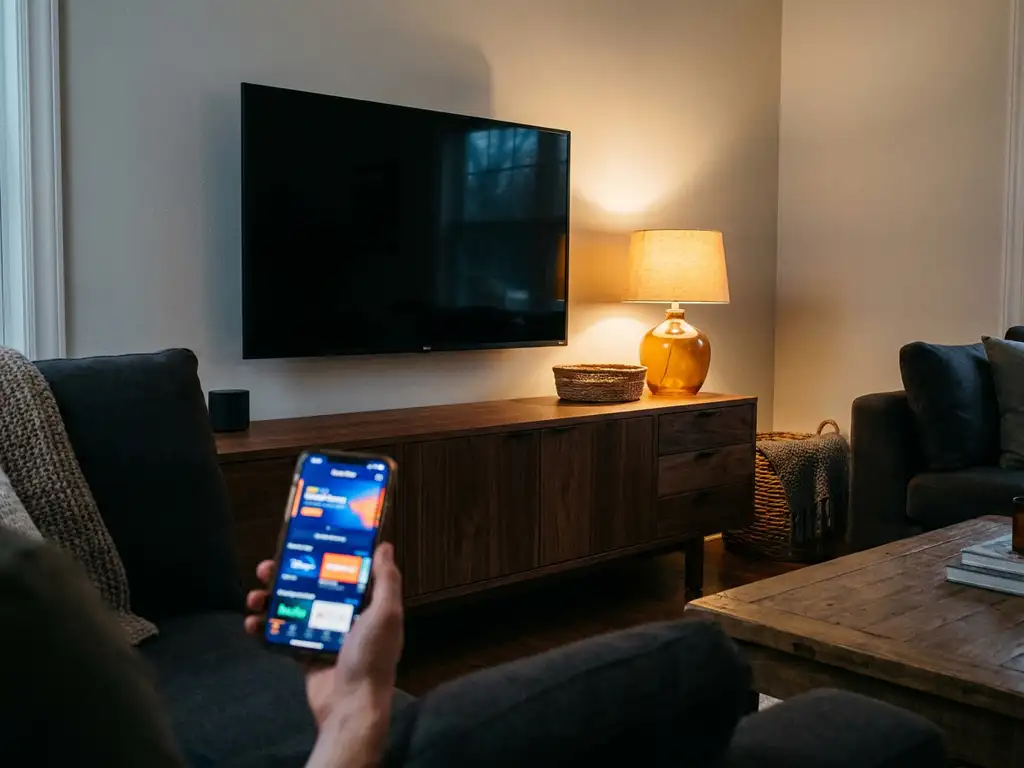
A black screen when mirroring to your Roku TV is one of the most common frustrations people run into, and it almost always has a straightforward fix. Whether you just set everything up for the first time or it suddenly stopped working, this guide walks you through exactly what to check and how to get your screen showing up on the big screen again.
Check your setup before troubleshooting
Before you start changing settings, it helps to confirm that the basics are in place. A black screen is often caused by something simple in the setup rather than a deeper technical problem.
- Your phone or tablet and your Roku TV are connected to the same WiFi network. This is the number one reason mirroring fails silently.
- Your Roku TV has screen mirroring enabled. Go to Settings > System > Screen mirroring on your Roku and make sure it is set to “Always allow” or “Prompt.”
- Your screen mirroring app is open and running on your device, not just installed.
- Your TV input is set to the correct source. If you are using a streaming app or a separate input, switch to the correct one.
Once you have confirmed all of the above, try starting a mirroring session again. If you still see a black screen, move on to the step-by-step fixes below.
Fix the black screen step by step
Work through these steps in order. Most people find their fix within the first two or three.
- Restart your Roku TV. Unplug it from the wall, wait 30 seconds, then plug it back in. This clears temporary glitches that cause display issues.
- Restart your phone or tablet. A fresh start on both devices clears memory and resets the network connection.
- Forget and rejoin your WiFi network on your phone. Go to your WiFi settings, tap on your network, select “Forget,” then reconnect. This forces a clean connection.
- Check your router. If other devices are also struggling with WiFi, restart your router by unplugging it for 30 seconds.
- Move closer to your router. A weak signal is a silent cause of black screens. If your TV and phone are far from the router, try moving closer or using a 5GHz band if available.
- Close background apps on your phone. Too many apps running at once can interrupt the mirroring stream.
After each step, try launching the mirroring session again. You should see your phone screen appear on the Roku TV within a few seconds of connecting. If it connects but the screen is still black, the next section covers a specific and very common cause.
Solve black screen caused by DRM-protected content
This is the fix that surprises most people. If your mirroring session connects successfully but the screen goes black only when you open a specific app, like Netflix, Disney+, or Spotify, the problem is almost certainly DRM (Digital Rights Management) protection. This is not a bug. These apps intentionally block screen mirroring to prevent unauthorized copying of their content.
Here is how to tell if DRM is the cause and what you can do about it:
- Test with a non-protected app first. Open your phone’s camera, a photo, or a website and start mirroring. If that shows up fine on your Roku TV, DRM is blocking the streaming app specifically.
- Use your TV’s built-in apps instead. Open Netflix, Disney+, or whatever service you want directly on your Roku TV. This gives you the full quality stream without any mirroring restrictions.
- For YouTube and browser content, mirroring usually works without issues. Stick to those for casting from your device.
Once you confirm that non-protected content mirrors correctly, you know your setup is working. The black screen with streaming apps is a platform-level restriction, not something wrong with your device or your TV.
When to contact support or reinstall
If you have worked through all the steps above and the screen is still black, it is worth trying a clean reinstall of your screen mirroring app. Delete the app from your device, restart your phone, then download and install it again fresh. This resolves issues caused by corrupted app data or failed updates.
If reinstalling does not help, check whether your Roku TV’s software is up to date. Go to Settings > System > System update > Check now on your Roku. Outdated firmware can cause compatibility issues with newer devices.
How AirBeamTV Helps with Roku Screen Mirroring
If you want a reliable, no-fuss solution for Roku screen mirroring, we built our app specifically to make this as smooth as possible. Here is what you get with AirBeamTV:
- No extra hardware needed. No cables, no Apple TV, no adapters. Just download, open, and mirror.
- Works across all major devices. Whether you have an iPhone, iPad, Android phone, or Mac, we have an app that fits your setup.
- HD mirroring with audio. Your screen and sound both come through clearly on your Roku TV.
- Simple three-step setup. Download the app. Open it on your device. Start mirroring. That is genuinely all it takes.
- Trusted by over 20 million users and rated 4.8 on the App Store.
If you are still running into a black screen or any other issue after following this guide, our support team is ready to help. Reach out through the universal remote control TV app or our website and we will get you sorted out quickly.