



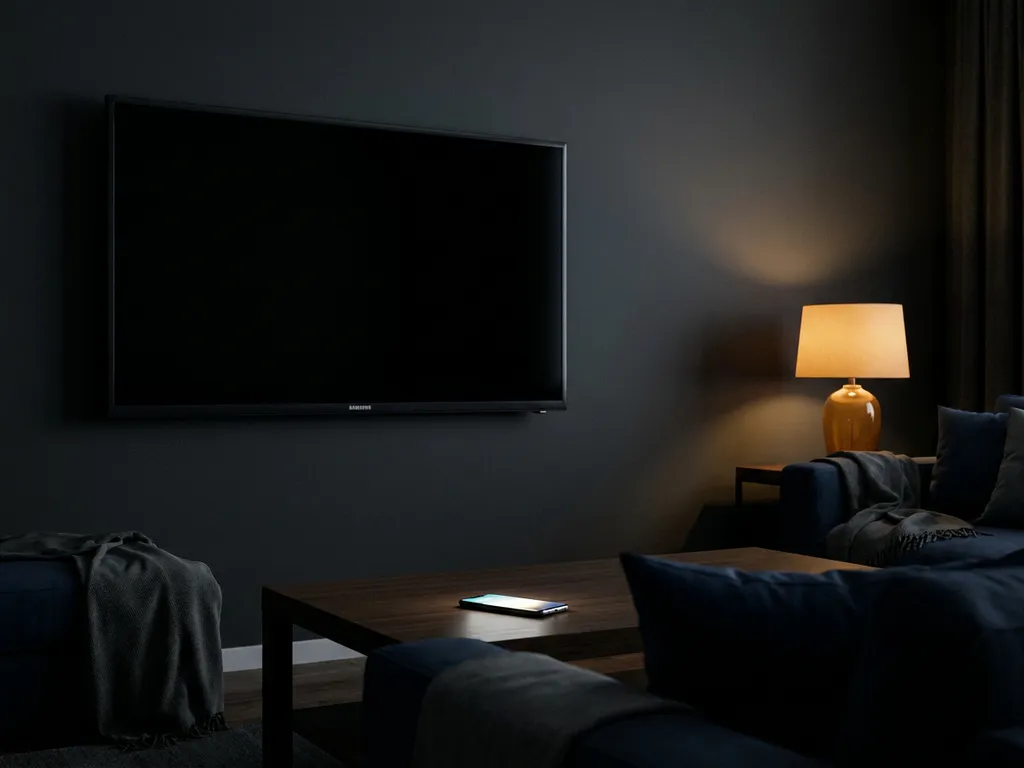
A black screen when you try to mirror your iPhone to your Samsung TV is one of the most common and most frustrating problems people run into. Everything seems connected, the app is open, the TV is on, and yet the screen stays stubbornly dark. The good news is that this issue almost always has a straightforward fix.
This guide walks you through exactly what to check and what to do, in plain English, so you can get your screen up on the big screen as quickly as possible.
Check these settings before anything else
Before jumping into fixes, it helps to rule out the most common causes first. Most black screen issues come down to one of a handful of simple settings, and checking these takes less than two minutes.
- WiFi connection: Your iPhone and your Samsung TV must be connected to the same WiFi network. If your phone is on a guest network or mobile data, mirroring will not work.
- TV input source: Make sure your Samsung TV is set to the correct input. If you are using a screen mirroring app, the TV should be on the right HDMI port or the Smart TV home screen, not a cable channel.
- Bluetooth and WiFi on your iPhone: Both need to be switched on. Go to Settings and confirm neither is toggled off.
- TV software: Outdated Samsung TV firmware can cause display issues. Go to your TV’s Settings, then Support, then Software Update to check.
Once you have confirmed all of the above, try starting the mirror session again. If the black screen still appears, move on to the step-by-step fix below.
Fix the black screen step by step
Work through these steps in order. Most people find the problem resolves within the first three.
- Restart your iPhone. Hold the side button and a volume button, then slide to power off. Wait ten seconds, then turn it back on. This clears any temporary glitches that can block the screen signal.
- Restart your Samsung TV. Unplug it from the wall, wait thirty seconds, then plug it back in. A full power cycle resets the TV’s network stack and display settings.
- Forget and reconnect to your WiFi network on your iPhone. Go to Settings, tap WiFi, tap the network name, then tap Forget This Network. Reconnect by entering your password again. This refreshes the connection both devices share.
- Close the screen mirroring app completely on your iPhone. Swipe up from the bottom of the screen to open the app switcher, then swipe the app away. Reopen it and start a new session.
- Check that your Samsung TV has screen mirroring or casting enabled. On most Samsung models, go to Settings, then General, then External Device Manager, and make sure Device Connection Manager or Screen Mirroring is turned on.
After each step, try launching the mirror session again before moving to the next one. You want to identify the exact cause rather than doing everything at once and not knowing what fixed it.
Resolve black screen caused by content protection (HDCP)
If you followed every step above and still see a black screen specifically when playing a video or streaming app, content protection is likely the cause. This is a very common situation that catches a lot of people off guard.
HDCP stands for High-bandwidth Digital Content Protection. Streaming services like Netflix, Disney+, and Amazon Prime Video use it to prevent their content from being recorded or mirrored. When your iPhone detects that a screen mirroring session is active, some apps automatically block playback and show a black screen instead of the video.
This is not a bug in the mirroring app, and it is not a problem with your TV. It is a deliberate restriction built into the streaming app itself.
Here is what you can do:
- Use your TV’s built-in streaming apps instead. Open Netflix or Disney+ directly on your Samsung TV. This gives you better picture quality anyway and completely sidesteps the HDCP restriction.
- Mirror other content. Photos, videos saved to your camera roll, YouTube, and most websites mirror without any HDCP restrictions.
- Check whether the app has a casting option. Some streaming apps offer a native cast button that works differently from screen mirroring and may not trigger the same block.
Once you understand that HDCP is the cause, the black screen stops feeling like a malfunction and starts making sense. You are not doing anything wrong.
When the black screen keeps coming back
If the black screen appears repeatedly across different sessions, the issue is likely an unstable WiFi connection rather than a one-off glitch. Mirroring sends a continuous stream of data between your phone and TV, and even small drops in signal can interrupt the display.
Try moving your router closer to the TV, or connect your Samsung TV to your router using an Ethernet cable if possible. On your iPhone, turn WiFi off and back on to force it to find the strongest available signal.
It is also worth checking whether other devices on your network are using a lot of bandwidth. Video calls, large downloads, or multiple people streaming at once can all reduce the quality and stability of a mirroring session.
How AirBeamTV helps with black screen mirroring issues
We built our screen mirroring apps specifically to work around the common problems people run into with Samsung TVs and other major brands. When you use our app to mirror your iPhone to your Samsung TV, you get a connection that is optimized for stability and picture quality, without needing Apple TV, cables, or any extra hardware.
- Works directly with Samsung Smart TVs, no additional device required
- Simple three-step setup: download the app, open it, start mirroring
- Supports HD mirroring so your content looks sharp on the big screen
- Compatible with all major Samsung TV models as well as LG, Sony, Panasonic, Hisense, and more
- Trusted by over 20 million users, with a 4.8 rating on the App Store
If you are still seeing a black screen after working through this guide, our app is a reliable next step. Download AirBeamTV for Samsung TV and start mirroring in minutes.