




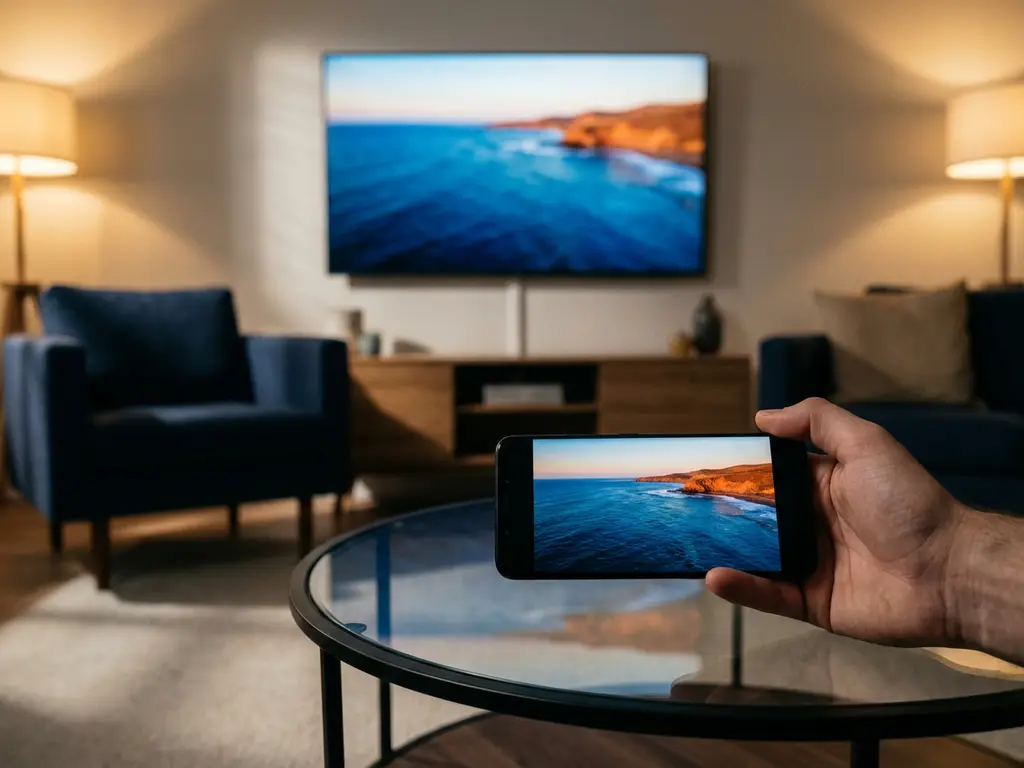
Android screen mirroring has become incredibly popular for sharing content from your phone or tablet to the big screen. Whether you’re streaming videos, showing photos to family, or presenting work content, the quality of your experience depends heavily on your network setup. Many users wonder why their mirroring sometimes stutters or lags, even with what seems like fast internet.
Understanding the bandwidth requirements for Android screen mirroring can help you troubleshoot issues and optimize your setup for smooth, reliable casting. The good news is that most modern home networks can handle screen mirroring just fine with the right configuration.
What network bandwidth does Android screen mirroring require?
Android screen mirroring typically requires 5–25 Mbps of bandwidth, depending on your content and quality settings. For standard-definition content, 5–10 Mbps is usually sufficient, while HD content needs 15–25 Mbps for smooth performance. These requirements apply to your local Wi-Fi network speed, not your internet connection speed.
The bandwidth requirement varies significantly based on what you’re mirroring. Static content like photos or documents uses minimal bandwidth, while streaming video demands much more. When you mirror dynamic content like games or videos, your Android device essentially creates a real-time video stream of your screen that is transmitted to your TV.
Your Wi-Fi network handles this data transfer locally between your Android device and smart TV. This means that even if your internet is slow, you can still have excellent screen mirroring performance as long as your local network is strong. The key is having a stable connection between your phone and router, and between your router and TV.
How does video quality affect screen mirroring bandwidth needs?
Video quality dramatically impacts bandwidth requirements for screen mirroring. Standard-definition mirroring uses about 5–8 Mbps, HD quality requires 15–20 Mbps, and 4K content can demand 25–40 Mbps or more. Higher resolutions and frame rates exponentially increase the amount of data that needs to be transmitted.
When you mirror HD video content, your Android device must encode your screen in real time and transmit that data wirelessly. This process is much more demanding than simply streaming a pre-encoded video file. The device has to capture every pixel change on your screen and compress it quickly enough to maintain smooth playback.
Frame rate also plays a crucial role. Mirroring at 60 frames per second requires roughly double the bandwidth of 30 fps content. Most screen mirroring apps automatically adjust quality based on your network performance, but understanding these requirements helps you set realistic expectations for your setup.
What factors can slow down Android screen mirroring performance?
Wi-Fi signal strength, network congestion, device processing power, and interference from other devices are the primary factors that slow down screen mirroring. Distance from your router, physical obstacles, and competing network traffic can all degrade performance, even with adequate bandwidth.
Your Wi-Fi signal strength matters more than raw internet speed for mirroring. If your Android device or TV has a weak connection to the router, you’ll experience lag and stuttering regardless of your bandwidth. Walls, floors, and other electronics can interfere with Wi-Fi signals, especially on crowded 2.4 GHz networks.
Network congestion occurs when multiple devices use your Wi-Fi simultaneously. Streaming services, downloads, and other connected devices compete for the same bandwidth. Older routers may struggle to prioritize screen mirroring traffic, leading to inconsistent performance.
Your Android device’s processing power also affects mirroring quality. Older phones and tablets may struggle with the real-time encoding required for smooth screen casting, especially when running multiple apps or mirroring resource-intensive content. If you’re experiencing similar issues with other devices, you might want to check out our guides for iPhone and iPad screen mirroring or Mac screen mirroring.
How can you optimize your network for better screen mirroring?
Use a 5 GHz Wi-Fi network, position devices close to your router, close unnecessary apps, and ensure both your Android device and TV have strong Wi-Fi signals. These steps can dramatically improve your screen mirroring experience without upgrading your internet plan.
Switch to 5 GHz Wi-Fi if available, as it offers less congestion and better performance for screen mirroring compared to 2.4 GHz networks. Most modern routers broadcast both frequencies, and 5 GHz typically provides more stable connections for bandwidth-intensive activities like mirroring.
Physical positioning makes a huge difference. Keep your Android device and TV as close to the router as possible during mirroring sessions. Remove physical obstacles between the devices and the router when feasible. Even moving a few feet closer can improve signal strength significantly.
Close background apps on your Android device before starting screen mirroring. Apps running in the background consume processing power and network resources that could otherwise support smooth mirroring. Pause downloads and streaming on other devices while mirroring for the best performance. For more detailed optimization tips, check out our knowledge base.
Why does screen mirroring lag even with fast internet?
Screen mirroring can lag even with fast internet because it depends on local Wi-Fi performance, not internet speed. Processing delays, Wi-Fi interference, and the real-time encoding required for mirroring create latency that internet speed alone cannot solve.
Many people confuse internet speed with local network performance. Your internet connection speed affects downloading and streaming from online services, but screen mirroring happens entirely within your local Wi-Fi network. A gigabit internet connection won’t help if your Wi-Fi signal is weak or congested.
The mirroring process introduces inherent delays as your Android device captures, compresses, and transmits screen data in real time. This encoding process takes time, especially for high-quality content. Even with perfect network conditions, you’ll notice a slight delay between actions on your device and their appearance on the TV.
Wi-Fi interference from neighboring networks, microwaves, baby monitors, and other electronics can cause intermittent lag spikes. These interference issues affect local Wi-Fi performance regardless of your internet speed, which is why screen mirroring can struggle even with premium internet plans. You can also enhance your setup with a universal remote control TV app. If you continue experiencing issues, consider trying AirBeam TV’s screen mirroring solutions or contact us for personalized support.
