




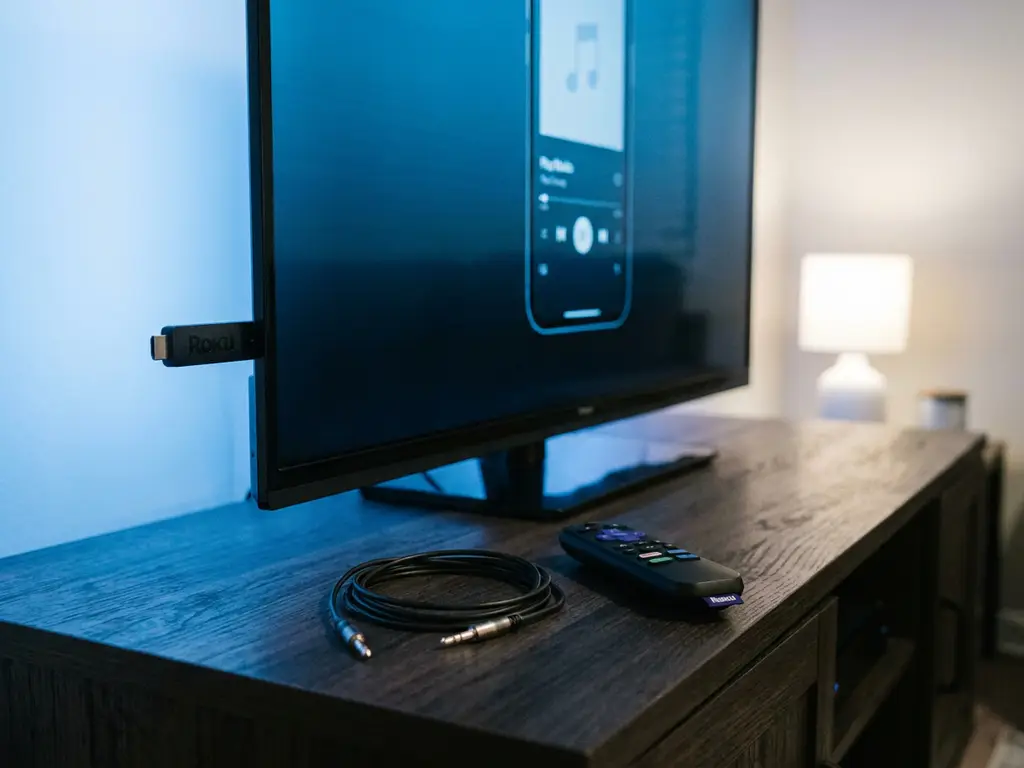
Audio cutting out mid-show. A video playing silently on your big screen. You can see the picture just fine, but there is no sound. If you have run into this during Roku screen mirroring, you are not alone. It is one of the most common complaints, and the good news is that most causes are easy to fix once you know where to look.
This guide walks you through the most likely reasons your Roku mirroring audio is not working and shows you exactly how to sort it out, step by step.
Check your Roku audio settings first
Before you dig into anything complicated, start with Roku itself. Roku has its own audio output settings that can interfere with sound during screen mirroring, and they are easy to overlook.
- Press the Home button on your Roku remote to go to the main screen.
- Go to Settings, then select Audio.
- Look for the Audio mode option. If it is set to Dolby Digital or Auto, change it to Stereo.
- Also check HDMI under the audio settings and make sure it matches what your TV supports.
After making this change, try mirroring again. Switching to Stereo resolves audio problems for a large number of users because some devices cannot send or decode Dolby Digital audio during a live mirroring session. If sound comes through now, you are done. If not, move on to the next step.
Verify volume and mute settings on all devices
This sounds obvious, but it catches people out more often than you would expect. When you are mirroring, there are actually three separate volume controls that all need to be turned up for sound to come through.
- Check the volume on your phone or tablet. Make sure it is not on silent or set to zero. On iPhones, also check the physical mute switch on the side.
- Check the volume on your Roku device using the remote. Press the volume up button a few times to be sure.
- Check the volume on your TV itself. Some TVs have independent volume control separate from Roku.
- If you are using a soundbar or external speakers, check those too.
Once all three are confirmed to be unmuted and turned up, play something on your phone and see whether sound comes through the TV. If the picture is still silent, the issue is likely a format or sync conflict rather than a simple volume problem.
Fix audio sync and format conflicts during mirroring
Audio sync issues and format mismatches are probably the most frustrating part of Roku screen mirroring because the sound either disappears entirely or falls out of step with the video. Here is how to tackle both.
Fixing audio sync (sound out of time with video)
- Stop the mirroring session completely and restart it from scratch.
- Close any other apps running in the background on your phone before you start mirroring again.
- On Roku, go to Settings, then Audio, and look for an Audio leveling or Volume mode option. Turn it off if it is on.
Fixing format conflicts
- Go back to Settings and then Audio on your Roku.
- Set Audio mode to Stereo if you have not already.
- Set HDMI to PCM-Stereo. This is the most widely compatible format and removes most conflicts.
After restarting the mirroring session with these settings in place, audio should play in sync. PCM-Stereo is less demanding on the connection and works across virtually all device and TV combinations, which makes it the safest choice when something is not working.
Resolve no-audio issues caused by app or connection problems
If you have tried everything above and still have no sound, the problem may be coming from the app or the Wi-Fi connection rather than the Roku settings themselves.
- Restart your Wi-Fi router. Unplug it, wait 30 seconds, and plug it back in. A weak or unstable connection is a very common cause of audio dropping out during mirroring.
- Make sure both devices are on the same Wi-Fi network. Your phone and your Roku need to be connected to the same network, not one on 2.4GHz and one on 5GHz if your router broadcasts them separately.
- Force-close the mirroring app on your phone and reopen it. Sometimes the app just needs a fresh start.
- Check for updates. Open your app store and make sure the mirroring app is fully up to date. Also check for Roku system updates under Settings, then System, then System update.
- Forget and reconnect to Wi-Fi on your phone if the problem persists. This refreshes the connection and often clears hidden glitches.
After going through these steps, try a short mirroring session again. In most cases, one of these fixes will get your audio working. If sound still does not come through after all of this, it may be worth trying a different mirroring app for your TV to rule out a software-specific issue.
How AirBeamTV helps with Roku screen mirroring audio
If you keep running into audio problems with your current setup, the mirroring app itself could be part of the issue. We built AirBeamTV specifically to handle the kinds of audio and connection problems that frustrate people most.
- Stable audio output: AirBeamTV streams both picture and sound reliably, so you do not have to choose between the two.
- No extra hardware needed: You do not need an Apple TV, cables, or any additional device. Just download the app, open it, and start mirroring.
- Wide compatibility: AirBeamTV works across all major smart TV brands and streaming devices, including Roku, Fire TV, Samsung, LG, and many more.
- Simple setup: No technical knowledge required. If you can open an app, you can use AirBeamTV.
If Roku screen mirroring audio has been giving you trouble, give AirBeamTV a try. Download the app, connect to your TV, and get back to watching on the big screen the way it should be.