




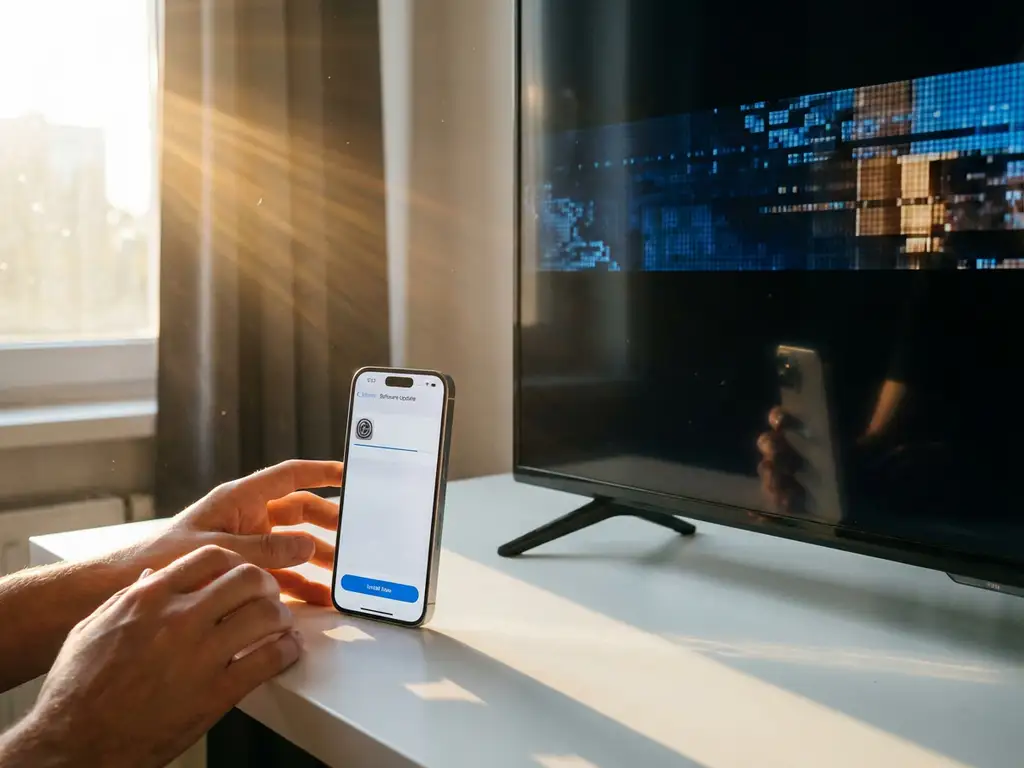
iOS beta updates can be exciting for iPhone users who want to try the latest features before they’re officially released. However, these pre-release versions often come with unexpected side effects that can disrupt your daily routine. One area that’s particularly vulnerable is iPhone screen mirroring, which many users rely on to share content with their TVs.
If you’ve recently installed an iOS beta and noticed your screen mirroring has stopped working or become unreliable, you’re not alone. Understanding what happens during these updates and how to fix common issues can save you hours of frustration.
What happens to screen mirroring when you install an iOS beta?
iOS beta updates can temporarily break or disrupt iPhone screen mirroring functionality due to changes in system protocols and compatibility issues with third-party apps. Beta versions are pre-release software that may contain bugs, incomplete features, or modified networking protocols that affect how your iPhone communicates with TVs and streaming devices.
When you install an iOS beta, several things can affect your screen mirroring setup. The update might reset network permissions, requiring apps to request access to your local network again. Wi-Fi settings and saved network preferences can also be affected, potentially disrupting the connection between your iPhone and TV.
Additionally, iOS beta updates sometimes introduce changes to how the operating system handles wireless protocols. These modifications can create temporary incompatibilities with screen mirroring apps that were designed to work with the previous stable iOS version. The apps themselves aren’t broken, but they may need updates to work properly with the new beta software.
Why does iPhone screen mirroring stop working after iOS beta updates?
iPhone screen mirroring stops working after iOS beta updates primarily because of network permission resets, protocol changes, and temporary incompatibilities between the beta software and existing mirroring apps. Beta updates often modify how apps access your local network, which is essential for discovering and connecting to TVs.
One of the most common causes is that iOS beta updates reset local network permissions for all apps. Screen mirroring requires apps to scan your Wi-Fi network to find compatible TVs and streaming devices. When these permissions are reset, apps can no longer detect your TV, making it appear as if the mirroring function has completely stopped working.
Another frequent issue involves changes to networking protocols within the beta software. Apple sometimes modifies how iOS handles wireless connections in beta versions, which can create temporary conflicts with third-party screen mirroring applications. These apps may need to be updated by their developers to accommodate the new protocols.
Background App Refresh settings can also be affected during beta updates. If screen mirroring apps lose their Background App Refresh permissions, they may struggle to maintain stable connections with your TV, causing frequent disconnections or preventing connections altogether.
How do you fix screen mirroring problems on iOS beta?
To fix screen mirroring problems on iOS beta, start by checking and resetting network permissions, ensuring both your iPhone and TV are on the same Wi-Fi network, and restarting both devices. Most issues can be resolved by re-granting local network access to your mirroring app and refreshing network connections.
First, check your app’s local network permissions. Go to Settings, then Privacy & Security, and select Local Network. Find your screen mirroring app and make sure the toggle is enabled. If it’s already on, try turning it off and back on again to refresh the permission.
Next, verify that both your iPhone and TV are connected to the same Wi-Fi network. Beta updates sometimes cause devices to switch between different network bands or forget saved networks. Check your Wi-Fi settings and reconnect if necessary.
If permissions and network connections look correct, try these additional steps:
- Force-close and reopen your screen mirroring app
- Restart your iPhone by powering it off and on again
- Restart your TV or streaming device
- Check for app updates in the App Store
- Reset network settings if other solutions don’t work
For persistent issues, consider temporarily switching to a different screen mirroring app to see whether the problem is specific to one application. Some apps may adapt to iOS beta changes faster than others. If you’re experiencing similar issues with Android devices, you might find helpful solutions in our Android mirroring guide.
Should you avoid iOS beta if you rely on screen mirroring?
You should consider avoiding iOS beta updates if you heavily rely on iPhone screen mirroring for daily activities, work presentations, or entertainment. Beta software is inherently unstable and can disrupt essential functions without warning, potentially leaving you without reliable screen mirroring when you need it most.
Beta versions are designed for testing and feedback, not for users who need consistent, reliable functionality. If you use screen mirroring regularly for work presentations, streaming content with family, or other important activities, the risk of temporary disruption may outweigh the benefits of early access to new features. For Mac users facing similar concerns, Mac screen mirroring might offer more stable alternatives during beta periods.
However, if you’re comfortable troubleshooting technical issues and don’t mind occasional downtime, iOS beta can be manageable. Many screen mirroring problems are temporary and get resolved as developers update their apps or Apple fixes bugs in subsequent beta releases. When issues persist, you can always check our comprehensive knowledge base for detailed troubleshooting guides.
Consider your usage patterns before deciding. If screen mirroring is a nice-to-have feature you use occasionally, beta testing might be worth the risk. But if it’s an essential part of your daily routine, waiting for the stable iOS release is the safer choice. You can always update to the official version once it’s released and all compatibility issues have been resolved. For additional support with any mirroring challenges, feel free to contact us for personalized assistance. You may also find it helpful to use a universal remote control TV app to manage your devices more effectively during beta periods.
