




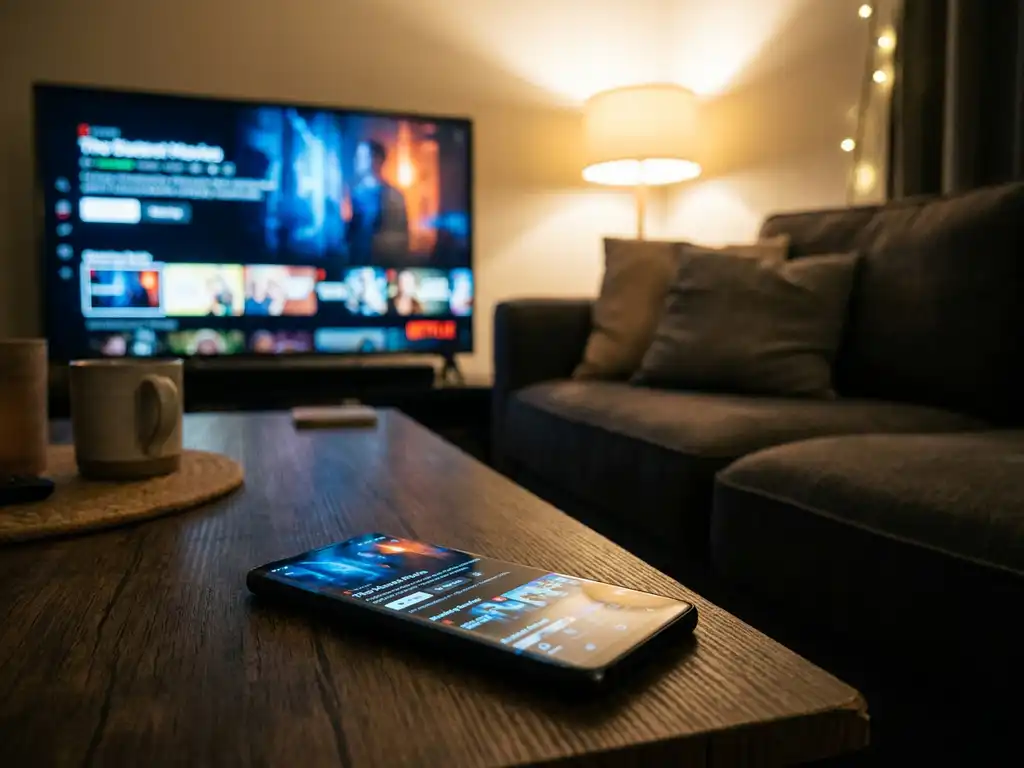
Watching a YouTube video or Netflix show on your Android phone is fine, but the big screen in your living room is so much better. If you have an LG TV and want to mirror your Android screen to it, you are in the right place. This guide walks you through everything you need, from setup to getting the best picture quality, in plain English.
What you need before mirroring Android to LG TV
Before you start, a quick checklist saves you a lot of frustration. Most mirroring problems come down to one of these basics being off, so it is worth taking two minutes to confirm everything is ready.
- A compatible LG Smart TV — Most LG Smart TVs from 2016 onward support screen mirroring. If your TV runs webOS, you are good to go.
- An Android phone or tablet — Any Android device running Android 5.0 or later will work.
- A shared WiFi network — This is the most common reason mirroring fails. Your Android phone and your LG TV must be connected to the same WiFi network. Not the same router with different bands (2.4GHz vs 5GHz) — the exact same network name.
- A stable internet connection — A weak or congested WiFi signal causes lag and dropped connections. If possible, sit reasonably close to your router when you first test things out.
- A screen mirroring app — LG TV’s built-in mirroring options can be hit or miss with Android devices, so a dedicated app gives you a much more reliable experience.
Once you have confirmed all of the above, you are ready to mirror. If your WiFi setup looks fine but things still do not connect later, come back to this list first — it solves most problems.
Connect your Android phone to LG TV step by step
With your checklist confirmed, here is how to get your Android screen showing on your LG TV. Follow these steps in order and you should be up and running in under five minutes.
- Download a screen mirroring app on your Android phone. Open the Google Play Store, search for a mirroring app that supports LG TVs, and install it.
- Open the app and give it any permissions it asks for, such as access to your local network. These are needed for the app to find your TV.
- Make sure your LG TV is switched on and connected to your WiFi network. You can check this in the TV’s Settings menu under Network.
- In the app, tap the button to scan for devices. Your LG TV should appear in the list within a few seconds.
- Tap your TV’s name to connect. Some LG TVs will show a confirmation prompt on screen — accept it to allow the connection.
- Once connected, your Android screen will appear on the TV. You can now navigate your phone as normal and everything will show on the big screen.
You should see your phone’s screen mirrored on the TV within a few seconds of connecting. If the TV name does not show up in the app, double-check that both devices are on the same WiFi network and try scanning again. That fixes it the vast majority of the time.
Fix Android mirroring issues on LG TV
Even when everything looks right on paper, mirroring sometimes refuses to cooperate. Here are the most common issues and how to sort them out quickly.
TV not showing up in the app
Check your WiFi connection first. Go into your phone’s WiFi settings and confirm the network name matches what your LG TV is connected to. If you have a dual-band router (one that broadcasts both 2.4GHz and 5GHz networks), make sure both devices are on the same band. Restart both your phone and your TV, then try scanning again.
Connection keeps dropping
A dropping connection almost always points to a weak WiFi signal. Move closer to your router or restart it. Also check that no other devices are hogging your bandwidth — streaming on multiple devices at once can slow things down enough to cause interruptions.
Screen appears but there is no sound
Check that your phone’s volume is not muted or turned all the way down. Some apps have their own audio settings separate from your phone’s volume. Also confirm that your LG TV’s input source has not been changed accidentally.
Picture is laggy or pixelated
Lag and low picture quality are usually WiFi-related. Try moving closer to your router or switching to a 5GHz network if your router supports it. Closing other apps running in the background on your phone can also free up processing power and smooth things out.
Get the best picture and audio when casting to LG TV
Once your Android is connected and mirroring to your LG TV, a few small adjustments can make a noticeable difference to the quality of what you see and hear.
- Use a 5GHz WiFi network. If your router broadcasts both 2.4GHz and 5GHz, connect both your phone and TV to the 5GHz band. It is faster and less congested, which means smoother video and less lag.
- Close background apps on your phone. Apps running in the background compete for your phone’s processing power. Close anything you are not using before you start mirroring.
- Adjust your LG TV’s picture mode. Go into your TV’s picture settings and switch to a mode like “Cinema” or “ISF Expert” rather than the default “Standard.” These modes are more accurate and less over-processed.
- Turn off motion smoothing on your LG TV. LG’s TruMotion feature can make content look unnaturally smooth. Find it under Picture Settings and set it to “Off” or “Cinematic Movement.”
- Set your phone’s screen brightness to a comfortable level. Mirroring reflects whatever is on your screen, so an overly bright or dim phone display will affect how things look on the TV.
With these tweaks in place, you should get a noticeably sharper, smoother picture. Good audio comes down largely to your TV’s own speaker or soundbar settings, so make sure your LG TV’s audio output is set to the right source and the volume is balanced to your liking.
How AirBeamTV Helps with LG Screen Mirroring
If you want a reliable, no-fuss way to mirror your Android to your LG TV, our app is built exactly for this. We designed it for people who just want it to work — no cables, no extra hardware, no complicated settings to dig through.
Here is what you get with our screen mirroring app for LG TVs:
- Works with all popular LG Smart TV models — webOS and older LG Smart TVs included.
- HD mirroring with audio — your screen and sound both come through on the TV.
- No Apple TV, no Chromecast, no hardware needed — just your phone, your TV, and WiFi.
- Three steps to get started — download the app, open it, start mirroring. That really is it.
- Supports all major Android phones and tablets — Samsung, Google Pixel, OnePlus, and more. You can also use a universal remote control TV app to manage your LG TV directly from your phone.
We have helped over 20 million people get their screens on the big screen, and our app carries a 4.8 rating on the App Store. If you have been struggling with LG screen mirroring or just want a smoother experience, try our LG screen mirroring app and see the difference for yourself.
