




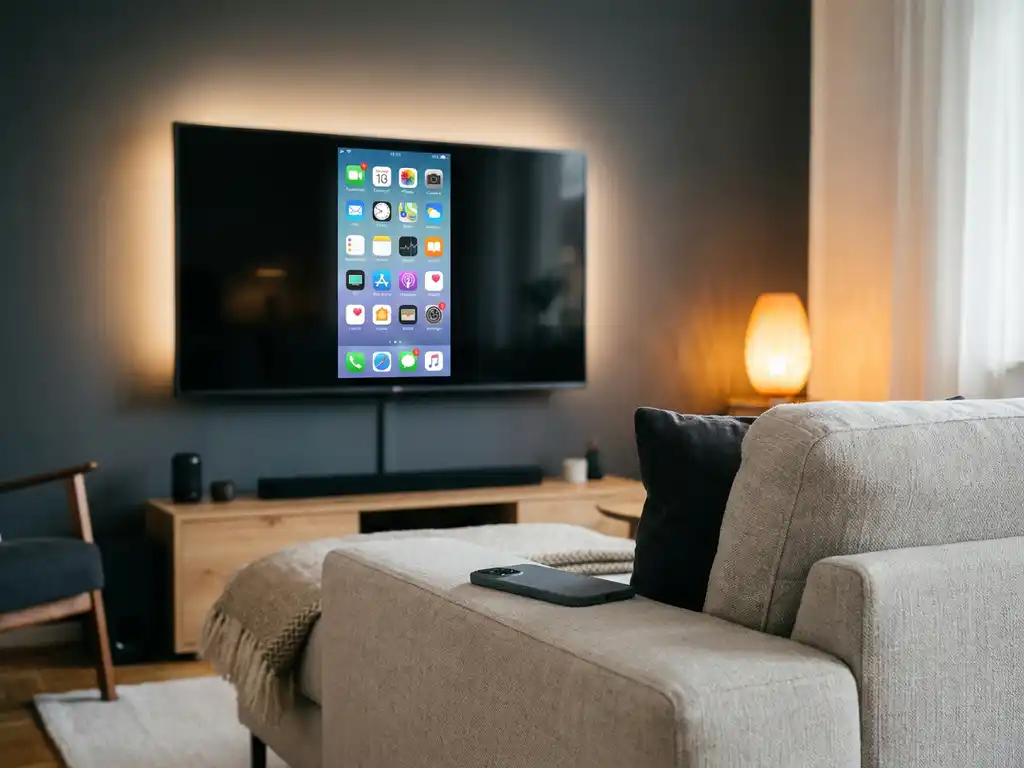
If you have an LG TV and an iPhone or iPad, you have probably wondered whether to use screen mirroring or AirPlay to get your content on the big screen. Both options work wirelessly, but they behave differently and suit different situations. This guide walks you through both methods, compares them side by side, and helps you fix the most common problems that get in the way.
What you need before comparing both options
Before you try either method, make sure you have the right setup in place. Missing one of these basics is the most common reason things do not work from the start.
- An LG Smart TV (2018 or newer models support AirPlay 2; older models support screen mirroring only)
- An iPhone, iPad, or Mac running a recent version of iOS, iPadOS, or macOS
- A stable home Wi-Fi network (both your device and your LG TV must be on the same network)
- The LG ThinQ app or TV remote for navigating settings
One thing worth checking right now: go to your LG TV settings and confirm it is connected to your home Wi-Fi, not a guest network. Your phone or tablet needs to be on that exact same network. If they are on different networks, neither screen mirroring nor AirPlay will connect, no matter what else you try.
How to set up screen mirroring on your LG TV
LG screen mirroring uses a technology called Miracast, which lets compatible Android phones and Windows devices cast their screens directly to the TV. If you are using an iPhone or iPad, your device does not support Miracast natively, so you will need a third-party app for screen mirroring (more on that in the final section). For Android users, here is how to get it working.
- Press the Home button on your LG TV remote to open the main menu.
- Go to Settings, then select All Settings.
- Navigate to Network and look for Screen Share or Miracast. Enable it.
- On your Android device, open Settings and look for Screen Cast, Smart View, or Wireless Display (the name varies by phone brand).
- Select your LG TV from the list of available devices.
- Accept the connection request on your TV if prompted.
After a few seconds, your Android screen should appear on the TV. If you see your phone’s display mirrored on the big screen, the connection is working. The image quality depends on your Wi-Fi signal, so if it looks choppy, move your router closer or reduce interference from other devices.
How to use AirPlay on your LG TV
AirPlay is Apple’s own wireless streaming technology, and LG added support for it on Smart TVs from 2018 onwards. It lets you stream video, photos, and audio from your iPhone, iPad, or Mac directly to your LG TV without any additional app or hardware.
- On your LG TV, go to Settings and then All Settings.
- Select General and look for Apple AirPlay Settings. Make sure AirPlay is turned On.
- On your iPhone or iPad, open the content you want to share (a video, a photo, a browser tab).
- Tap the AirPlay icon (the rectangle with a triangle at the bottom) or open Control Centre and tap Screen Mirroring.
- Select your LG TV from the list. You may be asked to enter a code displayed on the TV screen.
Once connected, your content streams directly from your Apple device to the TV. AirPlay handles video and audio together, so you do not need to adjust anything separately. If your LG TV does not appear in the AirPlay list, double-check that both devices are on the same Wi-Fi network and that AirPlay is enabled in the TV settings.
Screen mirroring vs AirPlay: key differences on LG TV
Both methods get your content onto the TV, but they work in different ways and suit different needs. Here is a straightforward comparison to help you decide which one fits your situation.
- Device compatibility: AirPlay works with iPhone, iPad, and Mac. Screen mirroring (Miracast) works with Android phones, tablets, and Windows PCs. For iPhone users, a screen mirroring app fills the gap.
- What gets shared: Screen mirroring shows everything on your device screen, including notifications and app content. AirPlay can either mirror your full screen or stream specific content (like a video) while your phone stays free to use.
- Audio: Both carry audio to the TV. AirPlay tends to handle audio sync more reliably for video content.
- LG TV requirement: AirPlay requires an LG TV from 2018 or newer. Screen mirroring works on a wider range of LG models.
- Setup effort: AirPlay requires a one-time setup in your TV settings. Screen mirroring is usually ready to use once enabled, but Android settings menus vary by phone brand.
In short, if you have an iPhone and a newer LG TV, AirPlay is the more polished experience for streaming video. If you want to mirror your full screen, or if you are using an Android device, screen mirroring gives you more flexibility.
Fix common connection issues on LG TV
Connection problems are frustrating, but most of them come down to a small number of causes. Work through these fixes in order before assuming something is broken.
AirPlay not showing up on your iPhone
- Confirm both your iPhone and LG TV are on the same Wi-Fi network (not one on 2.4GHz and the other on 5GHz if your router separates them).
- Go to your LG TV settings and check that AirPlay is switched on under Apple AirPlay Settings.
- Restart your router, then restart both the TV and your iPhone.
Screen mirroring dropping or freezing
- Move your phone and TV closer to the Wi-Fi router to strengthen the signal.
- Close background apps on your phone to free up processing power.
- Turn off and back on the Screen Share setting on your LG TV, then reconnect.
If neither method connects after these steps, a full restart of your router often resolves it. Unplug the router for 30 seconds, plug it back in, wait for it to reconnect, and then try again. Most connection issues clear up after this.
How AirBeamTV Helps with LG Screen Mirroring
If you have an iPhone or iPad and your LG TV does not support AirPlay (or you just want a simpler, more reliable option), we have built a solution specifically for this. Our screen mirroring for LG TV app connects your Apple or Android device to your LG TV wirelessly, with no Apple TV, cables, or extra hardware needed.
Here is what you get with our app:
- Works on older LG TVs that do not support AirPlay 2
- Mirror your full iPhone or iPad screen to the TV, including apps, videos, and photos
- Simple three-step setup: download the app, open it on your device, start mirroring
- HD quality streaming over your home Wi-Fi network
- No account required and no complicated configuration
We designed the app for people who want things to just work, without reading a manual. If you are ready to get your screen on the big screen, download the AirBeamTV app for LG TV and start mirroring in minutes.
