




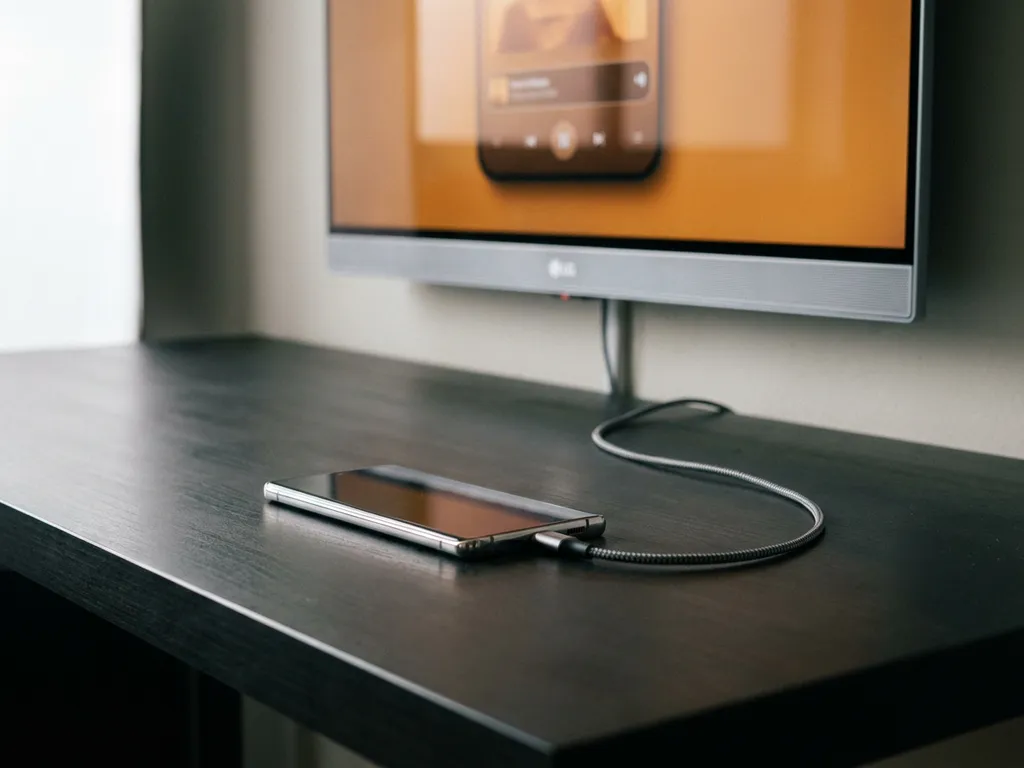
Good news: you do not always need Wi-Fi to mirror your Android screen to an LG TV. Whether your router is down, you are away from home, or you simply want a more stable connection, there are a couple of solid options that work without a traditional Wi-Fi network. This guide walks you through exactly what to do, step by step, in plain English.
Before diving in, it helps to know that “without Wi-Fi” can mean two different things: using Wi-Fi Direct (a direct device-to-device connection that does not need a router) or using a physical cable. Both methods are covered below, so you can pick the one that suits your setup.
What you need before mirroring without Wi-Fi
Getting this right starts with having the right things in place. Rushing past this step is where most people run into problems, so take a minute to check the list below before you start.
- An Android phone or tablet running Android 5.0 or later
- An LG Smart TV (most models from 2016 onward support Wi-Fi Direct)
- For the cable method: a USB-C to HDMI cable or adapter (check that your Android device supports video output over USB-C before buying)
- Both devices fully charged or plugged in — dropped connections often come down to a low battery
One thing worth checking right now: not every Android phone supports video output over USB-C, even if the port looks the same. Look up your phone model and “DisplayPort Alt Mode” to confirm before buying a cable. For Wi-Fi Direct, no cable is needed at all, so that method is often the easier starting point.
Mirror Android to LG TV using Wi-Fi Direct
Wi-Fi Direct lets your Android phone and your LG TV talk to each other directly, without going through a router. Think of it as creating a tiny private network between just those two devices. Your internet will not work during this connection, but your screen will mirror just fine.
- On your LG TV, press the Settings button on the remote, then go to Network and look for Wi-Fi Direct or Screen Share. Enable it and leave the TV on that screen.
- On your Android phone, open Settings, then go to Connected Devices (or Connections on Samsung devices).
- Tap Wi-Fi Direct or Cast depending on your Android version. Your phone will scan for nearby devices.
- Select your LG TV from the list. A prompt may appear on the TV asking you to accept the connection. Confirm it.
- Your Android screen should now appear on the TV. Open a video, photo, or app to test it.
After completing these steps, you should see your phone’s screen mirrored on the LG TV within a few seconds. If nothing appears, double-check that the TV is still showing the Wi-Fi Direct waiting screen and try scanning again on your phone. Some Android devices label this feature “Smart View,” “Screen Mirroring,” or “Wireless Display” instead of Wi-Fi Direct.
Use a USB-C to HDMI cable as a wired alternative
If Wi-Fi Direct feels unreliable or your TV does not support it, a USB-C to HDMI cable gives you a rock-solid wired connection. No scanning, no pairing, no dropped signal. This method works even on older LG TVs as long as they have an HDMI port.
- Plug the USB-C end of your cable into your Android phone and the HDMI end into any HDMI port on your LG TV.
- On your LG TV remote, press the Input or Source button and select the HDMI port you used (for example, HDMI 1 or HDMI 2).
- Your Android screen should appear on the TV automatically. If it does not, pull down your phone’s notification shade and look for a prompt about the USB connection. Select HDMI output or Video if prompted.
Once connected, everything on your phone screen shows up on the TV in real time, including audio. This is the most reliable method of the two, and it works at full HD quality. The only downside is the cable, which limits how far you can sit from the TV.
Fix connection issues when mirroring without Wi-Fi
Running into a problem is frustrating, especially when you have already followed all the steps. The good news is that most issues with LG screen mirroring without Wi-Fi come down to a small handful of causes, and they are usually quick to fix.
Work through this checklist before assuming something is broken:
- TV not showing up in the list: Go back to your LG TV settings and confirm Wi-Fi Direct is still active. The TV sometimes times out while waiting.
- Connection drops after a few seconds: Both devices may be going to sleep. Disable auto-lock on your phone and check the TV’s energy-saving settings.
- Black screen on TV: Some apps block screen mirroring due to content protection (Netflix, for example). Try mirroring a photo or a browser tab instead to test whether the connection itself is working.
- Cable not being recognized: Try a different HDMI port on the TV. Also confirm your USB-C cable supports data and video, not just charging.
- Audio but no picture (or picture but no audio): Restart both devices and reconnect. This usually clears up sync issues.
If you are still stuck after going through the list above, a full restart of both your phone and your LG TV clears most lingering issues. Power them off completely, wait 30 seconds, and try again from the beginning.
How AirBeamTV Helps with LG Screen Mirroring
If you want a simpler, more reliable way to mirror your Android screen to your LG TV, we built an app for exactly that. Our LG screen mirroring app works over your regular Wi-Fi network and is designed to be as straightforward as possible. No complicated settings, no hardware to buy.
Here is what you get with our app:
- One-tap mirroring from your Android phone or tablet to your LG TV
- HD quality video and audio streamed wirelessly
- Works with all major LG Smart TV models
- No Apple TV, no Chromecast, no extra hardware needed
- Simple setup: download the app, open it, and start mirroring
The Wi-Fi Direct and cable methods in this guide are great when you genuinely have no router available. But for everyday use at home, our app gives you a smoother, more consistent experience with far less effort. Download the AirBeamTV app for LG and see your Android screen on the big screen in minutes. You can also manage your TV hands-free with a universal remote control TV app for added convenience.
