




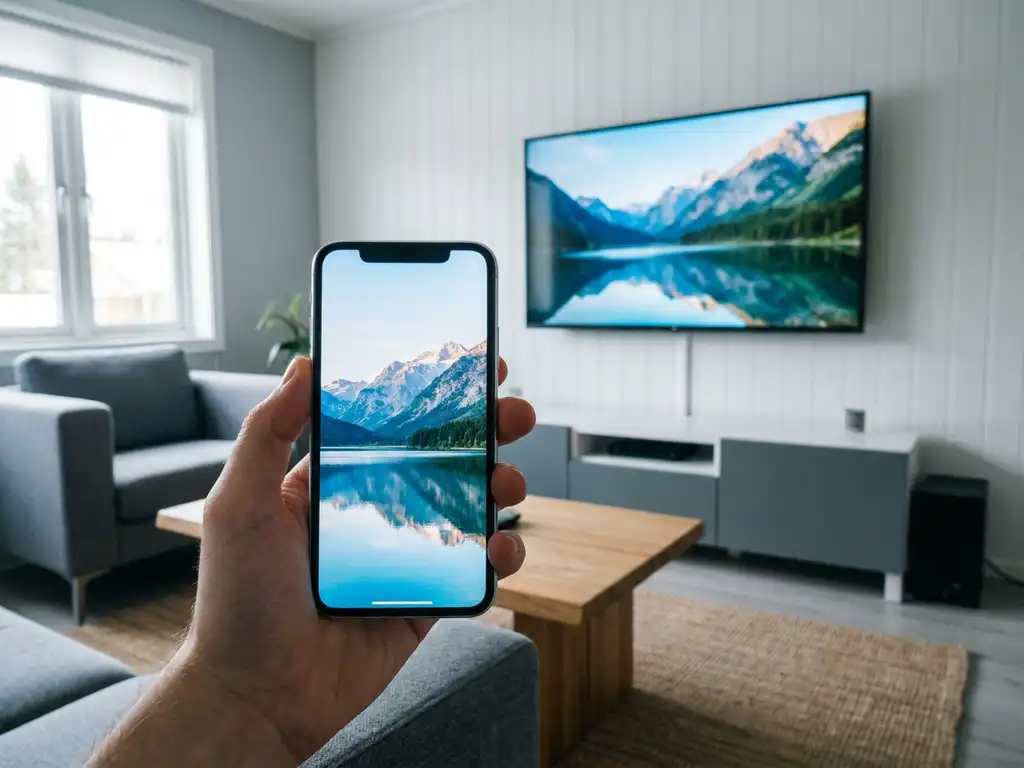
Poor picture quality during screen mirroring is one of the most common frustrations people run into, and it almost always has a fix. Whether your LG screen mirroring looks blurry, laggy, or washed out, the solution usually comes down to a few simple adjustments on your phone, your app, or your TV. This guide walks you through each one so you can get a sharp, clear image on your big screen.
Check your Wi-Fi setup before adjusting anything
Before you touch any settings, check your Wi-Fi connection. Screen mirroring streams video data in real time, so a weak or unstable connection is the most common reason picture quality suffers. No amount of display tweaking will fix a shaky signal.
Here is what to look at first:
- Make sure your phone or tablet and your LG TV are connected to the same Wi-Fi network. This is the number one cause of poor performance.
- Move your router closer to both devices, or move your devices closer to the router. Distance and walls weaken the signal significantly.
- Switch to the 5GHz band on your router if it supports it. The 5GHz band is faster and less congested than 2.4GHz, which makes a real difference for mirroring quality.
- Restart your router if the connection feels sluggish. A quick reboot often clears up interference and drops in speed.
Once you have confirmed a strong, stable connection on both devices, you are ready to look at the app settings. If the picture improves after this step alone, Wi-Fi was the culprit all along.
Adjust the mirroring quality settings in AirBeamTV
With a solid Wi-Fi connection confirmed, the next step is to check the quality settings inside the mirroring app itself. Many users never open these settings, but they make a big difference to how sharp the image looks on your LG TV.
- Open the AirBeamTV app on your device.
- Look for the Settings or gear icon, usually in the top corner of the screen.
- Find the Video Quality or Resolution option.
- Set it to the highest available option, such as HD or 1080p.
- If you are experiencing lag alongside poor quality, try stepping down one level. A slightly lower resolution that runs smoothly will look better than a high-resolution feed that stutters.
After saving your changes, start a mirroring session and watch how the image looks on your LG TV. You should notice a sharper, more detailed picture right away. If the stream stutters or drops, dial the quality back one notch until you find the sweet spot between sharpness and smooth playback.
Optimize your LG TV display settings for mirrored content
Your LG TV has its own picture settings, and the defaults are not always ideal for mirrored content. Most LG TVs ship with a picture mode designed for broadcast TV, which can make mirrored images look over-sharpened, over-saturated, or slightly off. A few quick adjustments fix this.
- Press the Settings button on your LG remote.
- Go to Picture and then Picture Mode.
- Switch from Vivid or Standard to Cinema or Expert mode. These modes are more accurate and better suited to screen mirroring.
- Under Advanced Settings, turn off TruMotion or set it to Off or Cinematic Motion. TruMotion adds artificial smoothing that can make mirrored content look unnatural.
- Check that Sharpness is not set too high. A value between 10 and 20 out of 100 is usually enough. Too much sharpness adds noise to the image rather than improving it.
Once you have updated these settings, your LG TV will display mirrored content more faithfully. Colors will look more natural, and the image will feel cleaner without the artificial processing that the default modes apply.
Fix blurry or pixelated mirroring on LG TV
If the picture still looks blurry or pixelated after the steps above, a few specific issues could be behind it. Work through these one at a time until the image clears up.
- Too many apps running in the background: Close any apps you are not using on your phone or tablet. Background apps consume processing power and bandwidth, both of which affect mirroring quality.
- Your device screen resolution is set too low: Check your device’s display settings and make sure the resolution is set to its highest option. Mirroring sends exactly what your screen shows, so a low-resolution screen produces a low-resolution mirror.
- Interference from other devices: Microwaves, baby monitors, and neighboring Wi-Fi networks can all disrupt your signal. If you notice the picture degrades at certain times of day, interference is likely the cause. Switching to the 5GHz band (as mentioned earlier) helps here too.
- The HDMI input on your LG TV is set to a lower picture quality: If you are using any kind of adapter or switching between inputs, check that the HDMI input your TV is using is enabled for full resolution in the TV’s input settings.
After working through this list, restart both your device and your LG TV, then start a fresh mirroring session. In most cases, one of these fixes will be the one that finally makes the picture look the way it should.
How AirBeamTV Helps with LG Screen Mirroring Quality
We built AirBeamTV specifically to make wireless screen mirroring simple and reliable, without cables, Apple TV, or complicated setup. Our app connects your iPhone, iPad, Mac, or Android device directly to your LG TV over Wi-Fi, and it gives you direct control over the quality of your mirroring session.
Here is what you get with AirBeamTV for LG:
- Adjustable video quality settings so you can balance sharpness and smoothness based on your Wi-Fi speed
- HD mirroring support for a clear, detailed picture on your LG TV
- Audio mirroring included, so sound plays through your TV speakers without extra steps
- No hardware needed, no Apple TV, no adapters, no cables
- Compatible with all popular LG Smart TV models, including OLED and NanoCell ranges
Getting started takes about a minute. Download the AirBeamTV app for your device, open it, select your LG TV from the list, and start mirroring. If you run into any issues, the steps in this guide will help you get the best possible picture quality from your setup.
