




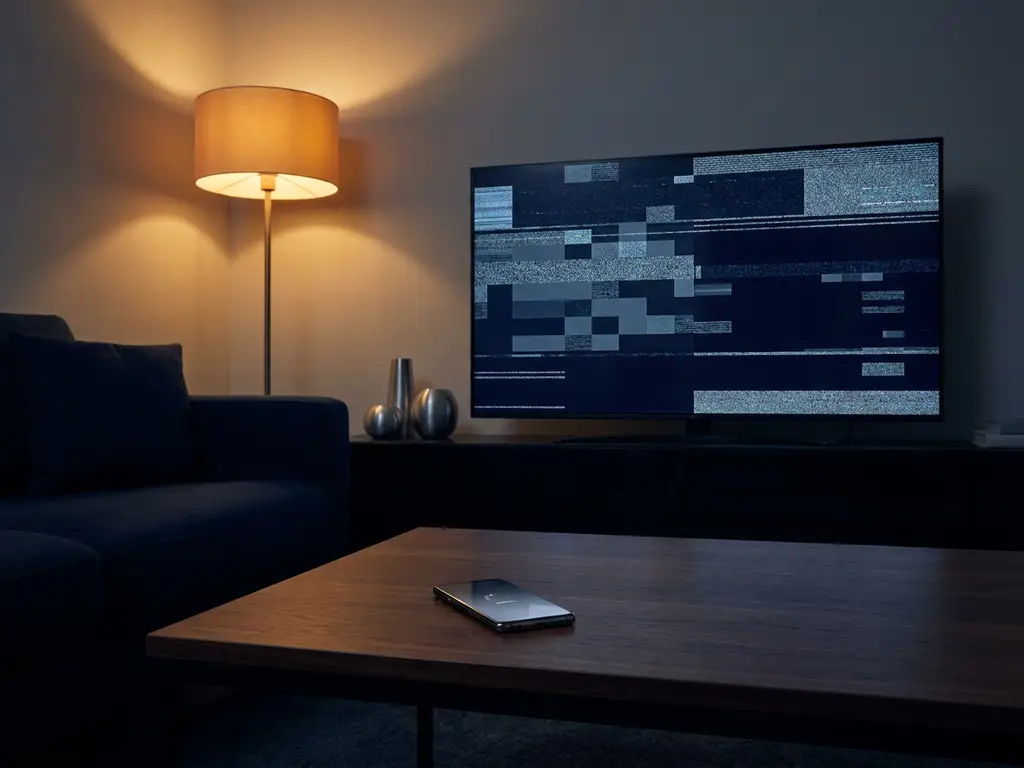
Screen mirroring disconnecting mid-movie on your LG NanoCell TV is one of those problems that feels like it should not happen. You did everything right. You connected, it worked for a minute, and then it dropped. If this sounds familiar, you are not alone, and the good news is that most disconnection issues come down to a handful of fixable causes.
This guide walks you through exactly what to check and change so your LG screen mirroring stays stable. Work through the steps in order, since each one builds on the last.
Check your Wi-Fi setup first
A shaky Wi-Fi connection is the most common reason screen mirroring keeps dropping, and it is worth ruling this out before you touch anything else. Screen mirroring sends a continuous stream of data between your phone or laptop and your TV, so even brief signal dips can break the connection.
- Make sure your phone or laptop and your LG NanoCell TV are both connected to the same Wi-Fi network. If your router broadcasts both a 2.4 GHz and a 5 GHz band, both devices need to be on the same one.
- Move your router closer to the TV if possible, or at least remove any large objects, thick walls, or other electronics sitting between them.
- Restart your router by unplugging it, waiting 30 seconds, and plugging it back in. This clears congestion and often improves stability immediately.
- Check how many other devices are using the network. Streaming, gaming, and video calls on other devices compete for bandwidth and can push your mirroring connection below the threshold it needs.
After restarting your router and confirming both devices are on the same network, try mirroring again. If the connection holds longer than before, Wi-Fi was your problem. If it still drops quickly, move on to the next step.
Adjust LG NanoCell TV settings for stable mirroring
Your LG NanoCell TV has a few built-in settings that can interfere with a stable mirroring session. Two in particular are worth checking: the Simplink (HDMI-CEC) setting and any power-saving features that put the TV into a reduced-activity state.
- Press the Settings button on your LG remote and go to General.
- Find Simplink (HDMI-CEC) and toggle it off. This feature is designed for HDMI devices, but it can sometimes interfere with wireless connections.
- While still in General settings, look for Energy Saving or Eco Mode and set it to Off or Minimum. Energy-saving modes can throttle the TV’s network activity, which disrupts mirroring.
- Navigate to Network settings and confirm that Wi-Fi is active and showing a strong signal. If the signal looks weak, consider using a wired Ethernet connection for the TV instead.
Once you have made these changes, restart the TV fully by holding the power button for five seconds or unplugging it from the wall. A full restart applies the new settings cleanly.
Update and reconfigure the AirBeamTV app
With your TV settings sorted, the next thing to check is the app itself. An outdated version of the app can cause unexpected disconnections, especially after your TV or phone received a recent software update that the older app version was not built to handle.
- Open the App Store for LG TV mirroring (iPhone or iPad) or Google Play Store (Android) and search for the AirBeamTV app.
- If an update is available, install it now. Updates often include stability fixes that directly address connection issues.
- After updating, delete the app from your device and reinstall it fresh. This clears any corrupted cache or saved settings that could be causing the drops.
- Open the app and go through the setup process again from scratch, selecting your LG NanoCell TV when prompted. Do not skip the TV detection step or manually enter settings unless the app asks you to.
Once the app is reinstalled and your TV is detected, start a mirroring session and watch for the first few minutes. A fresh install removes a surprising number of persistent glitches that updates alone cannot fix.
Fix disconnections caused by device sleep and battery settings
Your phone or laptop may be cutting the connection itself, not the TV or the app. Most devices are set up to conserve battery by putting apps to sleep or reducing background activity after a short period of inactivity. During a mirroring session, this can look exactly like a network dropout.
- On iPhone or iPad, go to Settings > Display & Brightness > Auto-Lock and set it to Never while you are mirroring. Remember to change it back afterward.
- On Android, go to Settings > Battery and check for any battery optimization settings applied to your mirroring app. Turn off optimization for that specific app.
- On Mac, go to System Settings > Battery and set the display to stay on for at least as long as your mirroring session will last. Also disable Put hard disks to sleep when possible.
- Keep your device plugged in or charging during longer sessions. Low battery triggers aggressive power-saving behavior on most devices, which can interrupt the connection even if your settings look correct.
After adjusting these settings, run a longer test session of at least 15 minutes. If the connection holds without dropping, a sleep or battery setting was the culprit.
What to do if mirroring still keeps dropping
If you have worked through all the steps above and the connection still drops, a few less obvious causes are worth checking before you give up.
- Check for TV firmware updates. Go to Settings > General > About This TV > Check for Updates on your LG NanoCell. Outdated TV firmware can cause compatibility issues with newer app versions.
- Try a different Wi-Fi band. If your router broadcasts both 2.4 GHz and 5 GHz, try switching both your phone and TV to the other band. Some LG NanoCell models perform better on 5 GHz for mirroring.
- Reduce interference. Microwaves, baby monitors, and neighboring Wi-Fi networks all compete on the 2.4 GHz band. If you are using that band, switching to 5 GHz often solves persistent drops.
- Factory reset your TV network settings. Go to Settings > General > Reset to Initial Settings and reset only the network portion if that option is available. This clears any misconfigured network settings without wiping your app preferences.
Work through these options one at a time so you can identify what actually changed. Changing multiple things at once makes it harder to know what fixed the problem.
How AirBeamTV helps with LG screen mirroring
We built our screen mirroring app specifically to handle the quirks that come with real-world home networks and smart TVs. Rather than relying on AirPlay or Apple TV, our app creates a direct wireless connection between your device and your LG NanoCell TV, which means fewer compatibility layers and fewer things that can go wrong.
Here is what makes mirroring with us different:
- No extra hardware needed. No dongles, no adapters, no Apple TV. Just your phone or laptop and your TV on the same Wi-Fi network.
- LG-optimized performance. Our app is built to work with LG Smart TVs specifically, so the connection is tuned for stability rather than relying on a one-size-fits-all approach.
- Works with iPhone, iPad, Mac, and Android. Whatever device you are mirroring from, we have a version of the app that fits.
- Simple setup. Download the app, open it, select your TV, and start mirroring. No configuration menus, no technical knowledge required.
If you have not tried our app yet, download it from the App Store or Google Play and give it a go. If you are already using it and running into trouble, the steps in this guide cover the most common fixes. You can also visit our support page for help specific to your device and TV combination.
