




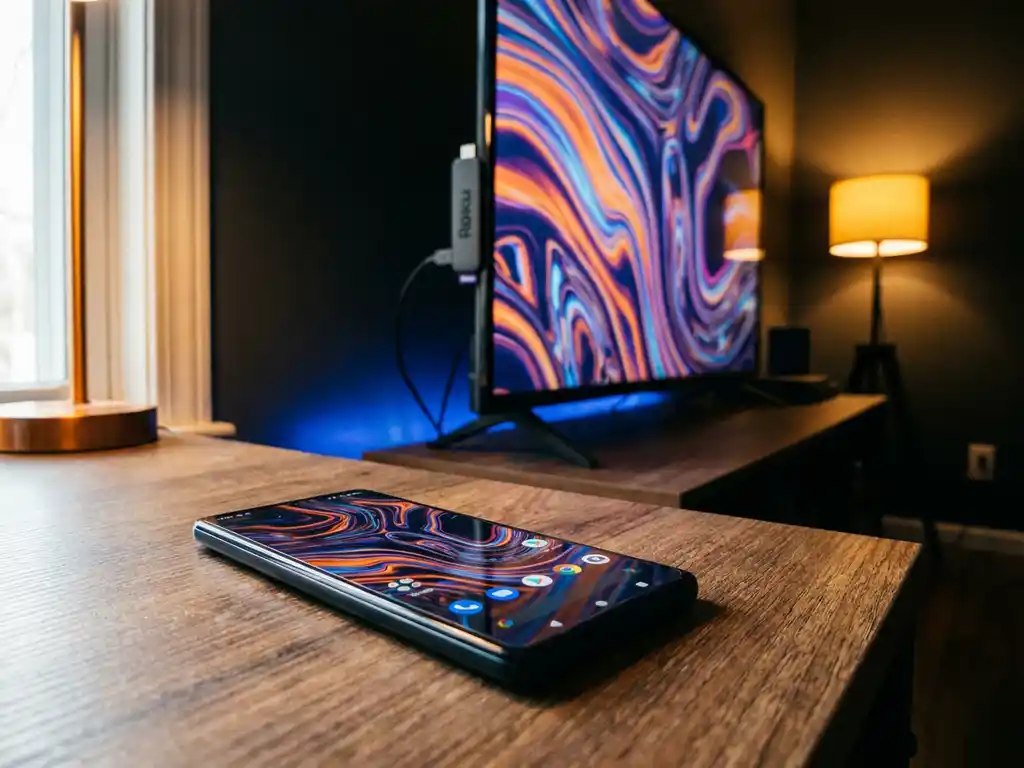
Roku is one of the most popular streaming devices out there, and if you have an Android phone, getting your screen onto the big TV should be straightforward. The good news is that it can be, once you know the right steps. This guide walks you through everything you need to set up Roku screen mirroring from your Android device in 2026, from the initial requirements all the way to fixing the issues that trip most people up.
What you need before mirroring Android to Roku
Before you start, it helps to make sure you have everything in place. Jumping straight into settings without checking these first is the most common reason mirroring fails before it even begins.
- A Roku device that supports screen mirroring. Most Roku sticks and boxes released after 2014 support it, including the Roku Express, Streaming Stick, Ultra, and Roku TV models.
- An Android phone or tablet running Android 5.0 or later. Most phones from the last several years will work fine.
- Both devices on the same WiFi network. This is the single most important requirement. If your phone is on one network and your Roku is on another, mirroring will not work.
- A stable WiFi connection. A 2.4GHz network works, but 5GHz gives you a noticeably smoother experience with less lag.
Once you have confirmed all of the above, you are ready to move on. If you are unsure which WiFi network your Roku is connected to, you can check under Settings > Network > About on your Roku.
Enable screen mirroring on your Roku device
Roku does not have screen mirroring switched on by default on all models, so you need to enable it manually before your Android phone can find it. This takes less than a minute.
- Press the Home button on your Roku remote to go to the home screen.
- Scroll up or down and select Settings.
- Select System, then choose Screen mirroring.
- Under Screen mirroring mode, select Always allow or Prompt. “Always allow” is the easiest option if you just want things to work without extra steps each time.
After saving this setting, your Roku is now ready to receive a connection from your Android device. You should see a small screen mirroring indicator in the Roku interface confirming the feature is active.
Connect your Android phone to Roku
With your Roku set up and ready, the next step is initiating the connection from your Android phone. The exact menu name varies slightly depending on your phone brand, but the process is the same across all Android devices.
- Open the Settings app on your Android phone.
- Look for Connected devices, Connection & sharing, or Display, depending on your phone. Samsung users will find it under Smart View or Quick Connect. Other Android phones often label it Cast or Screen Cast.
- Tap the option and wait a few seconds while your phone scans for nearby devices.
- Select your Roku from the list of available devices.
- If prompted on the Roku TV screen, select Allow to accept the connection.
Your Android screen should now appear on your TV within a few seconds. You will see everything on your phone mirrored in real time, including apps, videos, and your home screen. If the connection takes longer than 30 seconds or nothing appears, move on to the troubleshooting section below.
Fix common Android-to-Roku mirroring problems
Most Roku screen mirroring issues come down to a handful of causes. Here is how to work through the most frequent ones quickly.
Your phone cannot find the Roku
This almost always means the two devices are on different WiFi networks, or one of them has lost its connection. Double-check that both are on the same network. Then restart your router, your Roku, and your phone, and try again.
The connection drops or the picture is choppy
A weak WiFi signal is usually the cause. Move your router closer to the TV if possible, or switch both devices to a 5GHz network. Reducing the number of other devices streaming on the same network at the same time also helps.
The screen mirroring option is grayed out on your phone
Some Android phones disable the cast feature when you are not connected to WiFi, or when battery saver mode is active. Turn off battery saver and make sure WiFi is on, then check again.
Audio plays on the phone but not the TV
Check your phone’s volume and make sure it is not on silent. Some apps also block audio output during mirroring for rights protection reasons. In that case, try a different app or content source.
If none of the above resolves your issue, a full restart of all three components, your phone, your Roku, and your router, solves the majority of stubborn connection problems.
How AirBeamTV Helps with Roku Screen Mirroring
The built-in Android mirroring method works for basic use, but it has real limitations. Lag, dropped connections, and choppy video are common complaints, especially with older Roku models or busy home networks. That is where we come in.
Our screen mirroring apps are built specifically to give you a smooth, reliable connection between your Android device and your TV, without the frustration of native casting cutting out mid-video. Here is what you get with AirBeamTV:
- HD mirroring with audio so you see and hear everything clearly on the big screen
- No extra hardware needed — just download the app, open it, and start mirroring
- Compatibility with all major Smart TV brands including Samsung, LG, Sony, Panasonic, TCL, and streaming devices like Fire TV and Android TV
- A simple three-step setup that works even if you are not a tech person
If you keep running into problems with the standard Android-to-Roku connection, try our screen mirroring app and get your content on the big screen without the hassle. You can also use a universal remote control app for TV to manage your Roku and other devices directly from your phone.
