




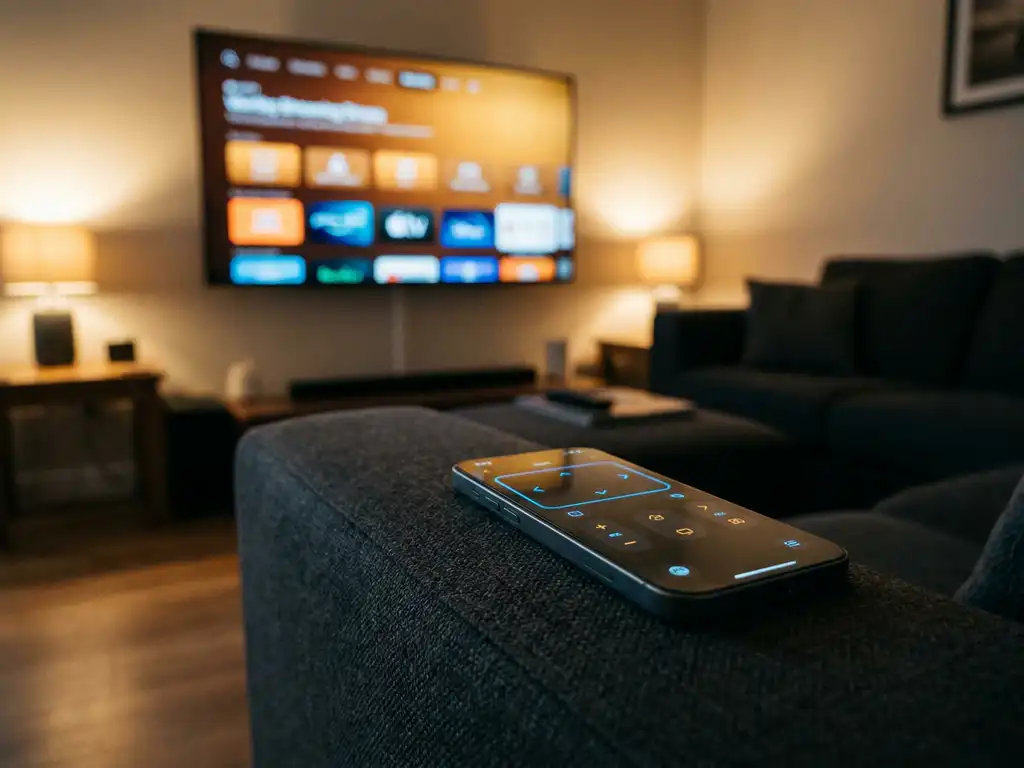
A universal TV remote app is a smartphone or tablet app that lets you control multiple TVs and streaming devices from a single interface, replacing the need for separate physical remotes. Instead of juggling several remotes for different devices, you use one app on your phone to handle everything. Below, we answer the most common questions people have before downloading one.
How does a universal TV remote app actually work?
A universal TV remote app works by sending control signals from your smartphone to your TV over your home Wi-Fi network. When your phone and TV are connected to the same network, the app communicates directly with your TV’s built-in software, sending commands like volume up, channel changes, or input switching, just as a physical remote would.
Most smart TVs today have network-based control protocols built in. The app taps into those protocols, which means no additional hardware or infrared blaster is needed in most cases. You simply open the app, select your TV, and start controlling it. Some apps also use infrared signals if your phone has an IR blaster, but Wi-Fi-based control is now the most common and reliable method.
What devices are compatible with a universal TV remote app?
Most universal TV remote apps are compatible with a wide range of smart TVs and streaming devices, including brands like Samsung, LG, Sony, TCL, Roku, and Amazon Fire TV. Compatibility depends on the app, but the best options support dozens of TV brands and streaming platforms from a single download.
On the controlling side, these apps typically run on both iOS (iPhone and iPad) and Android phones and tablets. As long as your TV or streaming device connects to Wi-Fi and your phone runs a reasonably up-to-date operating system, the chances of compatibility are high. If you are unsure, check the app’s supported device list before downloading.
What’s the difference between a universal remote app and a TV brand’s own app?
The key difference is scope. A TV brand’s own app, such as the Samsung SmartThings app or the LG ThinQ app, only works with that brand’s devices. A universal TV remote app is designed to work across multiple brands and streaming devices, so you can control everything from one place regardless of manufacturer.
Brand-specific apps can sometimes offer deeper integration with features unique to that TV model. However, if you own a mix of devices, a universal remote app is far more practical. You get one consistent interface instead of switching between multiple apps depending on which screen you want to control.
Can a universal TV remote app replace a physical remote?
Yes, a universal TV remote app can fully replace a physical remote for day-to-day use. Modern apps include all the functions you would expect: volume control, channel switching, source selection, mute, and navigation. Many also add a touchpad and on-screen keyboard, which can actually make typing on your TV easier than using a physical remote.
The main advantage of using your phone as a remote is convenience. Your phone is almost always within reach, and you no longer need to hunt for a misplaced remote. The practical limitation is battery life, but since controlling a TV uses very little power, this is rarely a real issue.
Are universal TV remote apps free or do they cost money?
Many universal TV remote apps offer a free version with basic functionality, while more advanced features are available through a paid upgrade or subscription. Free versions typically cover core remote functions, while paid tiers may add things like touchpad input, keyboard support, or multi-device management.
Pricing varies widely between apps. Some charge a one-time fee, others use a subscription model, and a few are entirely free. Before committing, it is worth checking what the free version actually includes for your specific TV model, since feature availability can differ by device.
How do you set up a universal TV remote app for the first time?
Setting up a universal TV remote app takes just a few minutes. The process is straightforward and does not require any technical knowledge or setup codes.
- Download the app from the App Store or Google Play onto your phone or tablet.
- Connect both devices to the same Wi-Fi network. Your phone and your TV need to be on the same network for the app to detect your TV.
- Open the app and select your TV brand or model. The app will scan your network and display available devices.
- Confirm the connection if prompted on your TV screen.
- Start controlling your TV directly from your phone.
Most apps are designed so that you can go from download to full control in under two minutes. If your TV does not appear automatically, you can usually search by brand name or enter your TV’s IP address manually.
How AirBeamTV Helps with TV Remote Control
We built the AirBeamTV Universal TV Remote App to make controlling your TV as simple as possible, whether you are using an iPhone, iPad, or Android device. There are no setup codes, no extra hardware, and no complicated pairing process. Just connect your phone and TV to the same Wi-Fi network, select your TV, and you are in control.
Here is what you get with the app:
- Support for all major TV brands, including Samsung, LG, Sony, TCL, and Roku, as well as streaming devices like Amazon Fire TV
- Full remote control functions: volume, channel switching, source selection, mute, and navigation
- Touchpad and on-screen keyboard for easier text input on your TV
- Haptic feedback so you feel a subtle confirmation with every tap
- One app for all your devices, no matter how many TVs or streaming sticks you own
It works for everyone, whether you are replacing a lost remote, simplifying a shared living space, or just want everything in one place. Download the AirBeamTV Universal TV Remote App today and take control of your TV from your phone, no extra hardware required.
