




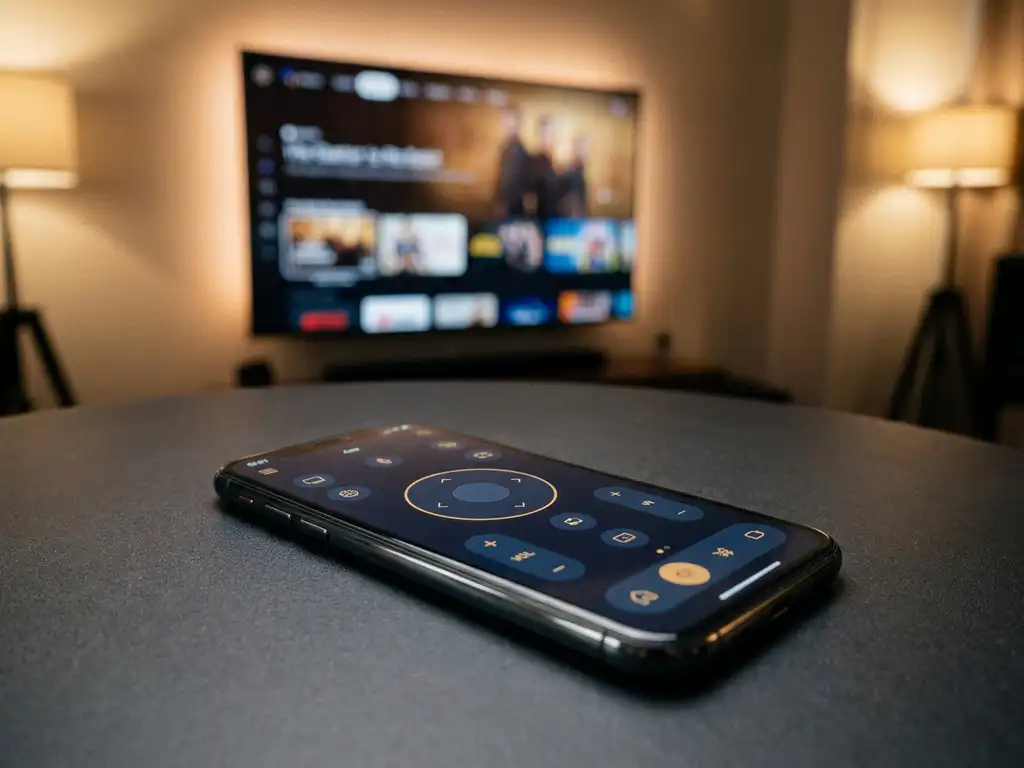
A universal TV remote app works by turning your smartphone into a remote control for your TV and streaming devices. It connects to your TV over your home Wi-Fi network or through your phone’s infrared (IR) blaster, depending on your device. Once connected, it sends the same commands your physical remote would, covering everything from volume and channels to launching apps and keyboard input.
Most modern universal TV remote apps support a wide range of TV brands and streaming sticks, so you can control multiple devices from a single app. Below, we answer the most common questions people have before downloading one.
What can a universal TV remote app actually control?
A universal TV remote app can control the core functions of your TV, including power, volume, channel switching, input selection, and mute. Many apps go further, offering a touchpad for navigation, a keyboard for text input, and shortcuts to popular streaming apps. Some also support streaming devices like Roku and Amazon Fire TV, not just the TV itself.
The exact range of controls depends on the app and your TV model, but most well-built universal remote apps cover the following:
- Basic TV controls: Power on/off, volume up/down, mute, and channel navigation
- Source and input selection: Switch between HDMI ports, antennas, and connected devices
- Smart TV navigation: Browse menus, open apps, and use a touchpad instead of directional buttons
- Text input: Type search terms using your phone’s keyboard instead of pecking through an on-screen alphabet
- Streaming device control: Manage Roku sticks, Amazon Fire TV, and similar devices alongside your TV
The keyboard and touchpad features are where remote apps genuinely outshine physical remotes. Searching for a show title using a standard TV remote is frustrating. Typing it on your phone takes seconds.
How does a phone connect to a TV to work as a remote?
A phone connects to a TV as a remote in one of two ways: over Wi-Fi or through an infrared (IR) blaster. Wi-Fi is the most common method for smart TVs. Your phone and TV join the same wireless network, and the app communicates with the TV directly over that connection. IR blasters send signals the same way a physical remote does, using light pulses your TV’s sensor picks up.
Here is how each connection method works in practice:
- Wi-Fi connection: Your phone and TV connect to the same home network. The app discovers your TV automatically, and you select it from a list. No pairing codes or setup steps are required on most modern smart TVs.
- Infrared (IR) blaster: Some Android phones have a built-in IR blaster at the top of the device. If yours does, the app can send IR signals directly to your TV without needing Wi-Fi at all. iPhones do not have IR blasters, so they rely entirely on Wi-Fi.
Wi-Fi-based control tends to offer more features because it allows two-way communication. The TV can send information back to the app, which enables things like seeing what input is currently active or getting confirmation that a command was received.
Do universal TV remote apps work without Wi-Fi?
Universal TV remote apps can work without Wi-Fi if your phone has a built-in infrared (IR) blaster. In that case, the app sends signals directly to your TV without needing a network connection. However, if your phone does not have an IR blaster (which is true for all iPhones and many newer Android models), the app requires a Wi-Fi connection to function.
If you are not sure whether your Android phone has an IR blaster, check the top edge of your device for a small sensor, or look it up in your phone’s specifications. Without one, your phone and TV both need to be on the same Wi-Fi network for the remote app to work. This is the standard setup for most smart TV users in 2026.
What’s the difference between a universal remote app and a brand-specific remote app?
A universal TV remote app controls multiple TV brands and streaming devices from one place. A brand-specific remote app, such as the official Samsung SmartThings app or the LG ThinQ app, only works with that manufacturer’s products. Universal apps trade some advanced brand-specific features for broad compatibility, while official apps may offer deeper integration with a single brand’s ecosystem.
Here is a quick comparison to make the distinction clearer:
- Universal remote app: Works with Samsung, LG, Sony, TCL, Roku, Fire TV, and more. One app covers your whole setup, even if you have mixed brands at home.
- Brand-specific app: Offers tighter integration with one brand, sometimes including energy monitoring, smart home controls, or exclusive picture settings. Limited to devices from that manufacturer.
For most households, a universal app is the more practical choice. If you have a Samsung TV in the living room and a Roku stick in the bedroom, one universal app handles both. You do not need to switch between multiple manufacturer apps depending on which room you are in.
Why won’t my TV remote app connect to my TV?
The most common reason a TV remote app fails to connect is that your phone and TV are not on the same Wi-Fi network. Other frequent causes include the TV’s network settings blocking incoming connections, the app not supporting your specific TV model, or a temporary glitch that a restart can fix. Running through a short checklist usually resolves the problem quickly.
If your remote app is not connecting, try these steps in order:
- Check your Wi-Fi network: Make sure both your phone and TV are connected to the same network. If you have a 2.4 GHz and a 5 GHz band with the same name, try switching one device to match the other.
- Restart your TV and phone: A simple reboot clears temporary connection errors on both sides.
- Check your TV’s network permissions: Some smart TVs have a setting that blocks connections from other devices. Look for options like “IP Control,” “Device Connection,” or “Remote Access” in your TV’s network or general settings menu.
- Confirm your TV model is supported: Not every app supports every TV. Check the app’s compatibility list before assuming the connection is broken.
- Reinstall the app: If nothing else works, delete and reinstall the app to clear any corrupted data.
Most connection issues come down to the same network requirement. Once your phone and TV are on the same Wi-Fi, the app can usually find the TV automatically within a few seconds.
How We Can Help with TV Remote Control
We built the AirBeamTV Universal TV Remote App to make controlling your TV as simple as possible, whether you are switching inputs, searching for a show, or managing multiple devices across your home.
Here is what you get with our app:
- Works with all major TV brands: Samsung, LG, Sony, TCL, Philips, Hisense, and more
- Streaming device support: Control Roku and Amazon Fire TV alongside your TV from one app
- Full remote functions: Volume, channels, source selection, mute, and power
- Touchpad and keyboard input: Navigate menus and type searches without the frustration of on-screen keyboards
- Haptic feedback: Your phone confirms every button press so you know the command went through
- No setup codes or extra hardware: Connect your phone and TV to the same Wi-Fi, select your TV model, and you are in control
Available for both iPhone and Android, the app is designed to be easy for anyone to use, regardless of how tech-savvy you are. Download the AirBeamTV Universal TV Remote App today and replace the remote you keep losing down the back of the sofa.
