




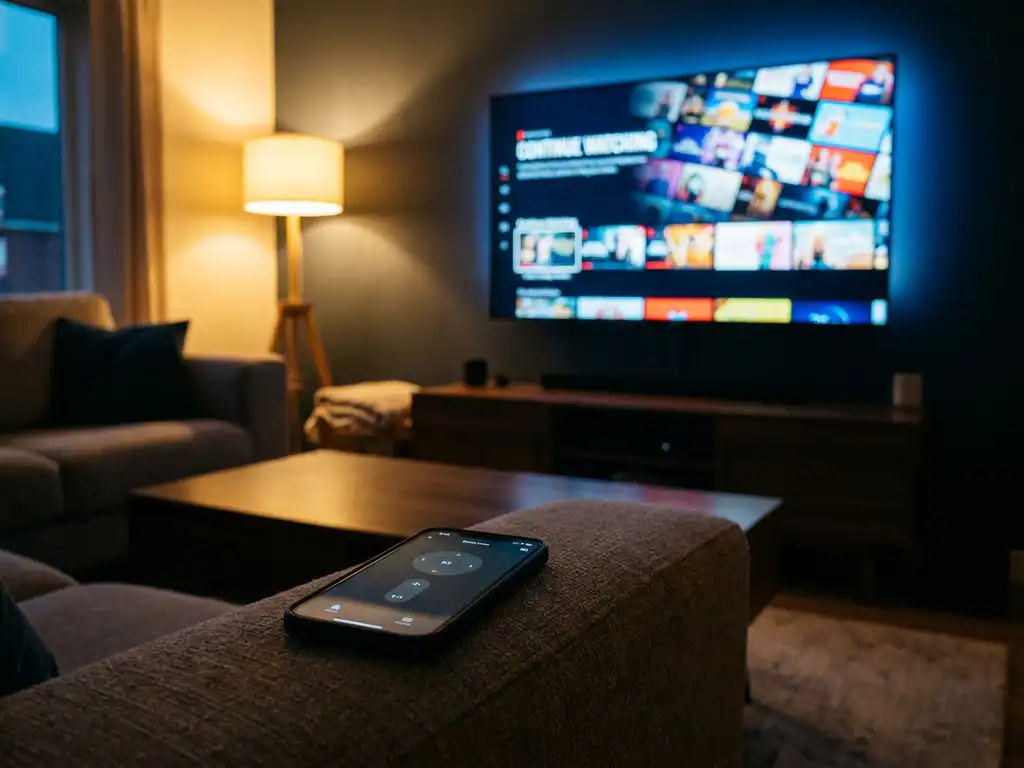
A universal TV remote app lets you control your TV’s core functions directly from your smartphone or tablet. That includes power, volume, channel switching, input selection, and navigation through your TV’s menus. Most apps also extend control to streaming devices like Roku or Amazon Fire TV, making your phone the only remote you need. Below, we answer the most common questions people have before downloading one.
Which TV functions can a remote app actually control?
A universal TV remote app can control the most used TV functions: power on and off, volume up and down, mute, channel switching, input or source selection, and full menu navigation using directional buttons. Many apps also include a touchpad mode and a virtual keyboard, which makes typing search terms on your TV much easier than using arrow keys.
Beyond the basics, more capable remote apps support additional functions like adjusting picture settings, accessing your TV’s settings menu, and switching between HDMI inputs. The exact range depends on your TV model and the app you use, but for everyday use, a good remote app covers everything a physical remote does and often adds features a standard remote does not have, like a touchpad or haptic feedback that confirms each button press.
Can a TV remote app control streaming apps like Netflix or YouTube?
Yes, a universal TV remote app can control streaming apps like Netflix and YouTube, but with an important distinction. The app controls your TV or streaming device, which then opens and navigates those services. You are not directly controlling Netflix through the remote app itself. Instead, you use the remote app to launch Netflix on your TV and browse within it, exactly as you would with a physical remote.
If you are using a streaming device like Roku or Amazon Fire TV, a remote app that supports those devices will give you full control over their interfaces, including quick access to streaming apps installed on them. This makes it straightforward to jump between services without hunting for a physical remote.
What’s the difference between a universal remote app and a screen mirroring app?
A universal remote app replaces your physical TV remote by letting you control your TV from your phone. A screen mirroring app does something different: it sends your phone or tablet’s screen content to your TV so you can watch it on the big screen. They solve two different problems and are not interchangeable.
Think of it this way. A remote app is about control. A screen mirroring app is about content. With a remote app, your TV plays what it would normally play, and you just navigate it from your phone. With a screen mirroring app, whatever is on your phone’s screen, a video, a photo, a presentation, appears on your TV instead. Some users benefit from having both: one to cast content from their device, and one to control the TV when the physical remote is out of reach.
Does a universal TV remote app work with all TV brands?
Most universal TV remote apps support the major smart TV brands, including Samsung, LG, Sony, TCL, Hisense, Philips, and Panasonic. They also typically support popular streaming devices like Roku and Amazon Fire TV. However, not every app supports every brand equally, so it is worth checking compatibility with your specific TV model before downloading.
Older TVs or less common brands may have limited or no support. The connection method also matters. Most modern smart TVs connect over Wi-Fi, which gives the app full control. Some apps also use infrared (IR) if your phone has a built-in IR blaster, which can extend compatibility to older non-smart TVs. If your TV is a recent model from a major brand, you are very likely covered.
What does your phone need to use a TV remote app?
To use a universal TV remote app, your phone needs to be connected to the same Wi-Fi network as your TV. That is the main requirement. Both your phone and your smart TV need to be on the same home network for the app to detect and communicate with the TV. No special hardware, cables, or setup codes are required.
Beyond Wi-Fi, you need a compatible smartphone, either an iPhone, an iPad, or an Android device, with the remote app installed. Your TV needs to be a smart TV or a supported streaming device. If your phone has an IR blaster (a feature found on some Android phones), some apps can also use that to control TVs that are not connected to Wi-Fi, though this is less common on newer phones.
When should you use a remote app instead of a physical remote?
A remote app is more useful than a physical remote in several specific situations. If your physical remote is lost, broken, or out of battery, a remote app gets you back in control immediately. It is also significantly better for typing, since searching for a show on a smart TV with a standard remote is slow and frustrating, while a virtual keyboard on your phone takes seconds.
Remote apps also shine when you want to control your TV from across the room without line-of-sight issues, or when multiple people in a household want to take turns controlling the TV from their own phones. For anyone who frequently uses streaming devices like Roku or Fire TV, a remote app often provides a cleaner, faster interface than the physical remote that came in the box.
How AirBeamTV Helps with TV Remote Control
We built the AirBeamTV Universal TV Remote App to make controlling your TV as simple as possible, with no setup codes, no extra hardware, and no frustration. Here is what you get:
- One app for all your devices: Control your smart TV and streaming devices like Roku and Amazon Fire TV from a single app, whether you are on iPhone, iPad, or Android.
- Full remote functions: Power, volume, mute, channel switching, source selection, and full menu navigation are all included.
- Touchpad and keyboard input: Navigate menus with a touchpad and type searches with your phone’s keyboard instead of clicking through letters one by one.
- Haptic feedback: Every button press gives you a small vibration so you know it registered, even without looking at the screen.
- Wide brand support: Works with Samsung, LG, Sony, TCL, Roku, Amazon Fire TV, and more.
- No setup codes needed: Connect your phone and TV to the same Wi-Fi network, select your TV model, and you are ready to go.
If you are also looking to share your phone or tablet screen on your TV, our screen mirroring apps pair perfectly with the remote app for a complete home entertainment setup. Download the AirBeamTV Universal TV Remote App today and turn your phone into the only remote you need.
