




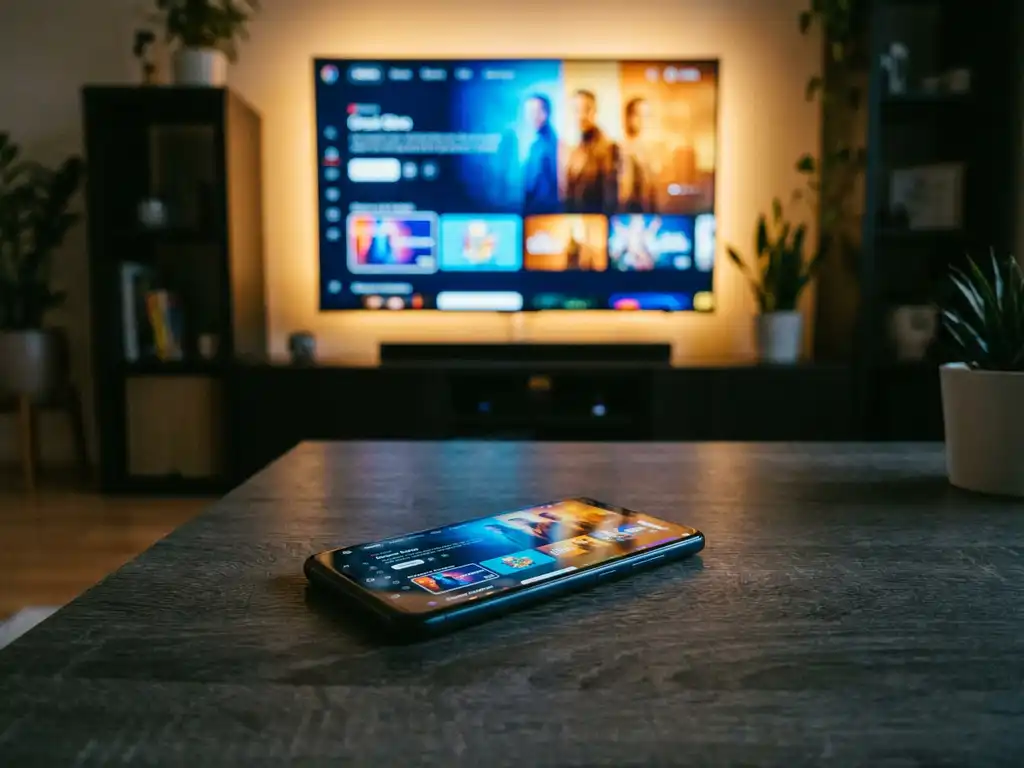
Yes, a universal TV remote app works with Android phones. As long as your Android phone and your TV are connected to the same Wi-Fi network, the app can communicate with your TV wirelessly — no infrared blaster required. Below, we answer the most common questions people have before downloading one.
How does a universal TV remote app work on Android?
A universal TV remote app on Android works by sending commands to your TV over your home Wi-Fi network. Your phone and your TV connect to the same router, and the app uses that shared connection to replicate the functions of a physical remote — changing channels, adjusting volume, switching inputs, and more.
Most modern smart TVs support a communication protocol called Wi-Fi Direct or a similar standard that allows apps to discover and control them wirelessly. When you open a universal TV remote app, it scans your network for compatible devices, you select your TV model, and the connection is established. No pairing codes, no cables, no extra hardware.
Some older TVs rely on infrared (IR) signals rather than Wi-Fi. Those models require your phone to have a built-in IR blaster — a feature that was common on Android phones a few years ago but is less standard today. If your phone does not have an IR blaster, a Wi-Fi-based app is the better option, provided your TV is a smart TV.
Which TV brands are compatible with Android remote apps?
Most major smart TV brands are compatible with Android remote apps in 2026. Samsung, LG, Sony, TCL, Hisense, Philips, Panasonic, and Roku TVs all support Wi-Fi-based remote control through third-party apps. Streaming devices like Amazon Fire TV and Roku sticks are also widely supported.
Compatibility depends on two things: whether your TV connects to Wi-Fi, and whether the app you choose supports your specific TV brand. The good news is that most universal remote apps are built to cover a broad range of brands, so if you own a popular smart TV, you are very likely covered.
If you are unsure whether your TV is supported, check the app’s compatibility list before downloading. Most reputable apps list supported brands and models clearly on their app store page.
What’s the difference between a remote app and screen mirroring?
A remote app controls your TV — it replaces your physical remote. Screen mirroring, on the other hand, broadcasts what is on your phone screen directly to your TV. They are two different functions, even though both involve your phone and your TV working together.
Think of it this way: a remote app lets you navigate your TV’s built-in apps, change the volume, and switch inputs — just like a regular remote. Screen mirroring lets you show your phone’s screen on the TV, so whatever you are watching or doing on your phone appears on the big screen.
- Remote app: Controls the TV itself. You browse the TV’s own interface.
- Screen mirroring: Casts your phone’s screen to the TV. You browse on your phone, and the TV displays it.
Many people use both. You might use a remote app to switch inputs and adjust volume, and a screen mirroring app to share a video from your phone that is not available on your TV’s built-in apps.
Why won’t my Android phone connect to my TV remote app?
The most common reason an Android phone fails to connect to a TV remote app is that the phone and the TV are not on the same Wi-Fi network. This is the first thing to check. Both devices need to be connected to the same router — not one on 2.4GHz and the other on 5GHz if your router treats them as separate networks.
Here are the most frequent causes and how to fix them:
- Different Wi-Fi networks: Make sure your phone and TV are both connected to the same network name (SSID).
- TV not in discovery mode: Some TVs need to have network control or remote access enabled in their settings. Check your TV’s network or system settings.
- Firewall or router restrictions: Some routers block device-to-device communication. Try toggling your router’s “AP isolation” or “client isolation” setting off.
- App permissions: Make sure the remote app has permission to access your phone’s local network. Check your Android app permissions settings.
- TV model not supported: Double-check that your specific TV model is listed as compatible with the app you are using.
If none of these solve the issue, restarting both your phone and your TV often clears temporary connection problems.
Should I use a remote app or a screen mirroring app for Android?
It depends on what you want to do. If you just want to control your TV without getting up to find the remote, a remote app is the right choice. If you want to watch content from your phone on a bigger screen, screen mirroring is what you need. Many users find that having both covers all their needs.
Ask yourself these questions:
- Do you want to control your TV’s built-in apps? Use a remote app.
- Do you want to show your phone screen on the TV? Use a screen mirroring app.
- Do you want to do both? Look for solutions that offer both functions.
How AirBeamTV Helps with TV Remote and Screen Mirroring on Android
We built the AirBeamTV Universal TV Remote App to make both of these things simple. The app turns your Android phone into a full remote control for your TV and streaming devices — no setup codes, no extra hardware, no frustration.
Here is what you get:
- Full remote control functions: Volume, channel switching, source selection, mute, and more.
- Touchpad and keyboard input: Navigate your TV the way you navigate your phone.
- Support for all major brands: Samsung, LG, Sony, TCL, Roku, Amazon Fire TV, and more.
- Haptic feedback: Feel every button press, so you know your input registered.
- No hardware required: Just connect your phone and TV to the same Wi-Fi network, select your TV, and start controlling.
And if you want to go a step further and mirror your Android screen to your TV, we have Android screen mirroring apps for that too. Download the AirBeamTV Universal TV Remote App today and take control of your TV from your phone.
