




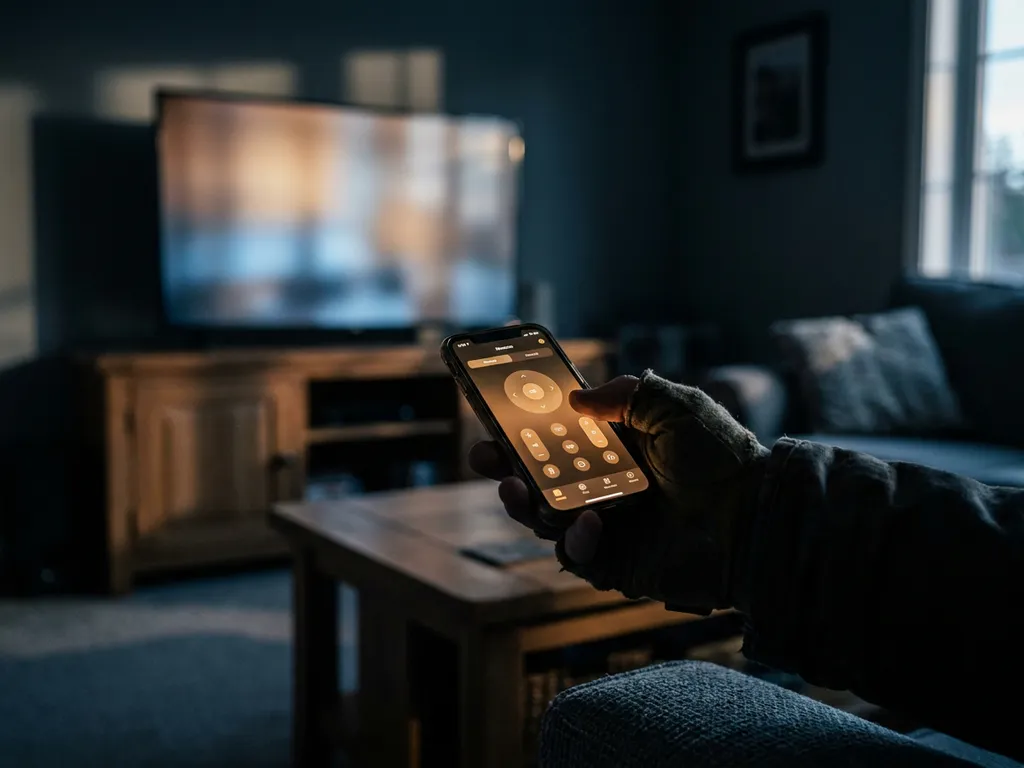
Yes, a universal TV remote app is safe to use on your phone — as long as you choose one from a reputable developer. Like any app, safety depends on who made it, what permissions it requests, and where you downloaded it from. Most legitimate remote apps work entirely over your local Wi-Fi network and do not access your personal data. Below, we answer the questions people ask most often about remote app safety.
What permissions does a universal TV remote app actually need?
A legitimate universal TV remote app needs access to your local network so it can find and communicate with your TV or streaming device. That is the core permission required. On Android, this may appear as “nearby devices” or “local network access.” On iPhone, you will see a prompt asking whether the app can find devices on your network. Both are normal and necessary for the app to work.
Beyond network access, some remote apps request a few additional permissions depending on their features:
- Microphone access — only needed if the app supports voice commands
- Keyboard input — used for in-app text entry and search functions on your TV
- Notifications — optional, often for app updates or connection alerts
What a remote app should not need is access to your contacts, camera, photos, or location. If an app requests those permissions, that is a warning sign worth taking seriously. Stick to apps that only ask for what they actually need to do the job.
Can a TV remote app spy on your phone or network?
A trustworthy TV remote app cannot spy on your phone or monitor your network traffic. These apps communicate directly with your TV over Wi-Fi using standard protocols. They do not route your data through external servers, and they do not have the ability to read your messages, track your location, or access files on your device — provided they only have the permissions they actually need.
That said, some lower-quality or ad-supported remote apps do collect behavioral data for advertising purposes. This is not the same as spying, but it does mean your in-app activity could be shared with third-party advertisers. Reading the app’s privacy policy before downloading tells you exactly what data is collected and why. If the privacy policy is vague, missing, or written in a way that is hard to understand, consider that a red flag.
The short version: a well-built remote app from a known developer poses no meaningful privacy risk. The risk comes from poorly made apps with loose data practices, not from the concept of remote control apps itself.
How do you tell if a TV remote app is trustworthy?
A trustworthy universal TV remote app comes from a verified developer, has a clear privacy policy, and is available through an official app store like the Apple App Store or Google Play. These platforms review apps before listing them, which provides a basic layer of protection against outright malicious software.
Here are the signals to look for when evaluating a remote app:
- Developer identity: Is the company named and findable? Do they have a real website?
- App store reviews: Look at the volume of reviews, not just the rating. Thousands of genuine reviews carry more weight than a handful of five-star ones.
- Last updated: An app that has been updated recently suggests the developer is actively maintaining it.
- Privacy policy: It should clearly state what data is collected, how it is used, and whether it is shared with third parties.
- Permissions requested: Cross-check what the app asks for against what it actually needs to function.
If an app checks all of those boxes, you can feel confident downloading and using it.
Are free TV remote apps riskier than paid ones?
Free TV remote apps are not automatically riskier than paid ones, but they do sometimes come with trade-offs. Free apps need to generate revenue somehow, and the most common method is advertising. Some free apps go further and collect user data to sell to advertisers or analytics companies. That does not make them unsafe, but it does mean you should read the privacy policy more carefully before downloading.
Paid apps, or freemium apps with a one-time purchase, tend to have a cleaner business model because the revenue comes directly from users rather than advertisers. This often means less data collection and a more straightforward experience overall.
The most important factor is still the developer’s reputation, not the price tag. A free app from a well-established company with millions of downloads and a clear privacy policy is far safer than a paid app from an unknown developer with no reviews and a vague data policy.
What should you do if a TV remote app feels unsafe?
If something about a TV remote app feels off, trust that instinct and act on it. Delete the app from your device immediately. Then go into your phone’s settings and revoke any permissions you granted during installation. On both iPhone and Android, you can review and remove app permissions in the privacy or apps section of your settings.
After removing the app, take these steps:
- Change your Wi-Fi password if the app had local network access and you are not sure what it did with it.
- Check your phone’s battery and data usage to see if the app was running in the background more than expected.
- Report the app to the app store using the “report a problem” or “flag” option on the app’s listing page.
- Replace it with an app from a developer you can verify.
How AirBeamTV Keeps Your Remote App Experience Safe and Simple
We built the AirBeamTV Universal TV Remote App with exactly these concerns in mind. Our app works entirely over your local Wi-Fi network, which means your TV commands never leave your home. We only request the permissions the app genuinely needs to connect to your TV and streaming devices — nothing more.
Here is what you get with our remote app:
- Control for all major TV brands including Samsung, LG, Sony, TCL, and Roku
- Full remote functions: volume, channel switching, source selection, and mute
- Touchpad and keyboard input for easy text entry on your TV
- Haptic feedback so you know every tap has registered
- No setup codes, no extra hardware, no complicated configuration
Simply connect your phone and TV to the same Wi-Fi network, select your TV model, and you are in control. Download the AirBeamTV Universal TV Remote App from the App Store or Google Play and start using it today.
