




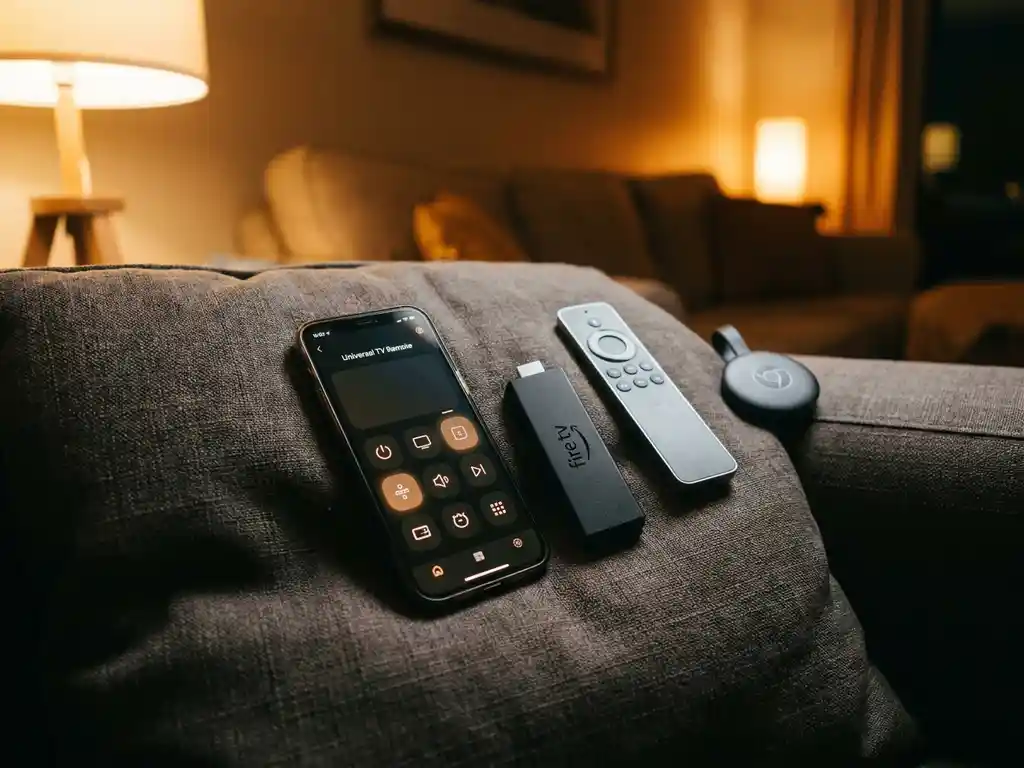
Most popular streaming devices work with a universal TV remote app, including Roku, Amazon Fire TV, Apple TV, Android TV, and Google TV. The key requirement is that your phone and streaming device share the same Wi-Fi network. Below, we answer the most common questions people have before downloading a remote app.
Which streaming devices are compatible with universal TV remote apps?
Universal TV remote apps work with a wide range of streaming devices. The most commonly supported options include Roku, Amazon Fire TV, Apple TV, Android TV, Google TV, and Chromecast. Compatibility depends on the specific app you use, so checking the app’s supported device list before downloading saves you time.
Most modern smart TVs with built-in streaming platforms, such as Samsung Tizen or LG webOS, are also controllable through a universal remote app. These apps communicate with your devices over Wi-Fi, which means no Bluetooth pairing or infrared blaster is needed on your phone.
Here is a quick overview of common streaming devices and their typical app compatibility:
- Roku: Supported by most universal remote apps via the Roku API
- Amazon Fire TV: Supported through Fire TV’s network control feature
- Apple TV: Controllable through apps that support AirPlay-adjacent protocols
- Android TV / Google TV: Widely supported across most remote apps
- Samsung Smart TV: Supported through Samsung’s SmartThings protocol
- LG Smart TV: Supported via LG’s ThinQ or compatible APIs
What’s the difference between a universal remote app and a screen mirroring app?
A universal remote app replaces your physical TV remote by letting you control your TV or streaming device from your phone. A screen mirroring app does something different: it sends your phone or computer’s screen directly to your TV so you can view content from your device on the big screen. They solve different problems and are not interchangeable.
Think of it this way. A remote app gives you control over what is already playing on your TV through its own apps and inputs. A screen mirroring app lets you share what is on your phone’s screen, whether that is a video, a photo, a presentation, or a browser tab, directly onto the TV display.
Some people need both. You might use a remote app to switch inputs or adjust volume, and a screen mirroring app to cast your phone’s content to the TV. They complement each other rather than compete.
Do universal TV remote apps work without Wi-Fi?
Most universal TV remote apps require a Wi-Fi connection to work because they communicate with your streaming device or smart TV over your local network. Without Wi-Fi, the app cannot detect or connect to your device. A small number of apps support infrared (IR) control, but only if your phone has a built-in IR blaster, which most modern smartphones do not include.
If your Wi-Fi goes down, your remote app will likely stop working until the connection is restored. This is worth keeping in mind if you rely on the app as your only remote. In those situations, having your physical remote as a backup is a practical idea.
Why won’t my remote app connect to my streaming device?
The most common reason a remote app fails to connect is that your phone and your streaming device are not on the same Wi-Fi network. This is the first thing to check. Other frequent causes include the streaming device not being powered on, network discovery being disabled in the TV or streaming device settings, or the app not having the correct permissions on your phone.
Here are the most useful troubleshooting steps to try:
- Confirm your phone and TV or streaming device are connected to the same Wi-Fi network (not one on 2.4GHz and the other on 5GHz if they do not share the same name)
- Restart your streaming device and reopen the remote app
- Check that network discovery or remote access is enabled in your streaming device’s settings
- Grant the app local network access in your phone’s settings
- Uninstall and reinstall the app if the issue persists
If none of these steps work, the app may not support your specific device model. Checking the app’s official compatibility list confirms whether your setup is supported.
Should I use a remote app or just mirror my screen to the TV?
Use a remote app when you want to control content already available through your TV’s built-in apps or streaming device. Use screen mirroring when you want to display something from your phone or computer directly on the TV, such as a video not available on a streaming platform, photos, a presentation, or a website. The right choice depends on where your content lives.
If you mostly watch Netflix, YouTube, or other apps already installed on your TV, a remote app is all you need. If you want to share your phone’s screen, play a mobile game on the big screen, or show a slideshow from your laptop, screen mirroring gives you more flexibility.
Many people end up using both tools for different situations, and that is a perfectly sensible approach.
How AirBeamTV Helps with TV Remote Control and Screen Mirroring
We built the AirBeamTV Universal TV Remote App to give you full control of your TV and streaming devices from one place, with no extra hardware or complicated setup codes required. Here is what you get:
- Control all major devices from one app: Roku, Amazon Fire TV, Samsung, LG, TCL, Sony, and more are all supported
- Touchpad and keyboard input: Navigate menus and type search terms without hunting for letters on a sluggish on-screen keyboard
- Full remote functions: Volume, mute, channel switching, source selection, and power, all from your phone
- Haptic feedback: Your phone confirms each tap so you know every button press registered
- Simple connection: Connect your phone and TV to the same Wi-Fi network, select your device, and you are in control instantly
And if you also want to mirror your phone, tablet, or Mac screen to the TV, our screen mirroring apps handle that too, with no Apple TV, cables, or extra hardware needed.
Download the AirBeamTV Universal TV Remote App today and turn your phone into the only remote you need.
