




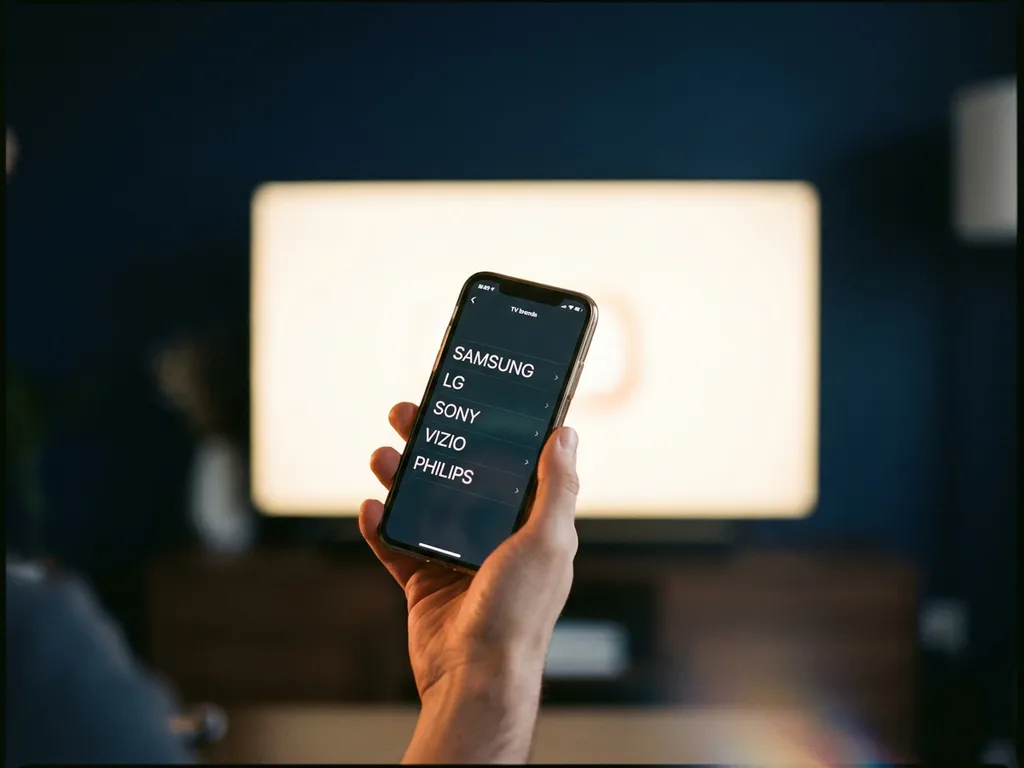
To find your TV model in a universal TV remote app, look for a label on the back or bottom of your TV. This label typically shows the model number alongside the brand name and serial number. Most remote apps also let you search by brand first, then narrow down by model series or number.
Getting your model right matters because the app uses it to load the correct control codes for your specific TV. The steps below walk you through where to find the number, why apps ask for it, and what to do if yours isn’t listed.
Where do you find your TV model number?
Your TV model number is printed on a sticker on the back or underside of the TV, usually near the bottom edge or close to the cable inputs. It starts with letters followed by numbers and may look something like “55UN7300” or “KD-55X80L.” You can also find it in the TV’s settings menu under “About” or “System Information.”
If neither of those options works, check the original packaging or the receipt from when you bought the TV. The model number appears on the barcode label on the box. As a last resort, search the brand’s support website using your TV’s serial number, which is always on that same back label, and the brand’s lookup tool will return the model.
Here is a quick overview of where to look depending on your situation:
- Back of the TV: A white or silver sticker near the bottom or cable panel
- TV settings menu: Go to Settings, then About or System, then Device Information
- Original box: The barcode label on the side or bottom of the packaging
- Brand’s support website: Use the serial number to look up the model
Why does a universal TV remote app ask for your TV model?
A universal TV remote app asks for your TV model because different models use different infrared or network control codes. Even two TVs from the same brand can respond to completely different command sets. By identifying your exact model, the app loads the right set of controls so that buttons like volume, input, and power actually work as expected.
Without the model number, the app would have to cycle through hundreds of possible code sets, which is the old-fashioned “code search” method that often takes a long time and produces unreliable results. Modern apps skip that frustration entirely by matching your model directly to a tested profile. This is why getting the model number right before you start saves you a lot of trial and error later.
What if your TV model isn’t listed in the remote app?
If your TV model isn’t listed in a universal TV remote app, try searching by brand and selecting a nearby model from the same product line or year. TV manufacturers often use identical or near-identical control codes across a product series, so a model from the same range will usually work just as well.
You can also try these steps if the exact model is missing:
- Search by brand name only and browse the available model series
- Pick a model with a similar name or number (for example, if your model ends in “AK” try the same base number with “BK”)
- Use a generic or “all models” option if the app offers one
- Check whether the app has been updated recently, as new models are added regularly
- Contact the app’s support team with your model number so they can add it
Network-based remote apps, which connect over Wi-Fi rather than infrared, are less model-dependent because they communicate directly with the TV’s built-in software. If your TV supports Wi-Fi control, this approach often sidesteps the model-matching issue entirely.
Does it matter which universal remote app you use for your TV brand?
Yes, it does matter. Not every universal TV remote app supports every brand equally well. Some apps are optimized for specific brands like Samsung or LG, while others focus on streaming devices like Roku or Fire TV. Choosing an app that explicitly lists your TV brand in its supported devices gives you a much more reliable experience than picking a generic option and hoping for the best.
The connection method also plays a role. Apps that use Wi-Fi to control your TV tend to offer more features, such as keyboard input, touchpad navigation, and app launching, because they tap into the TV’s own smart platform. Infrared-based apps work with older TVs but are limited to basic functions. If your TV is a recent smart TV, look for an app that connects over your home network for the fullest control.
How do you set up a universal TV remote app once you have your model?
Setting up a universal TV remote app is straightforward once you have your model number ready. Connect your phone and TV to the same Wi-Fi network, open the app, select your TV brand, enter or search for your model, and the app pairs automatically. The whole process typically takes under two minutes.
Here is the step-by-step flow most apps follow:
- Download the app on your phone or tablet
- Open the app and tap “Add a device” or “Set up remote”
- Select your TV brand from the list
- Search for or enter your model number
- Confirm the connection by tapping a button on screen and checking that your TV responds
- Start controlling your TV from your phone
If the app uses Wi-Fi, it will scan your network and detect compatible TVs automatically, sometimes skipping the manual model entry step altogether. If it uses infrared, you point your phone at the TV just as you would a regular remote.
How AirBeamTV Helps with Controlling Your TV
We built the AirBeamTV Universal TV Remote App to make this whole process as painless as possible. No setup codes, no complicated pairing steps, no extra hardware. Just connect your iPhone, iPad, or Android device to the same Wi-Fi network as your TV, select your brand and model, and you’re in control.
Here is what you get with the app:
- Support for all major brands, including Samsung, LG, Sony, TCL, Roku, and Amazon Fire TV
- Full remote functions including volume, channel switching, source selection, and mute
- Touchpad and keyboard input so you can type search terms without hunting through on-screen letters
- Haptic feedback that confirms every button press
- One app for all your devices, so you’re not juggling multiple remotes for your TV and streaming stick
It works for everyday people, not just tech enthusiasts. If you can connect to Wi-Fi, you can use it. Download the AirBeamTV Universal TV Remote App today and turn your phone into the only remote you need.
