




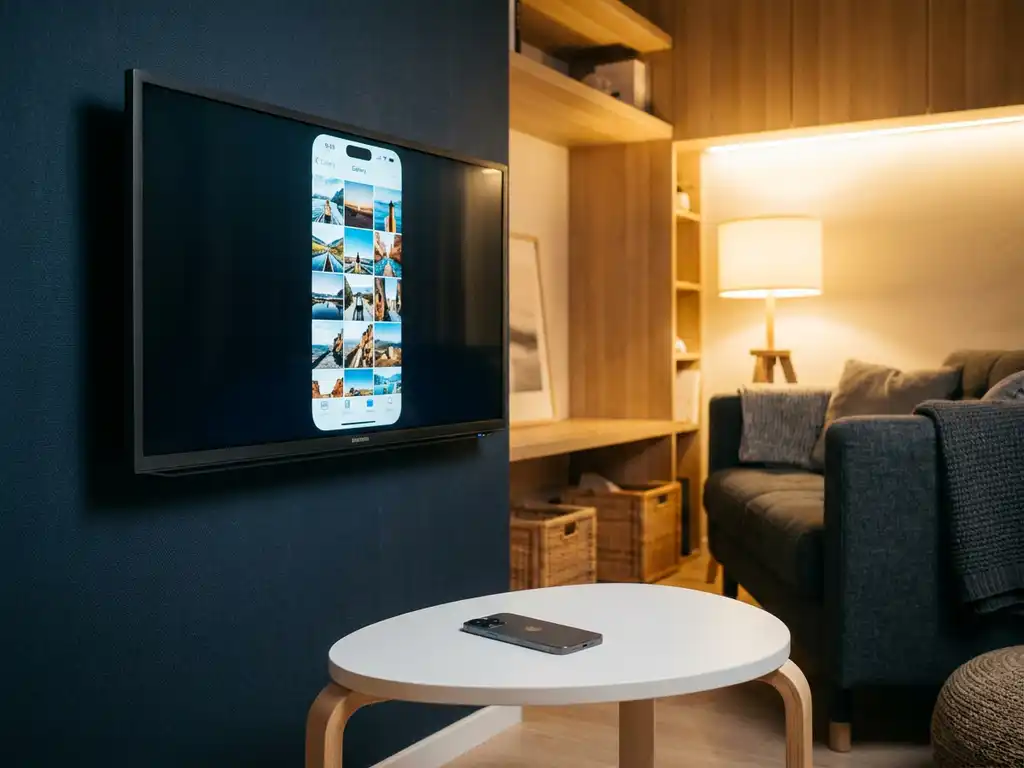
Yes, a universal TV remote app can work with Samsung TVs. Most universal remote apps connect to Samsung Smart TVs over Wi-Fi, letting you control your TV directly from your phone without needing a physical remote. The key requirement is that both your phone and your Samsung TV are connected to the same Wi-Fi network. Below, we answer the most common questions people have before downloading one of these apps.
Do universal TV remote apps actually work with Samsung TVs?
Yes, universal TV remote apps genuinely work with Samsung Smart TVs. These apps communicate with your TV over your home Wi-Fi network using built-in protocols that Samsung TVs support natively. As long as your Samsung TV is a Smart TV model (most models released after 2014 qualify) and is connected to the same Wi-Fi network as your phone, the connection is straightforward and reliable.
The experience is comparable to using a physical remote. You can change channels, adjust volume, switch inputs, and navigate menus. Many apps also add features a standard remote does not offer, like a touchpad interface or a full keyboard for typing in search boxes, which makes browsing streaming apps much faster.
One thing worth knowing: older Samsung TVs that are not “Smart” TVs do not connect over Wi-Fi and therefore cannot be controlled by a Wi-Fi-based remote app. If your TV predates the Smart TV era, you would need a different approach, such as an IR blaster-based solution.
What’s the difference between a remote app and a screen mirroring app for Samsung TVs?
A remote app controls your Samsung TV, while a screen mirroring app sends what is on your phone or laptop screen to your TV. They solve different problems. A remote app replaces your physical remote. A screen mirroring app extends or duplicates your device display onto the bigger screen so everyone in the room can see it.
Here is a quick comparison to make the distinction clear:
- Remote app: Controls the TV itself. Navigate menus, adjust volume, switch inputs, launch apps installed on the TV.
- Screen mirroring app: Streams your phone or laptop display to the TV. Watch videos, show photos, run presentations, or share anything visible on your device screen.
Some people need both. For example, you might use a remote app to launch Netflix on your Samsung TV, then switch to a screen mirroring app when you want to show holiday photos from your phone. Knowing which problem you are trying to solve helps you pick the right tool from the start.
Which remote app features work best with Samsung Smart TVs?
The features that work best with Samsung Smart TVs are volume control, channel switching, source selection, directional navigation, and touchpad input. These functions map directly to what Samsung’s Smart TV software supports over Wi-Fi, so they tend to be reliable across most Samsung models.
Beyond the basics, a few features genuinely improve the experience on a Samsung TV:
- Keyboard input: Typing on a Samsung TV remote is frustrating. A remote app with a full keyboard makes searching for shows much faster.
- Touchpad mode: Lets you swipe and tap to navigate Samsung’s Tizen interface more naturally than pressing directional buttons.
- Haptic feedback: Gives a small vibration when you press a button, so you know the action registered without looking at your phone.
- Multi-device support: If you have a Samsung TV plus a streaming stick, controlling both from one app saves you from switching between remotes.
Why won’t my remote app connect to my Samsung TV?
The most common reason a remote app will not connect to your Samsung TV is that your phone and TV are not on the same Wi-Fi network. This is the single most frequent cause of connection problems, and checking it first saves a lot of troubleshooting time.
If the network is the same and you are still having trouble, work through these steps:
- Restart your router, TV, and phone. This clears temporary network issues that block app discovery.
- Check your Samsung TV’s network settings. Make sure it is connected to Wi-Fi and that the connection is active, not just “saved.”
- Allow the app permission on your TV. Some Samsung TVs display a pop-up asking you to approve a remote connection the first time. Accept it on the TV screen.
- Disable your phone’s mobile data temporarily. Some phones route traffic through mobile data even when Wi-Fi is on, which breaks local network discovery.
- Check for Samsung TV software updates. Outdated firmware can cause compatibility issues with remote apps.
Should I use Samsung’s official app or a third-party remote app?
Samsung’s official SmartThings app works well if you only own Samsung devices and want deep integration with Samsung’s ecosystem. A third-party universal TV remote app is the better choice if you own multiple TV brands, use streaming devices like Roku or Fire TV, or want a simpler interface that works across everything from one place.
The practical difference comes down to flexibility. SmartThings is tightly integrated with Samsung hardware, which is an advantage if your whole setup is Samsung. But if your household has a mix of brands, or if you switch TVs in the future, a universal app means you never have to download and learn a new remote app again. Third-party apps also tend to offer a more straightforward setup experience, since they are designed specifically around ease of use for a broad audience.
Can I mirror my phone screen to a Samsung TV without extra hardware?
Yes, you can mirror your phone screen to a Samsung TV without any extra hardware. Samsung TVs support wireless screen mirroring natively, and screen mirroring apps let you cast your iPhone, Android phone, or laptop display directly to the TV over Wi-Fi. No cables, no adapters, no additional devices needed.
Samsung TVs support a built-in feature called Smart View for Android devices, which works without an app. For iPhone users, the process is less straightforward without a third-party app, since Apple’s AirPlay requires either an Apple TV or a Samsung TV model that specifically supports AirPlay 2. A dedicated screen mirroring app fills that gap and works across a wider range of Samsung TV models.
How AirBeamTV Helps with Samsung TV Remote Control and Screen Mirroring
We build both tools you might need for your Samsung TV: a universal remote app and screen mirroring apps. Here is what we offer and what each one does for you:
- Universal TV Remote App: Turns your iPhone, iPad, or Android device into a remote for your Samsung TV and other smart devices. It supports volume control, channel switching, source selection, touchpad input, and a full keyboard. Haptic feedback confirms every button press. No setup codes, no extra hardware. Connect your phone and TV to the same Wi-Fi, select your TV model, and you are in control.
- Screen Mirroring Apps for Samsung TV: Cast your iPhone, iPad, Mac, or Android screen directly to your Samsung TV over Wi-Fi. No Apple TV, no cables, no AirPlay required. Whatever is on your screen appears on the big screen instantly, in HD.
Both apps are designed to be straightforward for anyone to use, regardless of technical experience. Download the app, open it, and start. That is genuinely all it takes.
Ready to take control of your Samsung TV from your phone? Download the AirBeamTV Universal TV Remote App and get started in minutes.
