




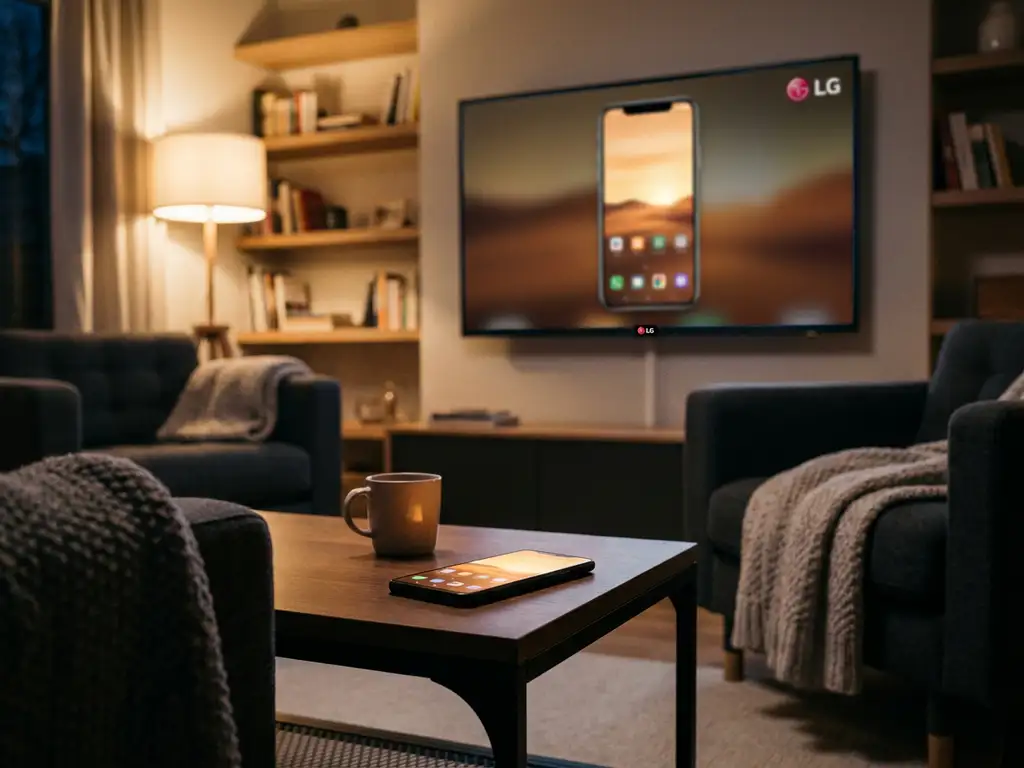
Yes, a universal TV remote app does support LG smart TVs. Most universal remote apps connect to LG TVs over Wi-Fi, which means no infrared blaster or extra hardware is required. As long as your phone and your LG TV are on the same network, you can control your TV from your device in seconds.
LG smart TVs are one of the most widely supported brands in the universal remote app space, so finding a compatible app is straightforward. Below, we break down exactly which models work, how the connection works, and what you can actually do once you’re set up.
Which LG smart TV models work with a universal remote app?
Most LG smart TVs released from 2016 onward work with a universal TV remote app. This includes LG’s popular webOS TV lineup, which covers models across the OLED, QNED, NanoCell, and standard LED ranges. If your LG TV connects to Wi-Fi and runs webOS, it almost certainly supports remote control over a local network connection.
Older LG TVs that predate the webOS platform may have limited compatibility, particularly models that rely on infrared-only control. However, if your TV is from the last several years, you are very likely covered. A quick way to check: if your LG TV has a built-in app store or supports streaming apps like Netflix or YouTube directly, it almost certainly works with a universal remote app.
Here is a general compatibility overview:
- LG webOS TVs (2016 and later): Full compatibility with Wi-Fi-based universal remote apps
- LG Smart TVs with Netcast (2012-2015): Partial compatibility depending on the app
- LG non-smart TVs: Not supported over Wi-Fi; would require a phone with an infrared blaster
How does a universal TV remote app connect to an LG smart TV?
A universal TV remote app connects to an LG smart TV using your home Wi-Fi network. Both your phone and your LG TV need to be on the same network. Once they are, the app discovers your TV automatically and establishes a direct connection without any setup codes or pairing cables.
This works because LG’s webOS platform supports a communication protocol that allows apps on your local network to send commands to the TV. When you tap a button in the remote app, the app sends that command over Wi-Fi directly to your TV, just as a physical remote would send an infrared signal. The result feels instant and responsive.
The setup process typically goes like this:
- Connect your phone and your LG TV to the same Wi-Fi network
- Open the universal remote app on your phone
- Select your TV brand (LG) and let the app scan for your device
- Tap your TV when it appears in the list
- Accept the connection prompt on your TV screen if one appears
That’s it. No codes to enter, no hardware to buy.
What can a universal remote app control on an LG TV?
A universal TV remote app can control most of the same functions as your physical LG remote. This includes volume, channel switching, input and source selection, mute, power, and navigation through the TV’s menus. Many apps also offer a touchpad for easier cursor control and a keyboard for faster text input when searching for content.
Beyond the basics, more capable universal remote apps give you access to shortcut buttons for popular streaming apps, quick access to settings, and even playback controls when you are watching content. Some apps also support haptic feedback, so your phone vibrates slightly when you tap a button, giving you the same tactile reassurance as pressing a physical key.
What you cannot control remotely depends on the app and the TV model, but most limitations are minor. Features tied to LG’s proprietary hardware, like the Magic Remote’s motion pointer, may not be fully replicated in a third-party app.
Is a universal TV remote app better than LG’s own ThinQ app?
A universal TV remote app is often more practical than LG’s ThinQ app if you own multiple TV brands or want a simpler, faster experience. The ThinQ app is LG’s official solution and works well for LG-specific features, but a universal remote app lets you control all your smart TVs and streaming devices from a single interface, which is a real advantage in a household with mixed devices.
LG’s ThinQ app also comes with smart home features and device management tools that go beyond remote control. If you are deeply invested in the LG ecosystem, ThinQ offers things a universal app cannot match. But if you just want to control your TV quickly and easily without switching between apps, a universal remote app wins on simplicity.
The practical difference comes down to your setup:
- Stick with ThinQ if you have only LG devices and want full access to LG-specific smart home features
- Choose a universal remote app if you have multiple TV brands, want one app for everything, or find ThinQ unnecessarily complex
Why won’t my universal remote app find my LG TV?
The most common reason a universal TV remote app won’t find your LG TV is that the phone and the TV are not on the same Wi-Fi network. This happens more often than you might expect, especially in homes where the router broadcasts both a 2.4GHz and a 5GHz network under different names. Your phone may be on one band while your TV is on the other.
Here are the most likely causes and how to fix them:
- Different Wi-Fi networks: Make sure both devices are connected to the exact same network name
- TV Wi-Fi is off: Check that your LG TV is connected to Wi-Fi and not using a wired Ethernet connection that blocks discovery
- TV is in standby mode: Some LG models need to be fully powered on before the app can detect them
- App permissions blocked: Make sure the remote app has permission to access your local network on your phone
- Firewall or router settings: Some routers block device-to-device communication on the local network; check if “AP isolation” or a similar setting is enabled
If none of these apply, try restarting both your TV and your phone, then open the app again. In most cases, one of the steps above resolves the issue quickly.
How AirBeamTV Helps with Controlling Your LG TV
Our Universal TV Remote App is built to make controlling your LG smart TV as simple as possible. No setup codes, no extra hardware, no frustration. Here is what you get:
- Instant LG TV detection over your home Wi-Fi network
- Full remote control functions including volume, channels, source switching, and power
- Touchpad and keyboard input for easier navigation and text entry
- Haptic feedback so every button press feels responsive
- Support for multiple TV brands including Samsung, Sony, TCL, Roku, and Amazon Fire TV, all from one app
We designed the app for people who want things to just work. Whether you have lost your physical remote, want a backup, or simply prefer using your phone, our app gets you in control in under a minute. Download the AirBeamTV Universal TV Remote App, connect to the same Wi-Fi as your LG TV, and start controlling your screen straight away.
