




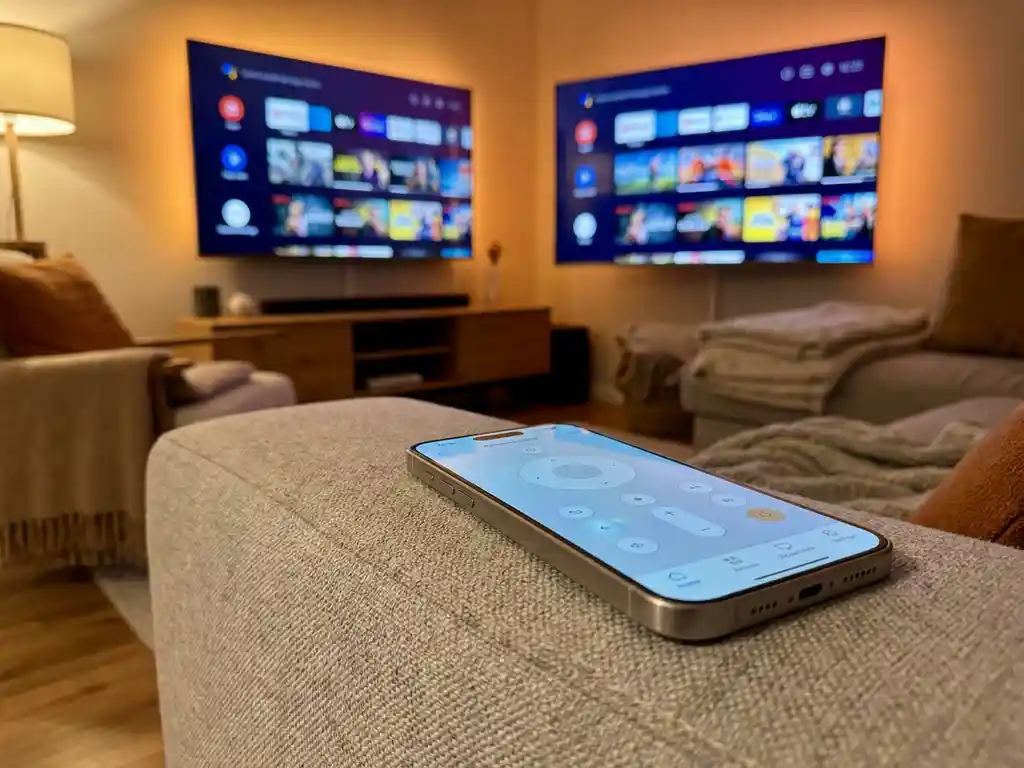
Yes, a universal TV remote app can control a Philips smart TV. Most modern Philips smart TVs support Wi-Fi-based control protocols, which means a compatible remote app running on your phone can replace your physical remote entirely. The sections below walk through what these apps can do, how they connect, and which ones actually work.
What features can a remote app actually control on a Philips smart TV?
A remote app can control most of the same functions as a physical Philips TV remote. This includes turning the TV on and off, adjusting volume, switching channels, selecting input sources, using playback controls, and navigating through the TV’s menus. Some apps also support keyboard input, which makes searching for content much faster than using the on-screen keyboard with arrow buttons.
Beyond the basics, more capable apps offer a touchpad interface so you can swipe and scroll through menus naturally, just like using a trackpad on a laptop. Haptic feedback is another useful feature, giving you a small vibration when you tap a button so you know the action registered without looking at your phone.
One area where remote apps genuinely shine compared to physical remotes is text input. If you use your Philips TV for streaming services, typing a search query or login credentials with a full phone keyboard is far less frustrating than hunting through on-screen letters one by one.
How does a universal remote app connect to a Philips smart TV?
A universal remote app connects to a Philips smart TV over your home Wi-Fi network. Both your phone and your TV need to be on the same Wi-Fi network. Once they are, the app detects your TV automatically or lets you select your model manually. No Bluetooth pairing, no setup codes, and no extra hardware required.
Philips smart TVs use a control protocol that allows apps on the same local network to send commands directly to the TV. This is similar to how a TV manufacturer’s own companion app works, but a universal remote app extends that capability across multiple brands from a single interface.
The setup process typically looks like this:
- Connect your phone to your home Wi-Fi network
- Make sure your Philips TV is connected to the same network
- Open the remote app and let it scan for devices
- Select your Philips TV from the list
- Start controlling your TV immediately
If your TV does not appear automatically, most apps let you enter your TV’s IP address manually. You can usually find this in your Philips TV’s network settings menu.
Which universal remote apps are compatible with Philips smart TVs?
Several universal remote apps support Philips smart TVs, including apps from TV manufacturers, third-party developers, and dedicated remote control app makers. The most reliable options are apps that explicitly list Philips as a supported brand and use Wi-Fi-based control rather than infrared, since infrared requires your phone to have a built-in IR blaster, which most modern smartphones do not.
When comparing your options, look for these qualities:
- Philips listed as a supported brand on the app’s product page or description
- Wi-Fi connectivity rather than infrared, for broader phone compatibility
- Touchpad and keyboard input for easier navigation and text entry
- Support for streaming devices if you use a Roku, Fire TV, or similar device alongside your Philips TV
- Positive, recent reviews that specifically mention Philips TV compatibility
Avoid apps that rely solely on infrared unless you know your phone has an IR blaster. Wi-Fi-based apps are more widely compatible and tend to offer a richer set of control features.
Why won’t my remote app connect to my Philips TV?
The most common reason a remote app fails to connect to a Philips TV is that the phone and TV are on different networks. This happens more often than you might expect, especially in homes where the router broadcasts separate 2.4 GHz and 5 GHz networks under different names. Check that both devices are on the exact same network name before troubleshooting anything else.
If the network is not the issue, try these steps in order:
- Restart your Philips TV and reopen the app. A fresh start clears temporary connection issues.
- Check your TV’s network settings to confirm it is connected to Wi-Fi and not in airplane mode or offline.
- Enable network control permissions on your Philips TV. Some models require you to turn on a setting like “Allow app control” or “Network remote control” in the TV’s settings menu.
- Disable your phone’s VPN if you have one running. VPNs route traffic off your local network, which breaks local device discovery.
- Check your router settings for AP isolation or client isolation. This is a router feature that prevents devices on the same network from communicating with each other, which blocks remote app connections.
If none of these steps work, try entering your TV’s IP address manually in the app. This bypasses the automatic discovery process and connects directly.
Should I use a remote app or a screen mirroring app for my Philips TV?
A remote app and a screen mirroring app do different things, and the right choice depends on what you want to accomplish. A remote app replaces your physical remote, giving you control over your TV’s built-in functions. A screen mirroring app sends what is on your phone or laptop screen directly to the TV, so you can watch content from your device on the big screen. Many people find they want both.
Use a remote app when you want to:
- Control your TV without getting up to find the physical remote
- Type search terms or passwords using your phone’s keyboard
- Switch inputs, adjust volume, or navigate menus
Use a screen mirroring app when you want to:
- Watch a video from your phone on the TV
- Show photos or presentations on a larger screen
- Stream content from an app that is not available on your Philips TV
The two tools complement each other well. If you regularly stream content from your phone to your Philips TV, a screen mirroring app handles the video side while a remote app handles navigation.
How AirBeamTV Helps with Philips TV Control and Mirroring
We built our Universal TV Remote App to handle both sides of the equation. It works with Philips smart TVs over Wi-Fi, so there is no extra hardware, no setup codes, and no IR blaster needed. You connect your phone and TV to the same Wi-Fi network, select your Philips TV in the app, and you are in control.
Here is what you get with the AirBeamTV Universal TV Remote App:
- Full remote control functions including power, volume, channel switching, source selection, and mute
- Touchpad and keyboard input so navigating menus and typing is faster and easier
- Haptic feedback that confirms every button press without you needing to look at your phone
- Support for multiple brands and streaming devices including Samsung, LG, Sony, Roku, and Amazon Fire TV alongside Philips
- No setup codes or extra hardware required at any point
And if you want to go beyond remote control and actually mirror your phone or laptop screen to your Philips TV, our screen mirroring apps handle that too. No Apple TV, no cables, no complicated setup.
Download the AirBeamTV Universal TV Remote App and start controlling your Philips TV from your phone today.
