




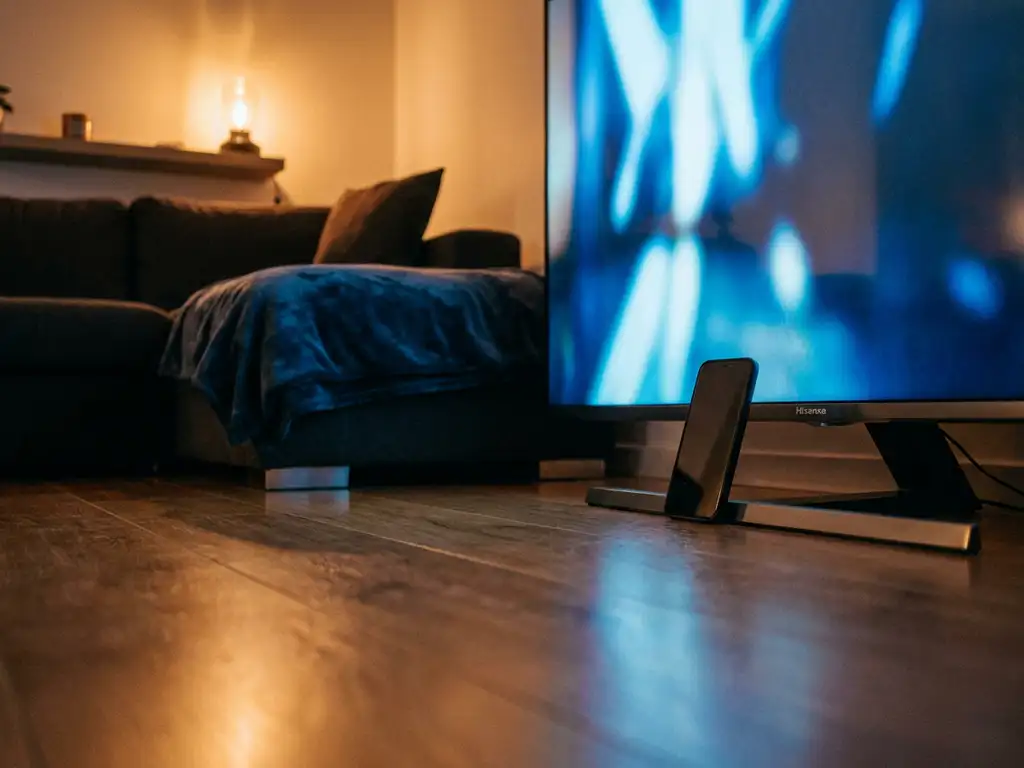
Yes, a universal TV remote app can work with Hisense TVs. Most modern Hisense models connect over Wi-Fi, which means any app that supports Wi-Fi-based control can communicate with them directly from your phone. The catch is that not every app works the same way, and a few things can affect how well the connection holds. Below, we cover the most common questions people have before downloading a remote app for their Hisense TV.
Do universal remote apps actually work with Hisense TVs?
Yes, universal TV remote apps genuinely work with Hisense TVs. Most Hisense smart TVs run Android TV or VIDAA, both of which support Wi-Fi-based remote control. As long as your phone and TV are on the same Wi-Fi network, a compatible app can find and control your Hisense TV without any extra hardware or setup codes.
The experience is typically smooth for everyday tasks like changing channels, adjusting volume, switching inputs, and navigating menus. Some apps also add features that go well beyond what the original remote offers, such as a touchpad, keyboard input, and multi-device control from one place.
What’s the difference between IR-based and Wi-Fi remote apps for Hisense?
The key difference is how the app communicates with your TV. IR-based apps use your phone’s infrared blaster to send signals, just like a traditional remote. Wi-Fi-based apps connect over your home network and communicate digitally. Most modern smartphones no longer include an IR blaster, so Wi-Fi control is now the more practical option for most people.
For Hisense TVs specifically, Wi-Fi control is the better choice because it offers two-way communication. That means the app can receive status updates from the TV, not just send commands. This makes features like on-screen keyboards, touchpad navigation, and app launching much more reliable. IR control is one-directional and limited to basic button presses.
Does Hisense have its own official remote app?
Yes, Hisense offers an official app called RemoteNOW, available for both Android and iPhone. It connects over Wi-Fi and handles basic remote functions for most Hisense smart TVs. For many users, it works well for simple tasks like volume control and channel navigation.
That said, RemoteNOW has limitations. It only works with Hisense TVs, so if you have other devices in your home, you will need separate apps for each. It also lacks some of the more convenient features found in third-party universal remote apps, such as touchpad mode, multi-device support, or haptic feedback.
Which universal remote apps are compatible with Hisense TVs?
Several universal TV remote apps support Hisense TVs, including options available on both Android and iOS. The most widely used ones connect over Wi-Fi and work with Hisense’s Android TV and VIDAA platforms. Compatibility generally depends on your TV model and the version of the operating system it runs.
When choosing an app, look for these things:
- Wi-Fi connectivity rather than IR only
- Hisense listed as a supported brand in the app description
- Touchpad and keyboard input for easier navigation
- Multi-device support if you also have a Roku, Fire TV, or other streaming device
- Positive reviews from Hisense users specifically, not just general ratings
Always check that the app explicitly lists your Hisense TV model or operating system before downloading to avoid frustration.
Why won’t my remote app connect to my Hisense TV?
The most common reason a remote app fails to connect to a Hisense TV is that the phone and TV are not on the same Wi-Fi network. This sounds obvious, but it catches a lot of people out, especially if your router broadcasts separate 2.4GHz and 5GHz networks with different names.
Here are the most frequent causes and fixes:
- Different Wi-Fi networks: Make sure both devices are connected to the exact same network name.
- TV network permissions disabled: Go into your Hisense TV settings and check that network or remote access is enabled.
- App not detecting the TV: Restart both the app and the TV, then try scanning again.
- Firewall or router settings: Some routers block device-to-device communication. Check your router’s settings or try a different network.
- Outdated TV firmware: An older firmware version can cause compatibility issues. Check for updates in your TV’s settings menu.
If none of these work, try uninstalling and reinstalling the app, then repeating the setup from scratch.
Can a remote app do more than a standard Hisense remote?
Yes, in several practical ways. A good universal TV remote app gives you features that the physical remote that came with your Hisense TV simply cannot offer. The most useful upgrade is a touchpad and on-screen keyboard, which makes searching for shows and entering passwords far less painful than hunting through letters one at a time.
Other advantages include:
- Control multiple devices from one app, including streaming sticks and other TV brands
- Haptic feedback so you know each tap has registered
- No batteries to replace and no remote to lose down the sofa
- Quick access to source switching and volume without picking up a separate device
How AirBeamTV Helps with Hisense TV Remote Control
We built the AirBeamTV Universal TV Remote App to make controlling your TV as simple as possible, whether you have a Hisense, Samsung, LG, or any other major brand. There is no setup code to hunt for and no extra hardware required. Just connect your phone and TV to the same Wi-Fi network, select your TV model, and you are in control.
Here is what you get with our app:
- Full remote control functions including volume, channel switching, source selection, and mute
- Touchpad and keyboard input for smoother navigation and faster text entry
- Haptic feedback so every button press feels confirmed
- Multi-device support for Hisense TVs alongside Roku, Amazon Fire TV, and other smart TVs
- Works on both iPhone and Android, so the whole household can use it
It is designed for people of any age and any tech comfort level. No manuals, no complicated pairing steps. Download the app, select your Hisense TV, and start controlling it straight away.
Ready to ditch the remote? Download the AirBeamTV Universal TV Remote App today and turn your phone into the only remote you need.
