




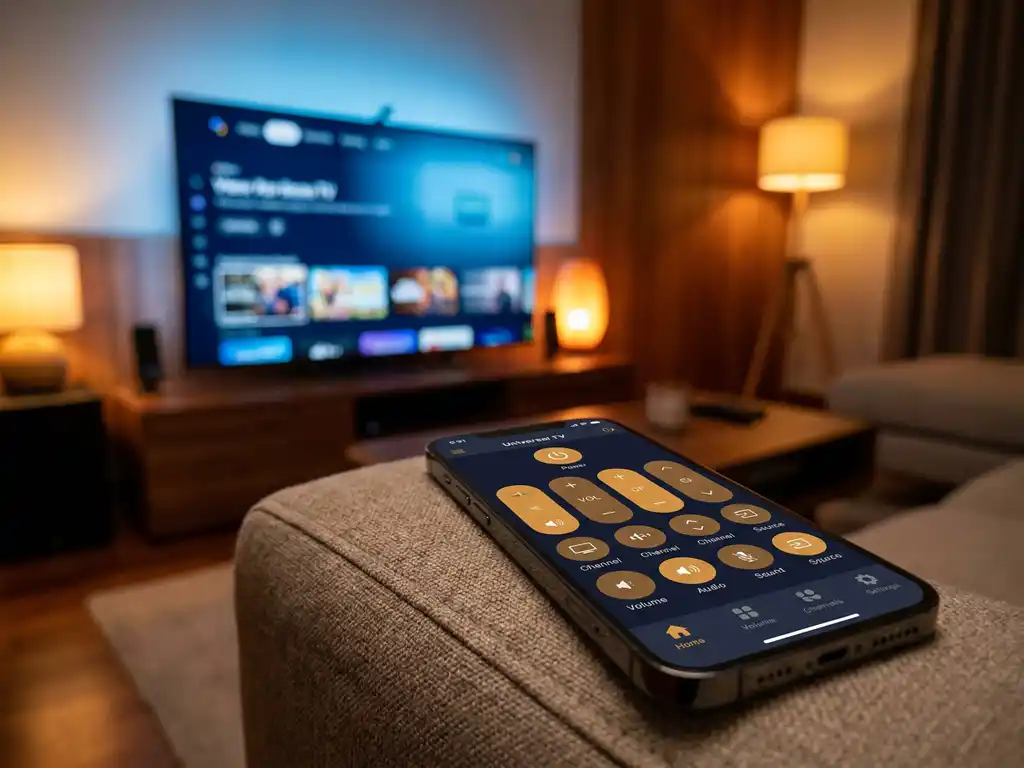
Most universal TV remote apps do not need setup codes to work. Instead, they connect to your TV automatically over your home Wi-Fi network, detecting compatible devices without any manual code entry. Setup codes are mainly a feature of physical universal remotes, not app-based ones. Below, we cover how this works, when codes do come up, and how to choose the right solution for your setup.
How do universal TV remote apps work without setup codes?
Universal TV remote apps connect to your TV using your home Wi-Fi network rather than infrared signals. When your phone and your TV are on the same network, the app discovers your TV automatically and pairs with it in seconds. No codes, no manuals, no pointing the phone directly at the screen.
Traditional physical remotes rely on infrared (IR) blasters, which need setup codes to identify the correct signal frequency for your specific TV brand and model. Apps take a completely different route. They communicate over your local network using protocols built into modern smart TVs, such as Samsung’s SmartThings, LG’s ThinQ, or Roku’s built-in remote API. Your TV essentially broadcasts its presence on the network, and the app picks it up.
The typical setup process looks like this:
- Download the remote app on your phone or tablet
- Make sure your phone and TV are connected to the same Wi-Fi network
- Open the app and let it scan for available devices
- Select your TV from the list
- Start controlling your TV immediately
That is genuinely all there is to it for most modern smart TVs. No code lookup required.
What are setup codes and when are they actually needed?
Setup codes are four or five-digit numbers that tell a universal remote which infrared signal pattern matches your TV brand and model. They are a feature of physical universal remotes, not app-based ones. You will only encounter them if you are programming a traditional handheld remote that uses IR technology.
If you have ever set up a cable provider’s universal remote or a standalone universal remote from a store, you have likely gone through the code process. You enter a code, press a button, and check whether the TV responds. If it does not, you try the next code on the list. It works, but it is a bit of a chore.
App-based remote controls skip this entirely. Because they communicate over Wi-Fi rather than infrared, they do not need to know your TV’s signal frequency. The app identifies your TV by its network name and model, which your TV shares automatically. The only scenario where you might need to confirm something manually is a one-time on-screen pairing prompt that some TVs display the first time you connect, asking you to confirm that the connection is intentional. That is a security step, not a setup code.
Which TVs work with universal remote apps without codes?
Any modern smart TV with Wi-Fi connectivity works with app-based universal remote controls without setup codes. This includes virtually all smart TVs released in the last several years from major brands, including Samsung, LG, Sony, TCL, Hisense, Philips, and Roku TVs. Streaming devices like Amazon Fire TV and Roku sticks also work without codes.
The key requirement is not the brand but the connection type. If your TV connects to your home Wi-Fi and has a smart platform built in, an app-based remote will almost certainly work with it. Older non-smart TVs that only accept HDMI or antenna input are a different story. Those do not have network connectivity, so an app cannot reach them. For those, a physical universal remote with IR and setup codes remains the practical option.
Here is a quick overview of compatibility:
- Samsung Smart TVs: Supported, connects via SmartThings protocol
- LG Smart TVs: Supported, connects via LG’s network remote API
- Sony Smart TVs: Supported on most Android TV and Google TV models
- TCL and Hisense: Supported on Roku TV and Android TV versions
- Roku devices: Supported, Roku has an open network remote API
- Amazon Fire TV: Supported via Fire TV’s network remote feature
- Older non-smart TVs: Not supported by app-based remotes
Why won’t a universal remote app connect to a TV?
The most common reason a universal TV remote app fails to connect is that the phone and TV are not on the same Wi-Fi network. This is the first thing to check every time. Beyond that, firewall settings, the TV’s remote access permissions, or a simple need to restart the app or TV can all cause connection issues.
Here are the most frequent causes and how to fix them:
- Different networks: Your phone may be on a guest network while your TV is on the main network, or vice versa. Put both on the same network.
- TV remote access is disabled: Some TVs have a setting that controls whether external devices can act as a remote. Check your TV’s network or general settings menu and enable remote device access or mobile control.
- Firewall or router blocking: Some routers block device-to-device communication on the local network. This is more common with business-grade routers. Check your router settings or try a different network to test.
- App needs a refresh: Close the app fully and reopen it, then let it scan again. Sometimes the initial scan times out before the TV responds.
- TV needs a restart: A quick power cycle on the TV clears temporary network issues and often resolves connection problems.
If none of these work, check whether your TV model is listed as supported in the app’s compatibility information before assuming something is broken.
Should you use a remote app or a built-in TV remote feature?
A dedicated remote app gives you more flexibility and control than most built-in TV remote features. Built-in options, like Samsung’s SmartThings app or LG’s ThinQ app, only work with that specific brand. A dedicated universal TV remote app works across multiple brands and streaming devices from a single interface, which is more practical if you have a mixed setup at home.
Built-in brand apps are a reasonable choice if you own just one smart TV from a single manufacturer and do not need to control anything else. But if you have a Roku stick plugged into a Sony TV, or an Amazon Fire TV alongside a Samsung display, juggling multiple brand apps becomes frustrating quickly. A universal app handles all of them from one place.
There is also the convenience factor. A remote app turns your phone into a touchpad and keyboard, which makes typing passwords into streaming apps or searching for content significantly faster than navigating an on-screen keyboard with arrow buttons.
How AirBeamTV Helps with Universal TV Remote Control
Our AirBeamTV Universal TV Remote App is built around exactly the experience described above. No setup codes, no extra hardware, no complicated steps. You connect your phone and TV to the same Wi-Fi network, open the app, select your TV, and you are in control.
Here is what you get with the app:
- Works across major TV brands: Samsung, LG, Sony, TCL, Hisense, Philips, Roku, and more
- Controls streaming devices too: Amazon Fire TV and Roku devices are fully supported alongside smart TVs
- Touchpad and keyboard input: Navigate menus and type search terms without hunting for letters on a remote
- Full remote functions: Volume, channel switching, source selection, mute, and more
- Haptic feedback: Your phone confirms each button press so you always know it registered
- Works on iPhone, iPad, and Android: Whatever device you use, we have you covered
The whole setup takes under a minute. Download the AirBeamTV Universal TV Remote App, connect to your Wi-Fi, and start controlling your TV right away.
