




Unlock Local Channels on Roku: An Easy Guide
Getting local channels on Roku remains a pressing need for cord-cutters seeking a seamless blend of national and hometown content.
This challenge often leaves viewers feeling disconnected from their local communities and missing out on crucial local news, weather, and sports events.
Our guide simplifies this process into 5 easy steps, ensuring you stay connected and informed, effortlessly. Keep reading to unlock the full potential of your Roku device.
If you’re using Roku to access local channels, you might also be curious about the broader capabilities of Roku TV. Beyond streaming local content, Roku offers a wide range of features that make it a popular choice for cord-cutters and streamers alike.
To learn more about how it works and what it offers, check out our detailed guide on What is Roku TV, where we cover everything you need to know about this versatile platform.
Table of contents
- Unlock Local Channels on Roku: An Easy Guide
- How To Get Local Channels on Roku?
- Introduction to Roku
- Roku TV Remote App
- Using Roku’s Built-in Features for Local Channels
- Roku Screen Mirroring
- Adding Private and Public Roku Channels for Local Content
- Third-party Services and Apps for Local Channels on Roku
- Tips and Tricks for Enhancing Local Channel Streaming on Roku
- Local Channels on Roku Disappeared
- Fix Roku Remote
- Frequently Asked Questions
How To Get Local Channels on Roku?
To get local channels on your Roku device in 5 easy steps, follow this straightforward guide:
- Connect a Digital Antenna to Your Roku TV: If you have a Roku TV (for example TCL Roku TV), you can connect a digital antenna directly to the TV. This will allow you to receive over-the-air (OTA) broadcasts, including many local channels, for free. Simply plug the antenna into the antenna input on your TV, and you’re ready for the next step.
- Scan for Channels on Your Roku TV: After connecting the antenna, go to your Roku TV’s settings menu. Look for an option that says “TV inputs” or something similar, then select “Antenna TV” and choose “Scan for channels”. Your Roku TV will search for all available local channels you can receive with your antenna.
- Explore the Roku Channel Store: On your Roku device, go to the Roku Channel Store to find and add channels that offer local content. There are channels specifically dedicated to local news, sports, and weather. Search for your city or region to find channels relevant to your area.
- Install Third-party Streaming Services: Some streaming services available on Roku, like Hulu + Live TV, YouTube TV, and Sling TV, offer local channels as part of their subscription packages. If you already subscribe to one of these services, you can watch local channels through their respective Roku apps.
- Use Free Apps for Local News: Look for free Roku apps like NewsON or Pluto TV, which offer access to live and on-demand local news broadcasts from across the country. You can watch local news from your area or other cities without any subscription.
Introduction to Roku
Our experts found out that a recent issue with Roku settings may be blocking both new and existing apps, making it difficult to access your favorite content.
We believe that this unexpected problem could also affect how local channels function on your Roku device. If you’re experiencing Roku not loading apps, it’s worth exploring solutions to restore both apps and access to local channels.
Learn more about this issue and potential fixes in our guide on Roku not loading apps to get your streaming back on track.

Nowadays Roku continues to be a leading platform for streaming, known for its user-friendly interface and wide range of content options.
With its latest updates, Roku has made it even easier for users to access local channels, ensuring they can stay connected with their local news, weather, and sports broadcasts.
Whether you’re a long-time Roku user or considering making the switch, understanding the new features and how they enhance your viewing experience is essential.
Roku’s commitment to integrating more local content has made it a one-stop shop for all your streaming needs, combining national and international streaming services with local broadcasting in a seamless interface.
Roku TV Remote App
Did you know you can access local channels on Roku without a cable subscription? With the right apps and settings, you can watch live broadcasts, news, and sports. To navigate these options efficiently, the Roku Remote App for Android is an excellent tool, offering an intuitive interface to switch between channels and streaming services seamlessly.
Using Roku’s Built-in Features for Local Channels
Roku’s built-in features for accessing local channels have significantly improved. Users can now navigate through the Roku Channel Store to find local news and live TV offerings with ease.
If you have a digital antenna connected to your Roku TV, the platform provides an integrated guide feature, allowing you to browse OTA broadcasts alongside your streaming content.
Setting up is straightforward: simply connect your antenna, go through the channel scanning process, and start watching local channels directly through your Roku interface.
This integration ensures you won’t miss out on live local events, news, and other broadcasts, blending traditional TV with modern streaming capabilities.
Roku Screen Mirroring
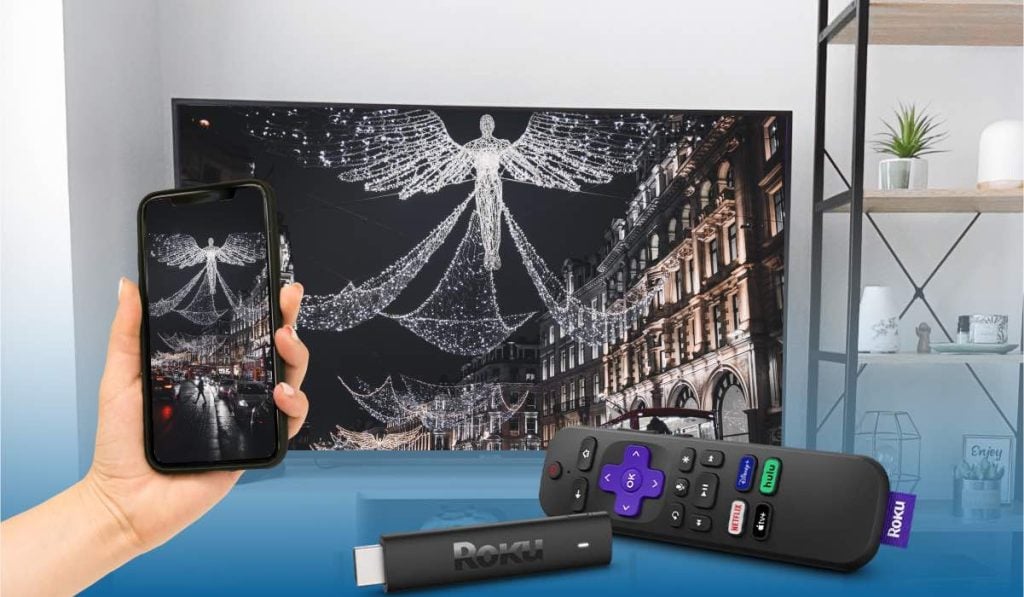
In exploring the diverse capabilities of your Roku device, especially when it comes to enhancing your experience of watching local channels, an often overlooked feature is Roku screen mirroring.
This functionality can significantly elevate how you consume local content, allowing you to share anything from local news updates, weather forecasts, to live sports events directly from your iPhone or iPad to your Roku TV.
For a seamless guide on how to utilize this feature, ensuring you don’t miss a beat of your local content in a more interactive and engaging way, visit our comprehensive guide on Roku screen mirroring.
This resource is designed to help you effortlessly mirror your mobile device’s screen, bringing a whole new dimension to how you stay connected with your local community through your Roku device.
Adding Private and Public Roku Channels for Local Content
Roku’s platform allows users to access a wide array of channels, including both public and private options, to find local content.
Public channels can be easily added from the Roku Channel Store, where you can search for local news stations and community channels. Private channels, or hidden channels, offer additional content not listed in the main store.
These can be added using specific codes provided by the channel publisher. This subtopic should guide readers on how to discover these codes and the steps to add these channels to their Roku device. Highlighting the process enriches the user’s content library with local sports, news, and cultural programming that might not be available through the main channel store.
Third-party Services and Apps for Local Channels on Roku
In addition to Roku’s own features, numerous third-party services and apps offer access to local channels on the platform. Subscription-based services like Hulu + Live TV, YouTube TV, and Sling TV include local channels in their packages, depending on your location.
Free apps, such as Pluto TV and NewsON, provide access to live and on-demand local news without a subscription. This section would detail these options, discussing the content available through each service and how to subscribe or access them through your Roku device.
Providing readers with a comparison of these services can help them make an informed decision based on their preferences and budget.
Tips and Tricks for Enhancing Local Channel Streaming on Roku
Optimal placement of your digital antenna can significantly improve the quality and number of channels you receive OTA. Exploring Roku’s network settings can also ensure a smoother streaming experience, reducing buffering and improving video quality.
Furthermore, utilizing Roku’s search and customization features can help keep your favorite local content easily accessible, saving you time and enhancing your viewing experience. This section would offer practical advice on getting the best performance from your Roku device, ensuring that users can enjoy local content with minimal hassle and maximum enjoyment.
By following these guidelines and making the most of Roku’s capabilities, users can enjoy a comprehensive and enjoyable viewing experience that includes a wide range of local content alongside their favorite national and international streaming services.
Local Channels on Roku Disappeared
When local channels disappear from your Roku device, it can be due to several reasons. Here’s a breakdown of possible causes and steps to get them back:
Possible Causes:
- Antenna Issues: If you’re using a digital antenna for over-the-air (OTA) channels, issues such as poor placement, damage, or obstructions can affect signal reception.
- Network Changes: Local broadcasters sometimes change their frequency. This means you’ll need to rescan for channels to catch the new frequencies.
- Roku Channel Store Changes: Channels in the Roku Channel Store may be removed or updated, affecting their availability.
- Subscription Changes: If you access local channels through a streaming service subscription (like Hulu + Live TV), changes in your subscription or the service’s offerings can result in missing channels.
- Technical Glitches: Software bugs or glitches in the Roku system can also cause channels to disappear temporarily.
How to Get Them Back:
- Rescan for OTA Channels:
- Go to your Roku TV’s settings and find the option for TV inputs.
- Select “Antenna TV” and choose to “Scan again for channels” or “Set up input” to rescan for local OTA broadcasts.
- Check Antenna Placement:
- Ensure your antenna is properly connected and positioned optimally. Sometimes moving the antenna to a different location can improve reception.
- Update Roku:
- Make sure your Roku device has the latest software update. Go to Settings > System > System update > Check now.
- Re-add Channels from the Roku Channel Store:
- If specific local channels were accessed via the Roku Channel Store, search for them again and re-add if they’ve been removed.
- Check Your Streaming Service Subscription:
- Verify that your subscription is active and hasn’t changed. If necessary, contact your service provider to ensure local channels are included in your package.
- Restart Your Roku Device:
- Sometimes, a simple restart can resolve the issue. Go to Settings > System > System restart (or power off your device and then turn it back on).
If after following these steps your local channels are still missing, it might be useful to contact Roku’s support team for further assistance or reach out to the specific channel providers to inquire about any known issues or changes in service.
Fix Roku Remote
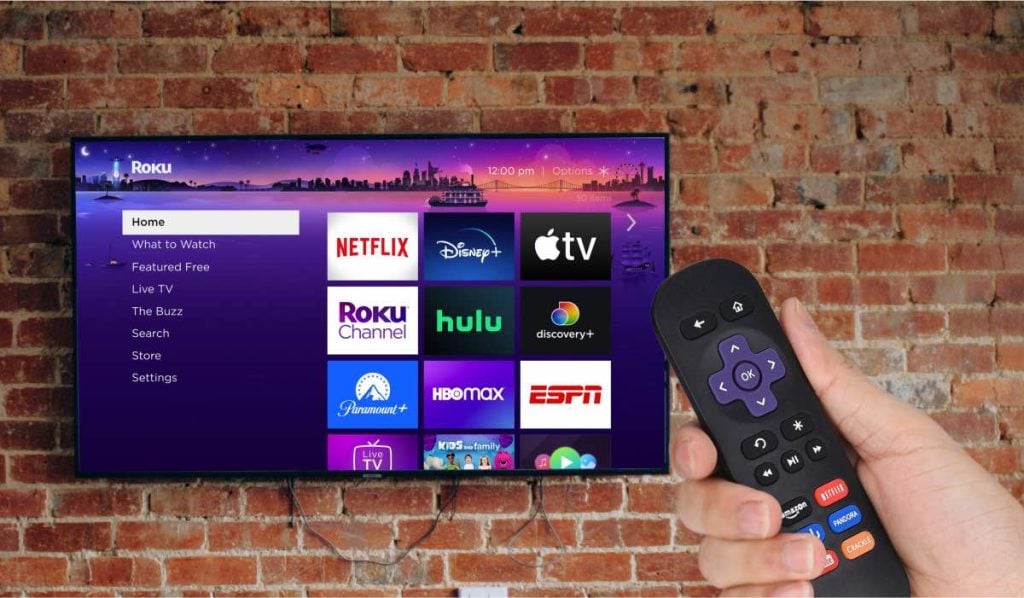
While addressing the challenge of accessing local channels on your Roku, another common hurdle you might encounter is issues with your Roku remote.
A non-responsive or malfunctioning remote can significantly disrupt your streaming experience, preventing you from navigating through channels or even executing the simplest commands. If you find yourself in such a predicament, don’t let it dampen your Roku experience.
For a comprehensive guide on how to troubleshoot and fix Roku remote issues, ensuring you can smoothly continue enjoying your local channels and all your favorite content without interruption, check out our detailed solutions on how to fix Roku remote issues. This resource is designed to help you quickly resolve common problems with step-by-step instructions, getting you back to seamless streaming in no time.
Frequently Asked Questions
Can I get local channels on my Roku device?
Yes, you can get local channels on your Roku device. Our AirBeamTV experts recommend connecting a digital antenna to your Roku TV to access over-the-air (OTA) broadcasts. Additionally, you can add specific local news, sports, and weather channels from the Roku Channel Store. We find that using streaming services available through Roku, like Hulu + Live TV or Sling TV, also provides access to local channels based on your subscription and location.
Do I need a subscription to watch local channels on Roku?
You don’t necessarily need a subscription. By connecting a digital antenna to your Roku TV, you can access OTA broadcasts for free. However, for a broader selection of local channels and content, subscription-based services like YouTube TV or Hulu + Live TV offer comprehensive packages that include local broadcasting.
How can I find local channels on Roku?
Our experts suggest scanning for channels through your Roku TV’s settings after connecting a digital antenna for OTA broadcasts. Additionally, you can search the Roku Channel Store for local channels by entering your city or region’s name. Our developers also recommend exploring free and subscription-based streaming services on Roku that include local channels in their offerings.
Are there free apps on Roku for local news?
Yes, there are free apps on Roku for local news. Our team finds that apps like NewsON and Pluto TV offer access to live and on-demand local news from various regions without requiring a subscription. These apps provide an easy way to stay updated with local happenings directly through your Roku device.
Can I use a digital antenna with my Roku device to get local channels?
Absolutely, you can use a digital antenna with your Roku TV to receive local channels. Our developers note that connecting an antenna directly to your Roku TV allows you to scan for and watch OTA broadcasts, including local news, sports, and entertainment channels, without the need for internet or a subscription service.
What if I can’t find my local channels on Roku?
If you can’t find your local channels on Roku, our experts believe checking your digital antenna connection and rescanning for channels via your Roku TV settings may help.
Additionally, reviewing the availability of local channels within subscription-based services you’re subscribed to, or exploring other Roku apps dedicated to local content, might provide access to the channels you’re missing. Our developers also suggest ensuring your Roku device’s software is up-to-date for the best performance and channel availability.
Discover More:
