




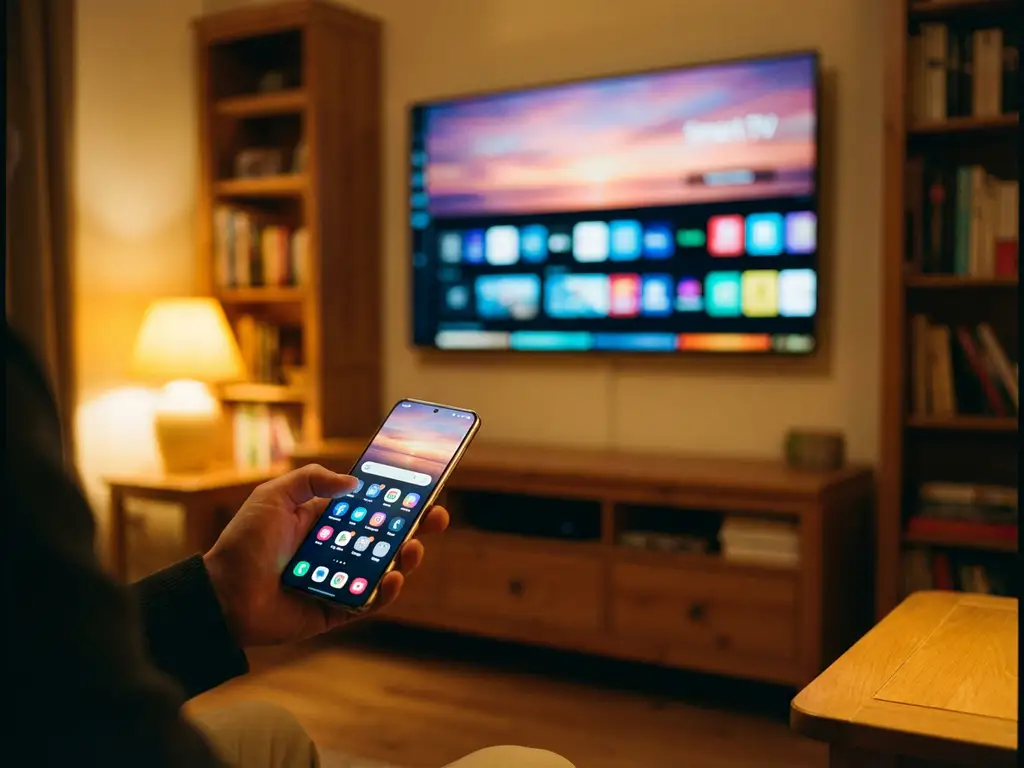
Android screen mirroring allows you to wirelessly display your Android device’s screen on your TV without cables or additional hardware. Most modern Android devices support wireless mirroring through built-in casting features, third-party apps, or Smart TV compatibility. The process typically involves connecting both devices to the same Wi-Fi network and establishing a wireless connection for real-time screen sharing.
What is wireless screen mirroring, and how does it work with Android devices?
Wireless screen mirroring is a technology that transmits your Android device’s display to a TV screen in real time without physical cables. It works by creating a direct wireless connection between your phone or tablet and your television, allowing everything on your device’s screen to appear instantly on the larger display.
The technology relies on wireless protocols such as Miracast, Chromecast, or proprietary casting standards built into Smart TVs. Your Android device captures its screen content and compresses it into a video stream, which is then transmitted over your Wi-Fi network to the receiving device. The TV decodes this stream and displays it, creating a mirror image of your phone or tablet screen.
Most Android devices manufactured after 2012 include built-in casting capabilities through Google Cast or screen mirroring features. These work seamlessly with compatible Smart TVs and streaming devices, requiring only a stable Wi-Fi connection to establish the wireless link between devices.
What are the different methods to mirror Android to a TV wirelessly?
There are several approaches to mirror Android to TV wirelessly, each offering different benefits depending on your devices and setup preferences. The most common methods include built-in Android casting features, dedicated mirroring apps, Smart TV compatibility options, and streaming device solutions.
Google Cast is the most widely supported built-in option, allowing you to cast content directly from compatible apps or mirror your entire screen to Chromecast devices and Cast-enabled TVs. Many Android devices also include a native “Screen Mirroring” or “Smart View” feature in the Quick Settings panel.
Third-party screen mirroring applications provide broader compatibility with various TV brands and models. These apps often work with TVs that don’t support Google Cast, offering universal compatibility across different manufacturers such as Samsung, LG, Sony, and others.
Smart TV manufacturers such as Samsung (Smart View), LG (Screen Share), and others provide their own wireless mirroring solutions that work directly with Android devices. Streaming devices such as Amazon Fire TV, Roku, and Apple TV also support Android mirroring through specific apps or universal remote control TV app or built-in features.
How do you set up wireless mirroring between your Android device and Smart TV?
Setting up wireless mirroring requires both your Android device and Smart TV to be connected to the same Wi-Fi network, followed by enabling the mirroring feature on both devices. The exact steps vary slightly depending on your TV brand and Android version, but the general process remains consistent.
Start by ensuring both devices are connected to the same wireless network. On your Smart TV, navigate to the screen mirroring, casting, or wireless display option in the settings menu. The feature might be called “Screen Mirroring,” “Miracast,” “Wi-Fi Direct,” or “AllShare Cast,” depending on your TV manufacturer.
On your Android device, open the Quick Settings panel by swiping down from the top of the screen. Look for options such as “Cast,” “Screen Mirroring,” “Smart View,” or “Wireless Display.” Tap the option and wait for your TV to appear in the list of available devices.
Select your TV from the list and follow any on-screen prompts to establish the connection. Some TVs may display a PIN that you’ll need to enter on your Android device. Once connected, your device screen should appear on the TV within a few seconds, and you can begin enjoying content on the larger display.
Why isn’t my Android device connecting to my TV for wireless mirroring?
Connection issues typically stem from network problems, device compatibility, or incorrect settings. The most common culprit is having the devices connected to different Wi-Fi networks or experiencing weak wireless signals that prevent stable communication between your Android device and TV.
Check that both your Android device and Smart TV are connected to the same Wi-Fi network. Many homes have multiple networks (2.4 GHz and 5 GHz bands, guest networks), and devices on different networks cannot communicate with each other. Restart your router if you’re experiencing general connectivity issues.
Ensure your TV’s mirroring feature is properly enabled and discoverable. Some Smart TVs require you to manually activate screen mirroring mode before Android devices can detect them. Check your TV’s manual for the correct menu location, as it varies by manufacturer.
Device compatibility can also cause connection failures. Older Android devices or TVs may not support the same wireless protocols. If built-in mirroring fails, try downloading a dedicated screen mirroring app that offers broader compatibility with different TV models and Android versions. For troubleshooting assistance, you can check our comprehensive knowledge base for detailed solutions.
Interference from other wireless devices, outdated software, or firewall settings can also disrupt connections. Try moving closer to your router, updating your Android device and TV firmware, or temporarily disabling other wireless devices to identify potential sources of interference.
Which Smart TV brands and Android devices work best for wireless screen mirroring?
Samsung, LG, Sony, and TCL Smart TVs generally offer the most reliable wireless mirroring compatibility with Android devices. These manufacturers have invested heavily in wireless display technology and provide robust built-in casting features that work seamlessly with most modern Android phones and tablets.
Samsung Smart TVs with Smart View technology work exceptionally well with Samsung Galaxy devices but also support other Android brands through standard Miracast protocols. LG’s webOS platform includes comprehensive screen-sharing features compatible with virtually all Android devices manufactured after 2015.
For Android devices, flagship phones from Samsung, Google Pixel, OnePlus, and Xiaomi typically provide the most stable mirroring experiences. These devices include optimized casting hardware and software that maintains high-quality video transmission with minimal lag or connection drops. If you’re also interested in mirroring from other devices, you can mirror iPhone iPad screen or mirror your Mac screen using similar wireless technologies.
Streaming devices such as Chromecast, Amazon Fire TV Stick, and Roku often provide more consistent mirroring performance than built-in Smart TV features. These dedicated devices receive regular software updates and offer broader compatibility across different Android device manufacturers and models.
When choosing devices for optimal mirroring performance, prioritize recent models with strong Wi-Fi capabilities and ensure both devices support the same wireless display standards. This combination typically delivers the smoothest wireless screen mirroring experience, with excellent video quality and reliable connectivity.
How AirBeamTV helps with Android screen mirroring
AirBeamTV provides a comprehensive solution for Android screen mirroring that eliminates compatibility issues and connection problems. The platform offers dedicated apps that work seamlessly across different TV brands and Android devices, ensuring reliable wireless mirroring regardless of your hardware combination.
Key benefits of using AirBeamTV include:
- Universal compatibility – Works with Samsung, LG, Sony, Panasonic, and other major Smart TV brands
- High-quality streaming – Maintains excellent video and audio quality during mirroring sessions
- Easy setup – Simple installation process with no additional hardware required
- Stable connections – Optimized protocols reduce lag and connection drops
- Multiple device support – Compatible with various Android versions and manufacturers
Ready to experience seamless Android screen mirroring? Download AirBeamTV today and transform your TV into the perfect display for your Android device content, presentations, and entertainment. If you need additional support or have questions, feel free to contact us for personalized assistance.
