




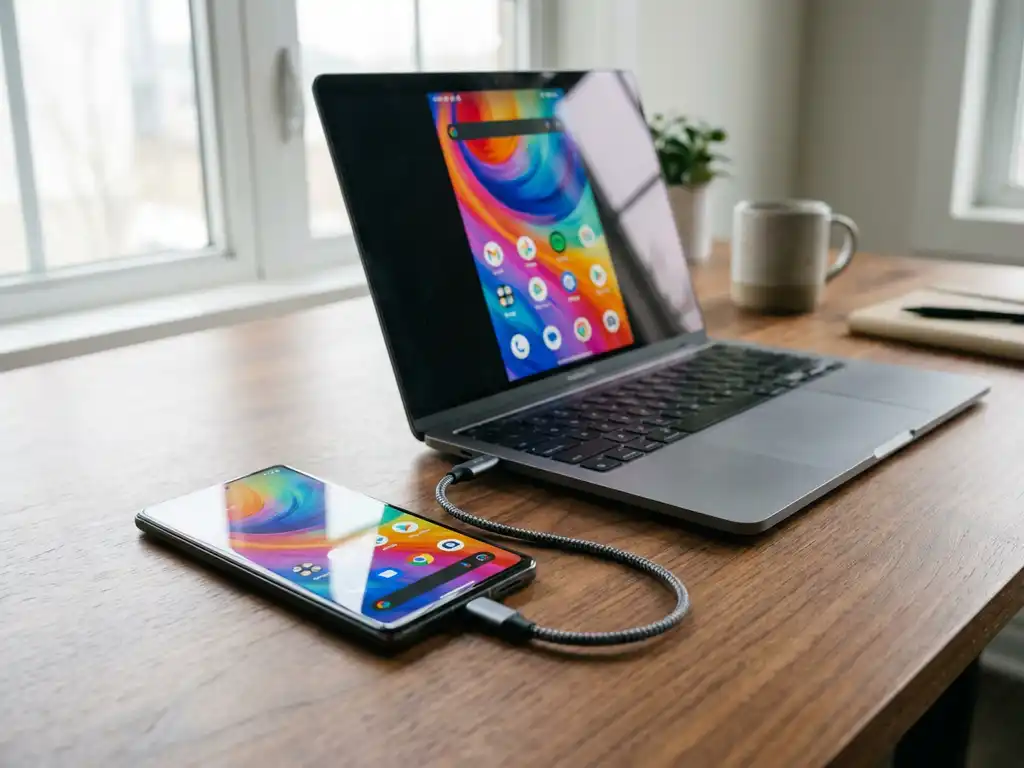
Yes, you can mirror your Android device to a laptop using both wireless and wired methods. Wireless options include built-in casting features and third-party applications, while USB connections provide more stable performance. The process varies depending on your laptop’s operating system and the specific mirroring method you choose.
What is Android-to-laptop screen mirroring, and why would you need it?
Android-to-laptop screen mirroring displays your phone or tablet screen on your laptop in real time through wireless or wired connections. This technology transmits your device’s visual output to the larger laptop screen, creating a duplicate display for enhanced viewing and interaction.
The most common reasons people mirror Android devices to laptops include giving presentations without connecting directly to projectors, testing mobile applications on larger screens for development purposes, and streaming videos or games for better visibility. Business users often find it helpful for demonstrating mobile apps during meetings or sharing content with colleagues.
Gaming enthusiasts benefit from the larger display when playing mobile games, while content creators can record or stream their mobile activities more effectively. Students and professionals use Android screen mirroring for educational purposes, showing mobile content during lectures or training sessions without requiring additional hardware.
What are the best methods to mirror Android to a laptop wirelessly?
The most effective wireless mirroring methods include built-in casting features like Smart View for Samsung devices, third-party applications such as scrcpy, AirDroid, and Vysor, as well as dedicated screen-mirroring apps that work across different Android brands.
scrcpy stands out as a free, open-source solution that works on Windows, macOS, and Linux laptops. It requires enabling USB debugging initially, but it also supports wireless connections. The application provides excellent performance with minimal lag and supports audio transmission alongside video.
AirDroid offers a comprehensive wireless solution through your browser, requiring both devices to connect to the same Wi-Fi network. The setup involves installing the AirDroid app on your Android device and accessing the web interface on your laptop through any modern browser.
Vysor provides both free and premium versions, with the paid option offering better quality and additional features. The wireless functionality requires both devices to be on the same Wi-Fi network and delivers reliable performance for most everyday tasks.
How do you mirror Android to a laptop using a USB cable?
USB cable mirroring requires enabling Developer Options and USB Debugging on your Android device, then using applications like scrcpy or Vysor to establish the wired connection. This method typically provides the most stable and responsive mirroring experience.
To enable USB debugging, go to Settings > About phone and tap Build number seven times to unlock Developer Options. Then navigate to Settings > Developer options and toggle USB debugging on. This allows your laptop to communicate directly with your Android device through the USB connection.
scrcpy works excellently for USB mirroring: simply connect your device and run the application on your laptop. The wired connection eliminates network-related delays and provides consistent performance regardless of Wi-Fi quality or interference.
Cable connections offer significant advantages, including lower latency for gaming or real-time demonstrations, more reliable connections that won’t drop due to network issues, and better audio synchronisation. The direct USB link also charges your device while mirroring, preventing battery drain during extended sessions.
Why isn’t Android screen mirroring to a laptop working properly?
Common Android screen-mirroring problems include connection failures due to network issues, lag or poor video quality from insufficient Wi-Fi bandwidth, audio sync problems, and compatibility conflicts between different Android versions and mirroring applications.
Network-related issues often occur when devices aren’t on the same Wi-Fi network or when firewall settings block the connection. Check that both your Android device and laptop are connected to the same network, and temporarily disable firewalls or antivirus software that might interfere with the mirroring process.
Driver problems frequently affect USB connections, particularly on Windows laptops. Ensure you have the latest USB drivers installed and try different USB ports or cables. Some Android devices require specific manufacturer drivers for proper recognition by mirroring software.
Performance issues like lag or poor quality usually stem from weak Wi-Fi signals or overloaded networks. Move closer to your router, close unnecessary applications on both devices, and consider using the 5 GHz Wi-Fi band, if available, for better performance and less congestion. If problems persist, check our knowledge base for additional troubleshooting tips.
Which Android mirroring method works best for different laptop types?
Windows laptops work best with scrcpy and Vysor for broad compatibility; Macs work well with AirDroid and LetsView for seamless integration; and Linux users should prioritise scrcpy due to its open-source nature and native support across distributions. Those using Mac systems might also benefit from learning how to mirror your Mac screen for comprehensive device integration.
For gaming and real-time applications, USB connections consistently outperform wireless methods regardless of laptop type. The direct cable connection minimises input lag and provides stable frame rates essential for responsive gaming or live demonstrations.
Business presentations benefit from wireless solutions like AirDroid or built-in casting features, as they eliminate cable management during meetings. However, always have a USB backup ready for critical presentations where connection reliability is paramount.
Content creators and developers typically prefer scrcpy due to its high-quality output and recording capabilities. The application supports both wireless and wired connections, making it versatile for different scenarios while maintaining professional-grade performance across Windows, macOS, and Linux systems.
Consider your laptop’s specifications when choosing mirroring methods. Older or less powerful laptops may struggle with wireless mirroring applications that require more processing power, making USB connections the more reliable choice for consistent performance. For iOS users seeking similar functionality, you can also mirror iPhone iPad screen using compatible solutions, or enhance your setup further with a universal remote control TV app for seamless device management.
How AirBeamTV helps with Android-to-laptop screen mirroring
AirBeamTV provides a streamlined solution for Android-to-laptop screen mirroring that eliminates the complexity of traditional methods. Our dedicated mirroring application offers:
- One-click setup without requiring USB debugging or developer options
- High-quality wireless transmission with minimal lag and excellent audio synchronisation
- Universal compatibility across Windows, macOS, and Linux laptops
- Stable connections that maintain quality even on busy Wi-Fi networks
- Professional-grade performance suitable for presentations, gaming, and content creation
Whether you’re presenting to clients, streaming mobile games, or developing Android applications, AirBeamTV delivers reliable screen mirroring without the technical hurdles of other solutions. Experience seamless Android-to-laptop mirroring today by downloading AirBeamTV and transforming how you share your mobile content on the big screen. For support or questions, feel free to contact us for assistance.
