




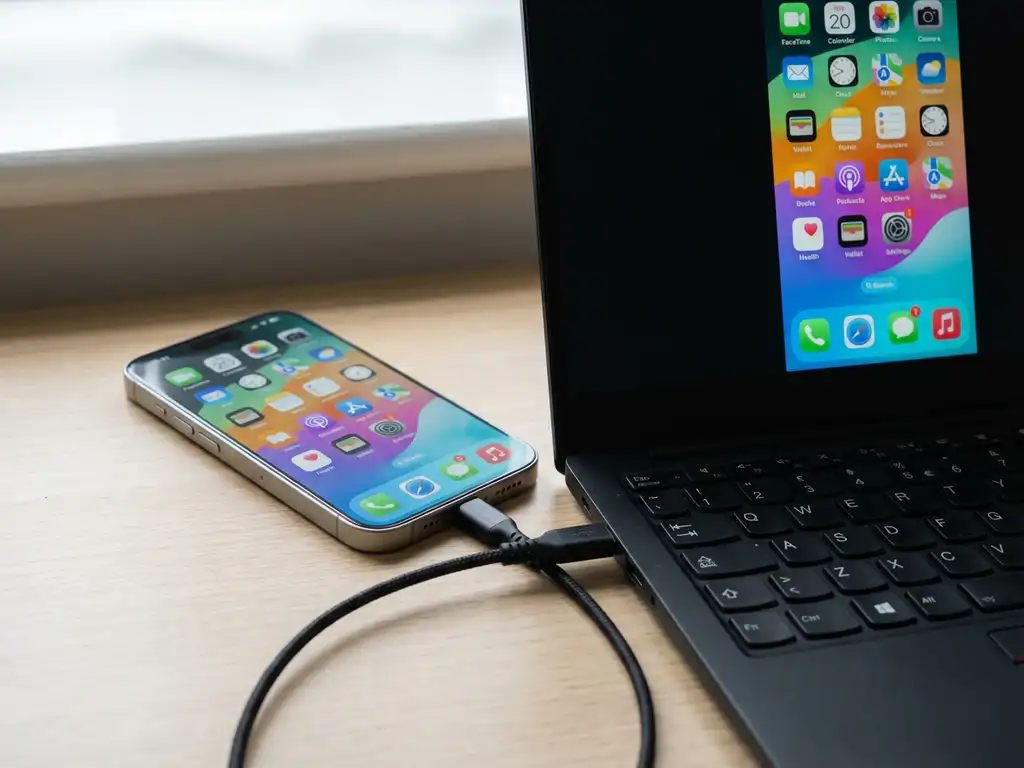
You can mirror your iPhone to a Windows PC using wireless screen-mirroring apps, built-in Windows features, or cable connections. The most popular method involves downloading a dedicated mirroring app on both devices, connecting them to the same Wi-Fi network, and starting the wireless connection. This allows you to display your iPhone’s screen on your PC for presentations, media streaming, gaming, and productivity tasks that benefit from a larger display.
What is iPhone to Windows PC screen mirroring, and why would you need it?
iPhone screen mirroring to a Windows PC is a technology that wirelessly displays your iPhone’s screen on your computer monitor in real time. This wireless screen sharing works over your Wi-Fi network, creating a live connection between your iPhone and PC without requiring cables or additional hardware.
The technology behind iPhone screen mirroring relies on wireless protocols that transmit your device’s display data over your local network. Your iPhone captures everything happening on its screen and sends it to your Windows PC, which then displays it in a window or in full-screen mode.
Common use cases make this feature incredibly valuable in a variety of situations. Business professionals use iPhone screen mirroring for presentations, allowing them to showcase mobile apps, documents, or demonstrations on larger screens during meetings. Gaming enthusiasts mirror their iPhone games to enjoy mobile gaming on bigger displays with better visibility.
Media streaming becomes more enjoyable when you can watch videos, view photos, or browse social media content from your iPhone on your PC’s larger screen. Productivity tasks like reviewing documents, editing photos, or managing apps become easier when you can see everything clearly on a computer monitor instead of squinting at your phone screen.
What are the different methods to mirror iPhone to a Windows PC?
Four main approaches exist for mirroring your iPhone to a Windows PC: wireless screen-mirroring apps, built-in Windows features, third-party software solutions, and wired cable connections. Each method offers different levels of ease, quality, and compatibility depending on your specific needs and technical setup.
Wireless screen-mirroring apps provide the most straightforward solution. These dedicated applications work by installing software on both your iPhone and Windows PC, then connecting them through your Wi-Fi network. Popular apps offer high-quality video transmission and support various content types, including videos, presentations, and live streaming.
Built-in Windows features include tools like the Connect app, which can receive wireless display connections from compatible devices. However, iPhone compatibility with native Windows mirroring features remains limited due to the different wireless protocols used by Apple and Microsoft.
Third-party software solutions include desktop programs designed specifically for iPhone mirroring. These applications often provide additional features like recording capabilities, annotation tools, and enhanced video quality controls. Some require installation only on your PC, while others need companion apps on your iPhone.
Cable connections offer the most reliable method, using Lightning-to-USB adapters or HDMI connections through appropriate dongles. While this approach guarantees stable connectivity and high video quality, it lacks the convenience of wireless solutions and requires physical proximity between devices.
How do you mirror iPhone to a Windows PC wirelessly using screen-mirroring apps?
Wireless iPhone mirroring requires downloading compatible apps on both devices, ensuring network connectivity, and establishing the connection through simple setup steps. The process typically takes just a few minutes and works reliably once properly configured.
Device preparation starts with ensuring both your iPhone and Windows PC are connected to the same Wi-Fi network. This shared network connection enables the devices to communicate and transfer screen data wirelessly. Check that your Wi-Fi signal remains strong in the location where you’ll be using both devices.
App installation involves downloading the screen-mirroring application on your iPhone from the App Store and the corresponding software on your Windows PC from the developer’s website. Many apps offer free trial versions, allowing you to test compatibility before purchasing the full version.
Connection setup follows a straightforward process. Open the mirroring app on both devices, then select your Windows PC from the list of available devices in your iPhone app. The PC software should automatically detect your iPhone once both applications are running on the same network.
Start the mirroring session by tapping the “Start Mirroring” or “Connect” button in your iPhone app. Your iPhone screen should appear within seconds on your PC display. You can then use your iPhone normally while everything appears simultaneously on your computer screen.
Common connection troubleshooting includes restarting both applications if the initial connection fails, checking firewall settings on your PC that might block the connection, and ensuring both devices remain connected to the same Wi-Fi network throughout the session.
Why isn’t my iPhone connecting to a Windows PC for screen mirroring?
Connection failures typically stem from network issues, firewall restrictions, device compatibility problems, or incorrect app permissions. Most mirroring problems can be resolved by systematically checking these common areas and applying appropriate solutions.
Network connectivity problems are the most frequent cause of connection failures. Both devices must be connected to the same Wi-Fi network, including the same network name and password. Guest networks or separate 2.4 GHz and 5 GHz networks can prevent proper device communication. Weak Wi-Fi signals can also cause unstable connections and poor video quality.
Firewall settings on Windows PCs often block incoming connections from mobile devices as a security measure. Windows Defender Firewall or third-party security software may prevent the mirroring app from receiving data from your iPhone. Adding the mirroring software to your firewall’s list of allowed applications typically resolves this issue.
Device compatibility issues can occur when using older iPhone models, outdated Windows versions, or incompatible app versions. Some mirroring applications require specific iOS versions or Windows updates to function properly. Check the app’s system requirements and update your devices if necessary.
App permissions can block screen-mirroring functionality if they aren’t properly configured. iPhone apps need permission to access screen recording, while Windows applications may require administrator privileges to accept network connections. Review and grant the necessary permissions in your device settings.
Solutions for connection failures include restarting both devices, reinstalling the mirroring applications, temporarily disabling firewall software for testing, and ensuring both devices have the latest software updates installed. Poor video quality or lag often improves if you move closer to your Wi-Fi router or reduce network congestion by disconnecting other devices. You can also enhance your setup with a universal remote control TV app for additional device management. If you continue experiencing issues, consult our knowledge base for additional troubleshooting steps.
How AirBeamTV helps with iPhone to PC screen mirroring
AirBeamTV provides a comprehensive solution for seamless iPhone to Windows PC screen mirroring that eliminates the common frustrations associated with wireless display sharing. Our dedicated applications deliver professional-grade mirroring capabilities that work reliably across different device configurations and network environments.
Key benefits of using AirBeamTV include:
- Simple setup process – Connect your devices in under 60 seconds with our user-friendly interface
- High-quality video transmission – Enjoy crystal-clear screen mirroring with minimal latency
- Universal compatibility – Works with all modern iPhone models and Windows 10/11 systems
- Stable wireless connection – Advanced networking protocols ensure consistent performance
- No additional hardware required – Mirror wirelessly using only your existing Wi-Fi network
- Professional support – Access expert technical assistance when you need help
Ready to experience effortless iPhone to PC screen mirroring? Download AirBeamTV today and transform how you share your mobile content on larger screens. Start your free trial now and discover why thousands of users trust AirBeamTV for their wireless display needs. Whether you need to mirror Android to TV or mirror your Mac screen, our solutions cover all your mirroring requirements. For additional assistance or questions, don’t hesitate to contact us directly.
