




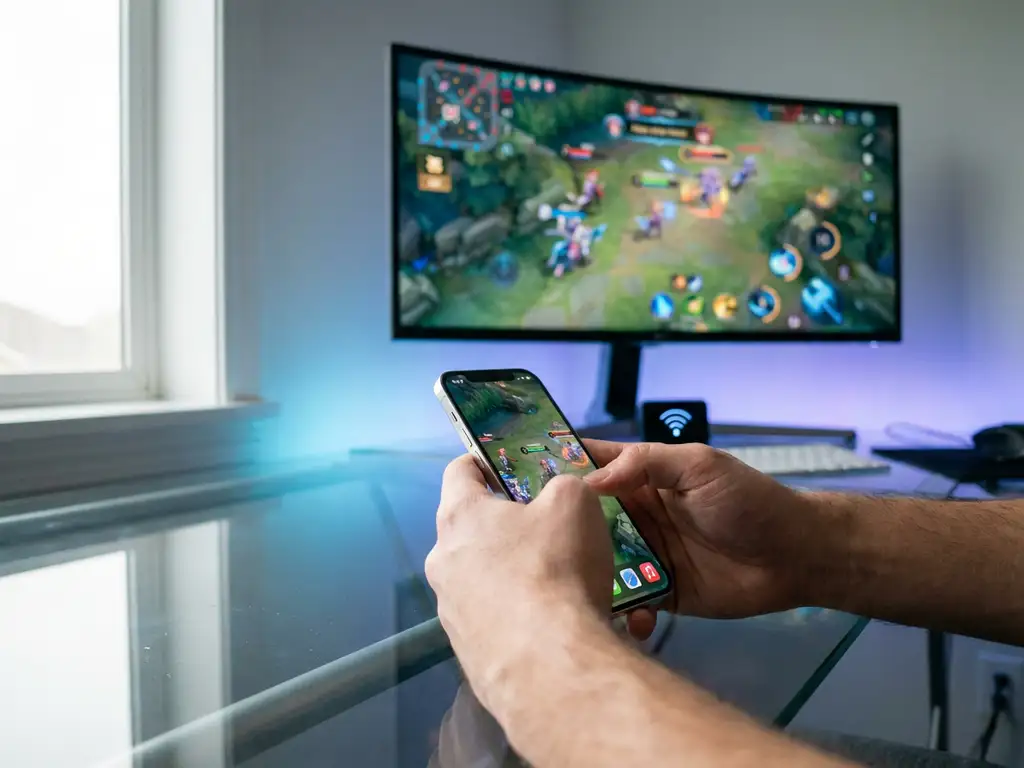
Mirroring iPhone games to your TV without lag requires optimising your network connection, choosing the right mirroring app, and configuring both device and display settings properly. Network stability, processing power, and wireless interference are the primary factors affecting gaming performance during iPhone screen mirroring. Modern screen mirroring solutions can deliver smooth gaming experiences when properly configured, making it possible to enjoy mobile games on the big screen without frustrating delays.
What causes lag when mirroring iPhone games to TV?
Network congestion, processing delays, and wireless interference create latency during iPhone game mirroring. Your Wi-Fi network must handle real-time data transmission between your iPhone and TV, while both devices process the video stream simultaneously. When your network bandwidth is insufficient or shared with multiple devices, gaming performance suffers significantly.
Processing delays occur when your iPhone struggles to encode the game video while running the game itself. Older iPhone models may experience more pronounced delays, particularly with graphics-intensive games. Similarly, your TV or streaming device needs adequate processing power to decode and display the incoming video stream without buffering.
Wireless interference from neighbouring Wi-Fi networks, Bluetooth devices, and household electronics can disrupt the connection between your iPhone and TV. Physical obstacles like walls and furniture can also weaken signal strength, leading to inconsistent performance and noticeable lag during gaming sessions.
Different mirroring methods affect gaming performance differently. Native AirPlay typically offers lower latency than third-party solutions, while some dedicated gaming mirroring apps optimise specifically for real-time performance rather than video quality.
How do you optimise your network for lag-free iPhone game mirroring?
Position your router centrally between your iPhone and TV, ensuring both devices maintain strong Wi-Fi signals. Use the 5GHz frequency band instead of 2.4GHz for faster data transmission and reduced interference from household devices. Close unnecessary apps on other connected devices to free up bandwidth for your gaming session.
Enable Quality of Service (QoS) settings on your router to prioritise gaming and streaming traffic over background downloads and updates. Most modern routers offer gaming modes that automatically optimise network performance for real-time applications like screen mirroring.
Ensure your internet connection provides at least 25 Mbps download speed for smooth gaming mirroring. While local mirroring doesn’t require internet bandwidth, many games need online connectivity, and insufficient speeds can create compounded lag issues.
Reduce network congestion by temporarily disconnecting devices that aren’t essential during your gaming session. Smart home devices, automatic backups, and streaming on other devices all compete for the same bandwidth your iPhone needs for lag-free mirroring.
Which iPhone game mirroring apps work best for real-time gaming?
Dedicated screen mirroring apps like AirBeamTV offer optimised performance for gaming by prioritising low latency over maximum video quality. These apps work without requiring Apple TV or additional hardware, connecting directly through your Wi-Fi network to compatible smart TVs from Samsung, LG, Sony, and other major brands.
Native iOS screen mirroring through AirPlay provides excellent performance when paired with Apple TV or AirPlay-compatible displays. The direct integration with iOS often delivers lower latency than third-party solutions, making it ideal for fast-paced gaming.
AirBeamTV’s specialised approach eliminates the need for cables or additional hardware purchases while maintaining stable wireless connectivity. The app automatically scans for available TVs on your local network and establishes optimised connections for real-time content streaming.
Gaming-specific features in quality mirroring apps include automatic quality adjustment based on network conditions, reduced processing overhead, and prioritisation of frame rate over resolution when necessary. These optimisations help maintain responsive gameplay even when network conditions aren’t perfect.
What iPhone and TV settings reduce gaming lag during screen mirroring?
Enable Game Mode on your smart TV to reduce input lag and processing delays. This setting bypasses unnecessary video processing features that can add 50–100 milliseconds of delay. Disable motion smoothing, noise reduction, and other picture enhancement features that prioritise quality over speed.
On your iPhone, close all background apps before starting your gaming session. Enable Do Not Disturb mode to prevent notifications from interrupting the mirroring connection or consuming processing power. Ensure your iPhone has sufficient battery life, or connect it to power, as low battery can trigger performance throttling.
Set your TV’s display mode to PC or Game input when available, as these modes typically offer the lowest latency. Adjust the resolution settings to match your TV’s native resolution to avoid unnecessary scaling that can introduce delays.
Disable automatic app updates, iCloud syncing, and background app refresh during gaming sessions. These processes can consume network bandwidth and processing power that your iPhone needs for smooth game mirroring. Restart both your iPhone and TV before important gaming sessions to ensure optimal performance.
How do you troubleshoot common iPhone game mirroring lag issues?
Test your network connection speed and stability using built-in diagnostics or speed test apps. If speeds are inconsistent or below 25 Mbps, contact your internet provider or consider upgrading your service. Move closer to your router or use a Wi-Fi extender to improve signal strength.
Restart your mirroring app and re-establish the connection when lag becomes noticeable. Many temporary connection issues resolve themselves with a fresh start. If problems persist, restart both your iPhone and TV to clear any memory or processing bottlenecks.
Check for interference from other wireless devices by temporarily turning off Bluetooth speakers, smart home devices, and other phones or tablets. Switch to a less congested Wi-Fi channel using your router’s admin panel, particularly if you live in a densely populated area.
Update your mirroring app, iPhone iOS, and TV firmware to the latest versions. Manufacturers regularly release performance improvements and bug fixes that can significantly reduce lag and improve connection stability.
When connection issues persist, try connecting both devices to your router’s 5GHz network specifically, or consider using a universal remote control TV app as a test to isolate whether the problem lies with your home network or the devices themselves. For additional troubleshooting tips, consult the comprehensive knowledge base for detailed solutions to common connectivity issues.
How AirBeamTV helps with lag-free iPhone game mirroring
AirBeamTV provides the complete solution for smooth iPhone game mirroring by combining optimised wireless technology with user-friendly setup. The app delivers lag-free gaming experiences through several key advantages:
• Hardware-free connection: Mirror directly to your smart TV without needing Apple TV or cables
• Low-latency streaming: Prioritises real-time performance over maximum video quality for responsive gameplay
• Automatic TV detection: Instantly finds and connects to compatible Samsung, LG, Sony, and other smart TVs
• Network optimisation: Adjusts streaming quality based on your Wi-Fi conditions to maintain stable connections
• Simple setup process: Start mirroring your games in seconds without complex configuration
Transform your mobile gaming experience today by downloading AirBeamTV and enjoying your favourite iPhone games on the big screen with professional-grade performance and reliability. Whether you’re mirroring Android or iOS devices, our solution ensures optimal gaming performance across all platforms. Need additional support? Contact us for personalised assistance with your setup.
