




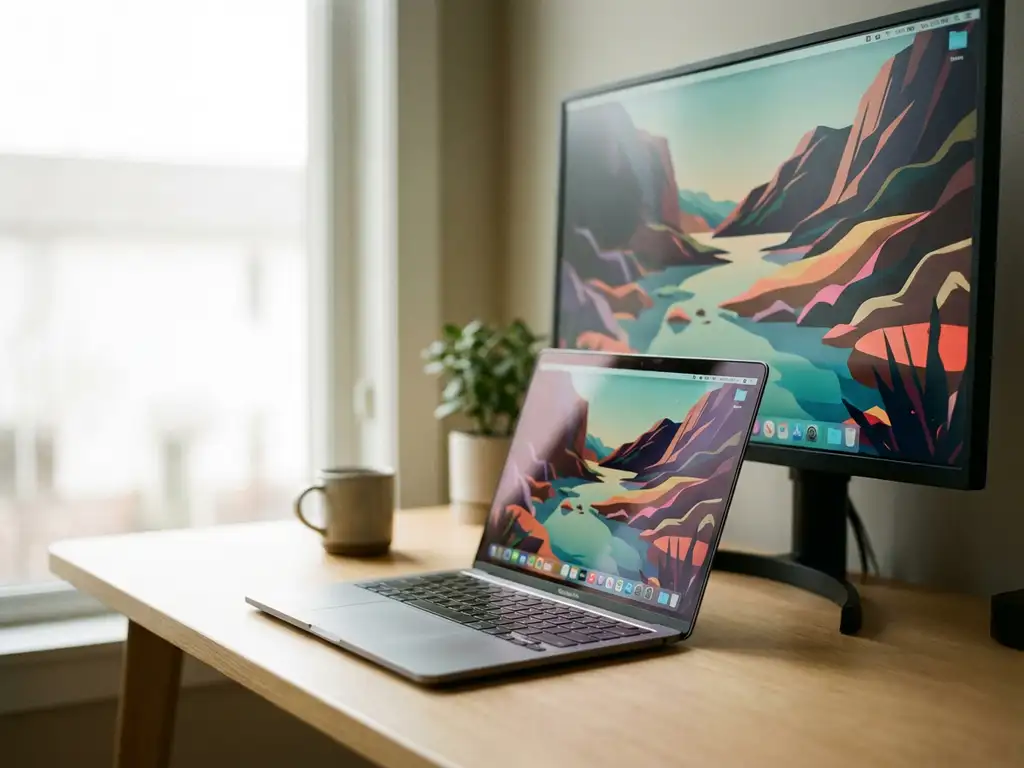
Screen mirroring on a Mac is a technology that wirelessly displays your Mac’s screen content on a TV or external display over your Wi‑Fi network. It works by establishing a direct connection between your Mac and the TV, transmitting everything from your computer screen in real time without cables or additional hardware. This allows you to watch videos, give presentations, or share any content from your Mac on a larger screen instantly.
What exactly is screen mirroring on Mac and how does it work?
Screen mirroring on a Mac creates a wireless connection that duplicates your Mac’s display on a TV or external monitor. The process involves your Mac encoding its screen content into data packets, transmitting them over your Wi‑Fi network, and having the receiving device decode and display the content in real time.
The technical process begins when your Mac establishes a connection with the target display device over your local network. Your computer continuously captures its display, compresses this visual data, and sends it wirelessly to the receiving device. The TV or monitor then reconstructs these data packets into visual content, creating a mirror image of your Mac’s screen.
This wireless connection requires both devices to be on the same Wi‑Fi network. The mirroring connection maintains synchronization between your Mac and the display device, ensuring that any actions you perform on your computer appear instantly on the larger screen. Whether you’re browsing the web, watching videos, or running applications, everything appears simultaneously on both your Mac and the connected TV.
What’s the difference between screen mirroring and AirPlay on Mac?
Screen mirroring apps work with many compatible TV brands and don’t require Apple-specific hardware, whereas AirPlay typically works with Apple TV devices or AirPlay-compatible displays. Screen mirroring apps often provide broader compatibility across Samsung, LG, Sony, and other major TV manufacturers, while AirPlay keeps you within Apple’s ecosystem.
The setup processes differ significantly between these options. AirPlay is built into macOS and works automatically when an Apple TV is detected on your network. You simply click the AirPlay icon and select your Apple TV. Screen mirroring apps require downloading specific software but offer more flexibility in device compatibility.
Hardware requirements present another key distinction. AirPlay requires an Apple TV device or an AirPlay 2-compatible smart TV, which may involve an additional purchase. Screen mirroring apps can eliminate this requirement by working directly with your existing smart TV through downloadable applications.
Choose AirPlay when you already own an Apple TV and want seamless integration with macOS. Opt for screen mirroring apps when you have non-Apple TVs or want to avoid purchasing additional hardware while maintaining high-quality wireless display capabilities.
How do you mirror your Mac screen to a TV without Apple TV?
Download a screen mirroring app compatible with your TV brand, install it on your Mac, ensure both devices are connected to the same Wi‑Fi network, then select your TV from the app’s menu and click Start Mirroring. Your Mac’s screen will appear on your television without requiring any cables or additional hardware purchases.
The installation process varies slightly depending on your TV manufacturer. For Samsung, LG, Sony, or other major brands, visit the appropriate app store or website to download a Mac-compatible mirroring application. Some TV brands may require you to install a companion receiver app on the television itself to establish the connection properly.
Once installed, open the mirroring app on your Mac. The software automatically scans your local Wi‑Fi network for compatible display devices. Select your TV from the drop-down menu that appears. The app may prompt you to confirm the connection on both your Mac and TV.
Click “Start Mirroring” or “Begin Broadcast” to initiate the connection. Your Mac’s screen content will appear on your TV within seconds. If you experience connection issues, verify that both devices are using the same Wi‑Fi network, and restart both the app and your TV’s network connection.
Which Mac devices support wireless screen mirroring?
Most Mac computers from 2012 onward support wireless screen mirroring, including MacBook Air, MacBook Pro, iMac, and Mac mini models. Your Mac needs macOS 10.8 or later and a stable Wi‑Fi connection to establish reliable mirroring connections with compatible display devices.
Hardware specifications play a crucial role in mirroring performance. Newer Mac models with faster processors and improved graphics capabilities deliver smoother, higher-quality mirroring experiences. Older Macs may experience slight delays or reduced video quality, particularly when mirroring your Mac screen with high-resolution content or graphics-intensive applications.
Memory and processing power affect mirroring quality significantly. Macs with 8 GB of RAM or more handle screen mirroring more efficiently, especially when running multiple applications simultaneously. Older models with 4 GB of RAM may experience performance limitations during intensive mirroring sessions.
Your Wi‑Fi capability matters equally. Macs with 802.11ac or newer Wi‑Fi standards provide better mirroring performance than older 802.11n models. However, even older Mac devices can achieve satisfactory mirroring results with strong network connections and appropriate app settings.
Why would you choose screen mirroring over other Mac display options?
Screen mirroring offers complete wireless freedom without purchasing additional hardware like an Apple TV or running HDMI cables across rooms. It works with any smart TV brand, provides quick setup, and costs less than other display solutions while delivering high-quality wireless screen sharing for presentations, entertainment, and productivity.
Convenience is the primary advantage over wired connections. You can mirror your Mac from anywhere in the room without being tethered to cables. This flexibility is invaluable for presentations, allowing you to control content while moving freely around the space and engaging with your audience naturally.
Cost-effectiveness sets screen mirroring apart from hardware-dependent solutions. Rather than purchasing Apple TV devices or expensive wireless display adapters, you can simply download an app. This approach saves money while providing the same core functionality across multiple TV brands and locations.
The universal compatibility advantage cannot be overstated. Screen mirroring works with Samsung, LG, Sony, Panasonic, and virtually any smart TV manufacturer. This broad compatibility means you can mirror Android to TV or Mac content in different environments without worrying about specific hardware requirements or brand limitations.
For business users, screen mirroring eliminates meeting room setup complications. You can instantly display presentations, documents, or applications on any conference room TV without hunting for cables or adapters. This seamless connectivity improves meeting efficiency and reduces technical delays that interrupt professional discussions.
How AirBeamTV helps with Mac screen mirroring
AirBeamTV provides the ultimate solution for Mac screen mirroring by offering dedicated apps for all major TV brands without requiring additional hardware purchases. Our software delivers professional-grade mirroring performance that transforms your wireless display experience with these key benefits:
- Universal TV compatibility – Works seamlessly with Samsung, LG, Sony, Fire TV, Roku, and virtually any smart TV brand
- One-click setup – Simply download, install, and start mirroring within minutes without complex configuration
- High-quality streaming – Enjoy crystal-clear video and audio transmission with minimal latency for presentations and entertainment
- No additional hardware needed – Mirror iPhone iPad screen or Mac directly to your existing smart TV without purchasing Apple TV or other expensive devices
- Reliable performance – Consistent connection stability for professional presentations and extended viewing sessions, and you can even use a universal remote control TV app to manage your display seamlessly
Ready to experience effortless Mac screen mirroring? Download AirBeamTV today and transform any smart TV into your Mac’s wireless display in just minutes. If you need assistance with setup or troubleshooting, visit our comprehensive knowledge base or contact us for personalized support.
