




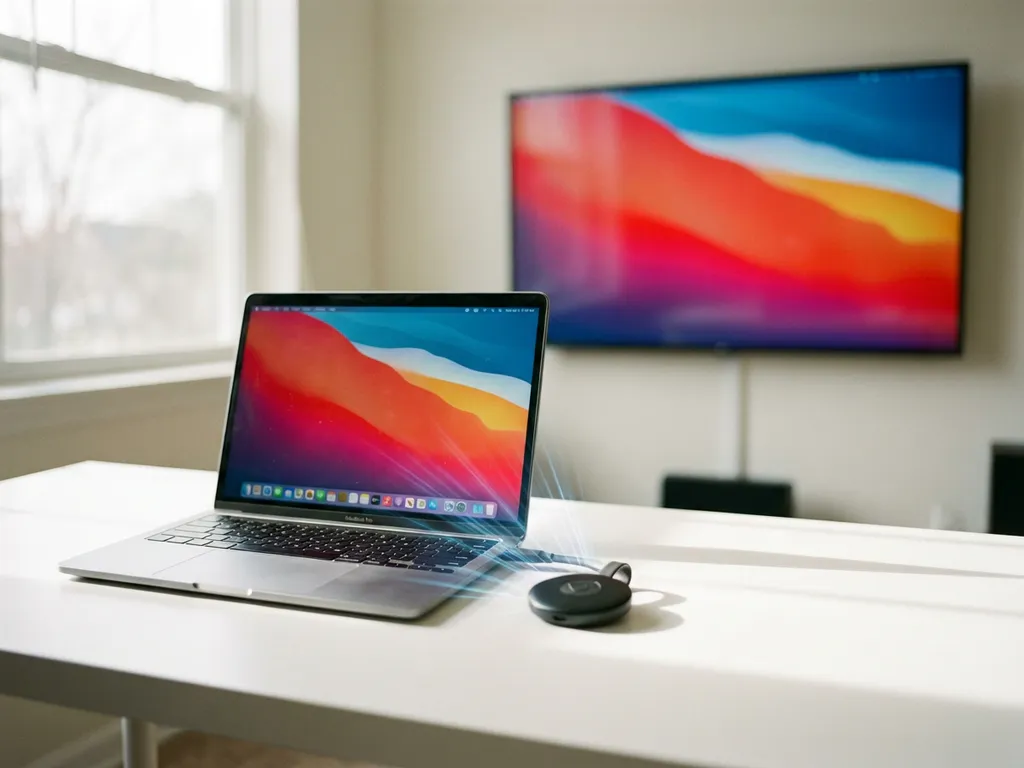
Mirroring your Mac to a Chromecast requires third-party applications because Apple doesn’t natively support Google’s casting protocol. Mac-to-Chromecast screen-mirroring solutions let you wirelessly display your MacBook or iMac screen on any Chromecast-connected TV without cables or additional hardware. Popular apps such as AirBeamTV provide seamless wireless casting over your Wi-Fi network, making it easy to share presentations, stream videos, or display any content from your Mac on the big screen.
What is Mac to Chromecast mirroring and why would you need it?
Mac-to-Chromecast mirroring is the process of wirelessly displaying your Mac’s screen on a TV via Google’s Chromecast device. This technology uses your Wi-Fi network to transmit video and audio from your computer to the television without requiring physical cables or Apple TV hardware.
Wireless casting works by establishing a connection between your Mac and the Chromecast through dedicated applications that bridge Apple’s system with Google’s casting protocol. Your Mac sends compressed video data over the network, which the Chromecast receives and displays on your TV in real time.
You’ll find this particularly useful for business presentations when you need to show slides, spreadsheets, or demonstrations to a larger audience. Entertainment is also more enjoyable when you can watch Netflix, YouTube, or Disney+ from your Mac on the big screen. Productivity apps benefit, too—imagine reviewing documents, editing photos, or joining video calls with the improved visibility of a large display.
The technology is also valuable for education, allowing teachers or trainers to mirror your Mac screen with students. Social situations improve when you can show photos, videos, or social media content for friends and family to enjoy together, rather than crowding around a small laptop screen.
How do you mirror your Mac to Chromecast without built-in support?
You can mirror your Mac to a Chromecast using third-party applications because macOS doesn’t include native Chromecast support. The most reliable method is to download a dedicated screen-mirroring app that bridges your Mac and the Chromecast device over your Wi-Fi network.
The technical requirements are straightforward: make sure both your Mac and Chromecast are connected to the same Wi-Fi network. Your Mac also needs enough processing power to compress and stream video content, while a stable internet connection helps prevent interruptions during mirroring sessions.
Third-party applications such as AirBeamTV offer the most user-friendly approach. Download the app, install the PKG file on your Mac, then open the application and click “Start Mirroring” to wirelessly cast your screen to the TV. The process takes only a few minutes and requires no technical expertise.
Browser-based solutions provide an alternative for specific content. The Chrome browser supports casting certain streaming platforms directly to a Chromecast. Open Chrome, go to supported services such as YouTube or Netflix, click the Cast icon, and select your Chromecast device. However, this method works only for browser content, not your entire Mac screen.
Native workarounds exist, but they’re more complex. You can use Mac-to-Chromecast techniques through Chrome’s desktop-sharing feature, but this requires more setup and typically doesn’t provide the smooth experience of dedicated applications. Casting quality and reliability usually fall short of purpose-built mirroring apps.
What are the best apps for Mac to Chromecast screen mirroring in 2026?
AirBeamTV stands out as a leading Mac-to-Chromecast mirroring application, offering reliable wireless casting in high definition with minimal setup. The app supports most major TV brands, including Samsung, LG, Sony, and Panasonic, and works seamlessly with Chromecast devices over Wi-Fi.
AirBeamTV’s key advantages include a simple four-step process: download, install, open, and start mirroring. The application automatically detects available Chromecast devices on your network, requires no additional hardware, and offers a free trial to test compatibility. It supports both screen and audio mirroring, making it suitable for presentations, entertainment, and productivity tasks.
The app remains compatible with popular streaming platforms when used through the Chrome browser, enabling users to cast Netflix, Hulu, and other services directly to their TV. YouTube casting works particularly well, allowing you to display music videos, tutorials, and entertainment content in high definition without cables.
Alternative applications exist, but many suffer from connection stability issues, limited compatibility, or complicated setup. Some free options provide basic functionality but often include ads or watermarks that disrupt the viewing experience.
Performance varies significantly between applications. Professional-grade solutions such as AirBeamTV maintain consistent frame rates and audio synchronization, while budget alternatives may lag, drop connections, or reduce video quality. Investing in a reliable app pays off through consistent performance and user-friendly operation.
User-experience considerations include interface design, setup complexity, and long-term reliability. The best applications offer intuitive controls, automatic device detection, and stable connections that don’t require constant reconnection or troubleshooting. You can also enhance your setup with a universal remote control TV app to manage your devices more conveniently.
Why won’t my Mac connect to Chromecast and how do you fix common issues?
Mac-to-Chromecast connection problems typically stem from network issues—your devices may not be on the same Wi-Fi network, or firewall settings may block communication between your Mac and the Chromecast. Software conflicts and compatibility issues can also prevent successful connections, especially if your apps or system software are outdated.
Network connectivity troubleshooting should be your first step. Confirm that both your Mac and Chromecast are connected to the same Wi-Fi network—different bands (2.4 GHz vs. 5 GHz) can sometimes cause connection failures. Restart your router, Mac, and Chromecast to refresh connections and clear temporary communication issues.
Firewall and security settings can block the data transmission required for Mac-to-Chromecast screen mirroring. Check your Mac’s firewall settings and temporarily disable them to test connectivity. Router security settings may also prevent devices from communicating, requiring you to adjust client isolation settings or guest-network restrictions.
Software conflicts can occur when multiple applications try to access your Mac’s display or audio systems at the same time. Close unnecessary applications—especially other mirroring or streaming tools—before attempting to connect. Update your mirroring application to the latest version to ensure compatibility with current macOS releases and Chromecast firmware.
Performance problems during mirroring sessions usually indicate insufficient network bandwidth or limited processing power. Close bandwidth-heavy applications, move closer to your Wi-Fi router, or lower the mirroring quality settings in your app. Older Mac models may struggle with real-time screen compression, so reducing the resolution can improve smoothness.
System compatibility issues can arise if you’re running an outdated macOS version or using an application designed for a different release. Make sure your Mac is running a supported macOS version and that your mirroring application is regularly updated to remain compatible with system changes and Chromecast firmware updates. For additional troubleshooting guidance, consult our comprehensive knowledge base for detailed solutions.
How AirBeamTV helps with Mac to Chromecast mirroring
AirBeamTV provides the ideal solution for Mac to Chromecast mirroring by eliminating the technical barriers that prevent seamless wireless casting. Our application bridges the compatibility gap between Apple’s macOS and Google’s Chromecast protocol, delivering professional-grade screen mirroring with enterprise reliability.
The benefits of choosing AirBeamTV include:
- Instant setup: Download, install, and start mirroring in under 3 minutes with automatic device detection
- Universal compatibility: Works with all Chromecast devices and major TV brands including Samsung, LG, Sony, and Panasonic
- HD quality streaming: Maintains crisp video resolution and synchronized audio for presentations and entertainment
- Zero additional hardware: Uses your existing Wi-Fi network without requiring cables or Apple TV
- Stable connections: Advanced network protocols prevent dropouts and maintain consistent performance
Our solution also extends beyond Mac mirroring – we offer comprehensive screen mirroring capabilities for iPhone and iPad devices as well as Android to TV casting solutions. If you need assistance or have questions about setup, our dedicated support team is available through our contact page.
Ready to experience effortless Mac to Chromecast mirroring? Download AirBeamTV today and start your free trial to see how simple wireless screen casting can be for your presentations, entertainment, and productivity needs.
