




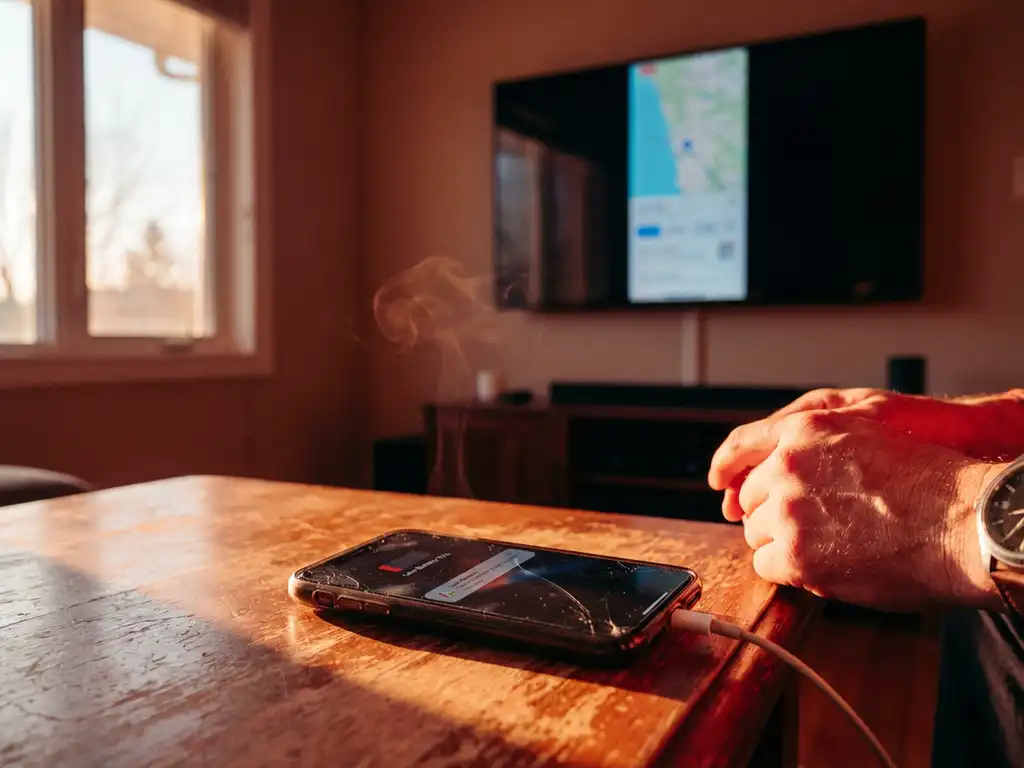
Android screen mirroring is incredibly convenient for sharing your phone or tablet display on the big screen, but many users notice their battery draining much faster than usual during mirroring sessions. This rapid power consumption can cut your viewing time short and leave you scrambling for a charger just when you want to enjoy content on your TV.
Understanding why Android screen mirroring consumes so much power and learning how to optimize your setup can help you enjoy longer mirroring sessions without constantly worrying about your battery level.
Why does Android screen mirroring consume so much battery power?
Android screen mirroring drains the battery quickly because your device must simultaneously encode your screen content, maintain a constant Wi-Fi connection, and transmit data continuously to your TV. This process requires your processor, display, and wireless radio to operate at high capacity throughout the mirroring session.
The screen-encoding process is particularly demanding. Your Android device captures everything happening on your display in real time, compresses this visual data into a streamable format, and sends it over your Wi-Fi network. This constant encoding-and-transmission cycle keeps your CPU working harder than it does during normal phone use.
Your device’s display also contributes significantly to battery drain. During mirroring, your screen typically stays on at full brightness so you can see what you’re controlling, even though the main viewing happens on your TV. This dual-display scenario essentially doubles your screen-related power consumption.
The Wi-Fi radio works overtime during mirroring sessions as well. Unlike the occasional data bursts of normal app use, screen mirroring requires sustained, high-bandwidth transmission. Your device must maintain this connection without interruption, preventing the Wi-Fi chip from entering power-saving modes.
What factors make screen mirroring drain battery faster?
Several key factors significantly increase battery consumption during Android screen mirroring: screen brightness, video quality settings, background app activity, and network conditions. Higher brightness levels, HD streaming, multiple running apps, and weak Wi-Fi signals all accelerate power drain.
Screen brightness has the most dramatic impact on battery life. Many users keep their phone screens at maximum brightness during mirroring to clearly see controls and menus. However, this can increase power consumption by 30-50% compared to automatic brightness settings.
Video quality settings directly affect processing demands. Streaming HD content requires more CPU power for encoding and more bandwidth for transmission. If you’re mirroring 4K videos or high-resolution games, your device works significantly harder than it does when displaying simple apps or static content.
Background applications continue consuming resources during mirroring. Social media apps refreshing feeds, email clients checking messages, and location services running in the background all compete for CPU cycles and network bandwidth while your device handles mirroring tasks.
Network conditions play a crucial role in battery efficiency. Weak Wi-Fi signals force your device to boost transmission power and retry failed data packets. Poor network quality can increase battery consumption by 20-40% as your device works harder to maintain the connection.
How can you reduce battery drain during Android screen mirroring?
You can significantly reduce battery drain by lowering screen brightness, closing unnecessary background apps, ensuring strong Wi-Fi connectivity, and enabling power-saving modes when available. These adjustments can extend your mirroring time by 40-60% without sacrificing viewing quality.
Start by adjusting your screen brightness to the lowest comfortable level. Since you’re primarily watching content on your TV, your phone screen only needs enough brightness for occasional navigation. Reducing brightness from maximum to 30-40% can dramatically improve battery life.
Close all non-essential apps before starting your mirroring session. Swipe away recent apps and disable background refresh for social media, news, and other applications you don’t need during mirroring. This frees up CPU resources and reduces competing network traffic.
Position yourself close to your Wi-Fi router when possible. Strong signal strength allows your device to transmit data more efficiently with less power. If you must mirror from a distant room, consider using a Wi-Fi extender to improve signal quality.
Enable your device’s power-saving mode if it doesn’t interfere with mirroring performance. Many Android devices offer battery optimization settings that reduce background activity and lower CPU speeds while maintaining essential functions. For more detailed guidance on optimizing your setup, check our comprehensive knowledge base.
Consider connecting your device to a charger during extended mirroring sessions. This allows you to enjoy unlimited viewing time without battery anxiety, especially for movie nights or long presentations.
Which Android screen mirroring apps are most battery efficient?
The most battery-efficient Android screen mirroring apps optimize their encoding processes, use efficient compression algorithms, and minimize background resource usage. Apps like AirBeamTV focus on streamlined performance with minimal system overhead compared to feature-heavy alternatives.
AirBeamTV’s screen mirroring apps are designed for efficiency, requiring no additional hardware or complex setup processes that might drain extra power. The straightforward “download, open, start mirroring” approach means fewer system resources devoted to unnecessary features or background processes.
Look for mirroring apps that offer quality adjustment options. The ability to lower streaming resolution when battery life is more important than perfect picture quality gives you control over power consumption. Apps with adaptive quality settings can automatically adjust based on your device’s battery level.
Avoid mirroring apps that bundle excessive features like built-in media players, file managers, or social sharing tools. These additional functions consume extra memory and processing power even when you’re not using them. Simple, focused apps typically offer better battery performance.
Native mirroring solutions built into your Android device or TV often provide the most efficient performance since they’re optimized for specific hardware combinations. However, third-party apps like AirBeamTV can offer broader compatibility across different TV brands while maintaining efficient power usage. Whether you’re mirroring iPhone or iPad screens or working with Mac screen mirroring, choosing the right app makes a significant difference in battery consumption. If you need assistance selecting the best solution for your specific device combination, feel free to contact us for personalized recommendations. You can also use a universal remote control TV app to manage your TV without keeping your phone screen active, helping reduce overall battery usage during sessions.
