




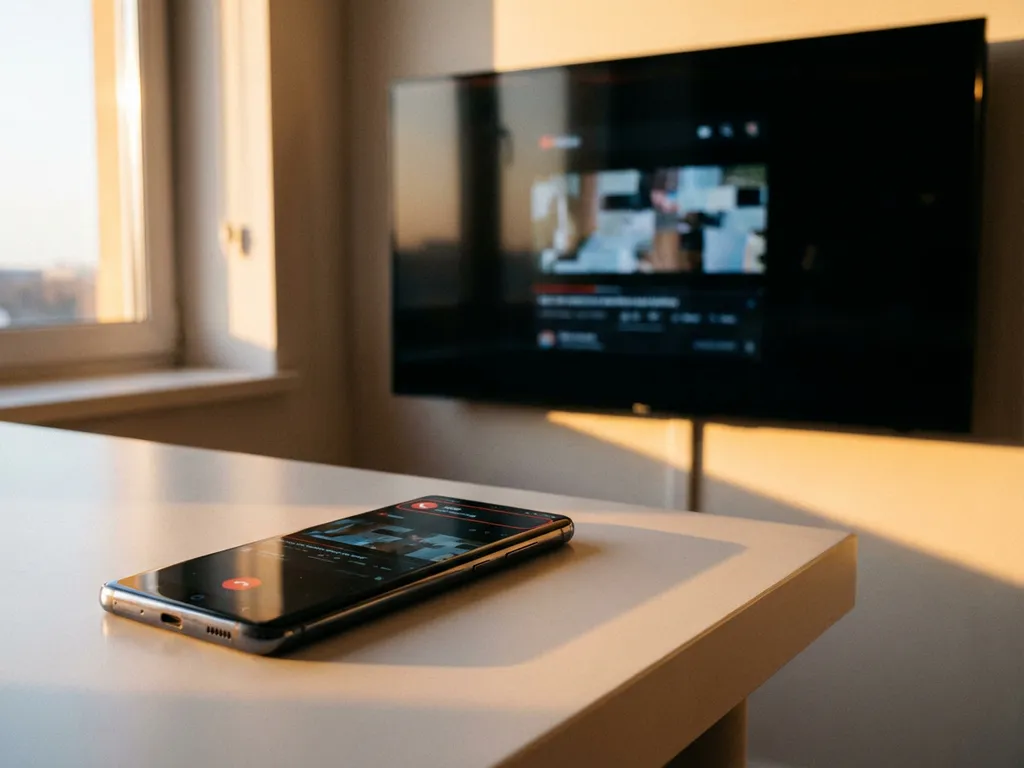
Receiving an important phone call while you’re screen mirroring your Android device can be frustrating. One moment you’re enjoying your favorite show on the big screen, and the next your mirroring connection drops completely. This common issue affects millions of Android users who rely on screen mirroring for entertainment and productivity.
Understanding why this happens—and how to prevent it—can save you from having to reconnect your device every time someone calls. Let’s explore the technical reasons behind these disconnections and practical solutions to keep your mirroring sessions uninterrupted.
Why does Android screen mirroring stop when you receive a phone call?
Android screen mirroring can disconnect during phone calls because the system prioritizes voice communication over background processes like screen casting. When a call comes in, Android may automatically reallocate system resources and network bandwidth to ensure call quality, interrupting the continuous data stream required for mirroring.
This can happen for several technical reasons. First, Android’s resource management system treats phone calls as high-priority tasks that require immediate access to the device’s processor, memory, and network connection. Screen mirroring apps often run as background services, which means they can be deprioritized when critical functions like phone calls need resources.
Additionally, many Android devices use the same WiFi radio for both internet connectivity and screen mirroring. When a phone call begins—especially a VoIP call that uses your data connection—the system may interrupt other network-intensive tasks to maintain call stability. This is particularly noticeable with apps that require consistent bandwidth for smooth HD streaming.
The Android operating system also implements power management features that can affect screen mirroring during calls. To preserve battery life during voice calls, the system may reduce background app activity, including the processes that maintain your mirroring connection to your TV.
What happens to your mirroring connection during different types of calls?
The impact on screen mirroring varies significantly depending on whether you receive traditional cellular calls, WiFi-based calls, or video calls. Each type of call interacts differently with your device’s resources and network connection, resulting in different levels of interference with your mirroring session.
Traditional cellular calls typically cause a complete disconnection from screen mirroring because they trigger Android’s call management protocols. These protocols can temporarily suspend non-essential background processes to ensure call quality. Your mirroring app may lose its connection to the TV and require manual reconnection after the call ends.
WiFi calling and VoIP services like WhatsApp, Skype, or Google Meet create more complex scenarios. Since these calls use your internet connection, they compete directly with screen mirroring for bandwidth. The result is often an immediate disconnection as the system prioritizes call data over mirroring data. Some users experience degraded video quality before a complete disconnection occurs.
Video calls present the most challenging situation for maintaining screen mirroring connections. Video calling apps require substantial bandwidth, processing power, and camera access simultaneously. This combination almost always results in an immediate mirroring disconnection, as the device cannot handle both video calling and screen casting without significant performance degradation.
How can you prevent screen mirroring from disconnecting during calls?
You can reduce screen mirroring disconnections during calls by adjusting your device settings, managing your network connection, and using specific app configurations. While complete prevention isn’t always possible, these strategies can significantly reduce interruptions and make reconnection faster when disconnections do occur.
Start by enabling “Do Not Disturb” mode before beginning your mirroring session. This prevents incoming calls from interrupting your connection. You can customize Do Not Disturb settings to allow calls from specific contacts or repeated calls in case of emergencies, while blocking routine calls that would otherwise disconnect your mirroring.
Optimize your WiFi connection for better performance during potential interruptions. Connect to a 5GHz WiFi network instead of 2.4GHz when available, as it provides more bandwidth and less congestion. Ensure both your Android device and TV are connected to the same high-speed network, and stay close to your router to maintain a strong signal.
Consider using airplane mode with WiFi enabled if you want to eliminate cellular call interruptions entirely. This setting disables cellular connectivity while maintaining WiFi access, allowing your screen mirroring to continue uninterrupted. You can still receive messages through WiFi-based apps without risking disconnection from traditional phone calls.
Some screen mirroring apps offer settings to maintain connections during brief interruptions. Check your mirroring app’s settings for options like “persistent connection” or “auto-reconnect” features that can help restore your session quickly after a call ends. For additional troubleshooting tips, consult the knowledge base for your specific mirroring solution.
What’s the difference between temporary pausing and complete disconnection?
Temporary pausing keeps your mirroring session active in the background while suspending the video stream, whereas complete disconnection ends the connection entirely and requires you to reconnect from scratch. Understanding this difference helps you choose the right approach for managing calls during screen mirroring sessions.
Temporary pausing occurs when your mirroring app detects an incoming call and automatically suspends the video stream without ending the connection to your TV. The app remains active in the background, and your TV screen typically displays a paused message or returns to its home screen. When your call ends, mirroring resumes automatically or with a simple tap to restart.
This pausing feature works best with newer Android devices that have sufficient processing power and memory to maintain multiple connections simultaneously. However, not all screen mirroring apps support this functionality, and it can depend on your specific TV model and mirroring technology. Users who frequently experience issues might also benefit from exploring alternatives like iPhone screen mirroring or Mac screen mirroring solutions.
Complete disconnection happens when the system fully terminates your mirroring session during a call. Your TV loses its connection to your Android device entirely, and you must restart the mirroring process from the beginning. This includes reopening your mirroring app, selecting your TV again, and reestablishing the wireless connection.
The type of disruption you experience often depends on your device’s available resources and the specific mirroring app you’re using. Apps with better resource management—and newer Android devices with more powerful processors—are more likely to support temporary pausing rather than complete disconnection. When choosing a screen mirroring solution, look for apps that explicitly mention call handling or connection persistence features to minimize interruptions during your viewing sessions, and consider pairing your setup with a universal remote control TV app for easier management. If you continue experiencing persistent issues, consider reaching out through contact us for personalized support.
