




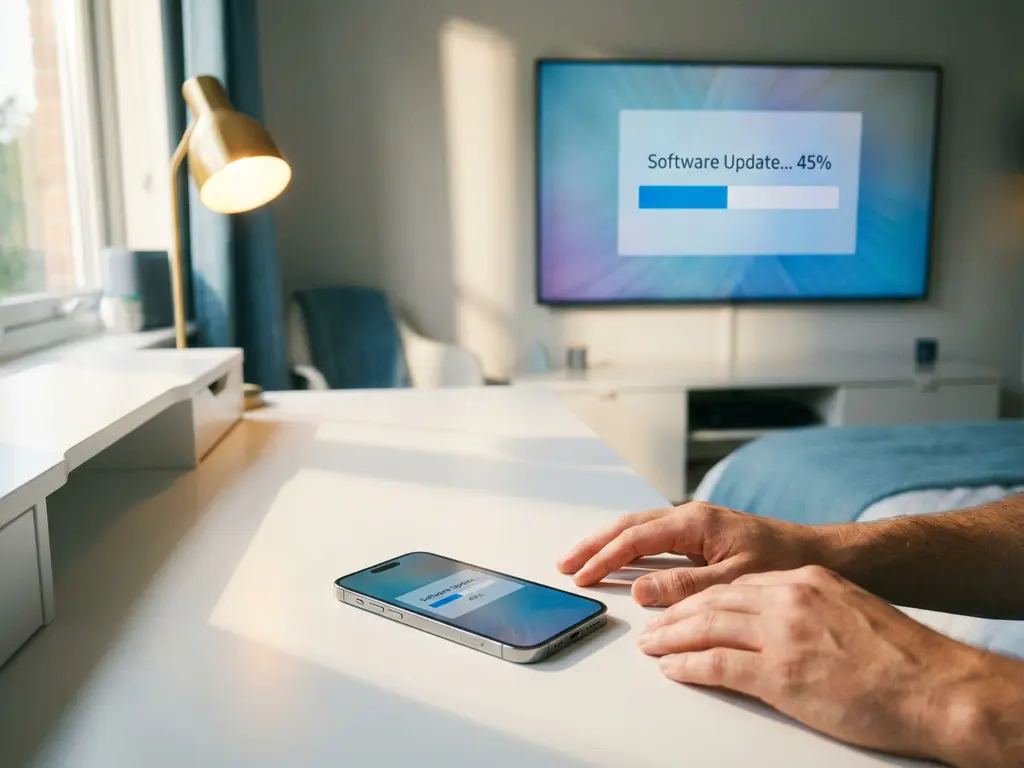
iPhone screen mirroring lets you display your device on a TV wirelessly, but what happens when iOS decides it’s time for an update? If you’ve ever wondered whether your mirroring session will survive a software update—or how to get everything working again afterward—you’re not alone.
Software updates are essential for keeping your iPhone secure and running smoothly, but they can temporarily disrupt your screen mirroring experience. Understanding what to expect during updates helps you plan your streaming sessions and troubleshoot any issues that might pop up.
What happens to screen mirroring when your iPhone starts updating?
Screen mirroring automatically stops when your iPhone begins a software update. The update process requires your device to restart multiple times and temporarily disables wireless connections, including the Wi-Fi connection that powers screen mirroring apps.
When iOS starts downloading and installing an update, your iPhone prioritizes system resources for the update process. This means background apps, including screen mirroring applications, are paused or closed entirely. Your TV screen will either go black, display a “connection lost” message, or return to its home screen, depending on your specific setup.
The interruption is completely normal and protects your device during the sensitive update process. iOS updates often modify core system components that handle network connectivity and app permissions, so maintaining active connections during this time could potentially cause conflicts or corruption.
Can you mirror your iPhone screen while it’s downloading an update?
No, you cannot mirror your iPhone screen while it’s actively downloading or installing a software update. iOS automatically suspends non-essential network activities and background processes during updates to ensure system stability and faster installation.
Even if you try to start a new mirroring session during an update, the connection will fail or immediately drop. Your iPhone needs to dedicate its processing power and network bandwidth to downloading the update files, which can be several gigabytes in size. Screen mirroring requires consistent Wi-Fi performance and system resources that simply aren’t available during the update process.
The only exception is if you start mirroring before beginning an update, but even then, the connection will drop as soon as the installation phase begins. It’s best to plan your streaming sessions around update schedules to avoid interruptions.
Is it safe to mirror your iPhone during software updates?
It’s completely safe to attempt iPhone screen mirroring during software updates, though the connection won’t work. There’s no risk of damaging your device, corrupting the update, or causing system problems by trying to mirror during this time.
iOS automatically handles app permissions and network connections during updates, so screen mirroring apps are simply paused rather than interfering with the update process. Your iPhone’s operating system prioritizes critical system functions over entertainment apps, ensuring updates complete successfully regardless of what other apps you have running.
However, repeatedly trying to force connections during an update might drain your battery faster than necessary. Since updates can take 30 minutes to several hours, depending on your internet speed and iPhone model, it’s more practical to wait until the process completes.
Why does screen mirroring stop working after iOS updates?
Screen mirroring may stop working after iOS updates due to changed network settings, modified app permissions, or compatibility issues between the new iOS version and your mirroring app. Updates can reset Wi-Fi configurations or require apps to request permissions again.
iOS updates sometimes modify how apps access network resources or handle screen recording permissions. Screen mirroring apps need specific permissions to capture your screen content and transmit it over Wi-Fi. When these permissions are reset during an update, the app loses its ability to function until you grant access again.
Additionally, major iOS updates occasionally change underlying network protocols or security requirements. If your screen mirroring app hasn’t been updated to work with the latest iOS version, you might experience connection failures or reduced functionality until the app developer releases a compatibility update.
How do you resume screen mirroring after an iPhone update?
To resume iPhone screen mirroring after an update, restart both your iPhone and TV, ensure both devices are connected to the same Wi-Fi network, then reopen your screen mirroring app and grant any requested permissions. This process typically resolves most post-update connectivity issues.
Start by checking your Wi-Fi connection on both devices. iOS updates sometimes reset network settings, so you may need to reconnect to your home Wi-Fi network. Make sure your iPhone and smart TV are on the same network, as screen mirroring requires this local connection to function properly.
Next, open your screen mirroring app and look for permission requests. iOS may ask you to allow screen recording, local network access, or other permissions that the app needs to mirror your screen. Grant these permissions when prompted, as denying them will prevent the app from working correctly.
If you’re still having trouble, try deleting and reinstalling your screen mirroring app. This ensures you have the latest version that’s compatible with your updated iOS and refreshes all app settings. Most screen mirroring apps for iPhone TV, including those that work without Apple TV or additional hardware, are updated regularly to maintain compatibility with new iOS versions.
