




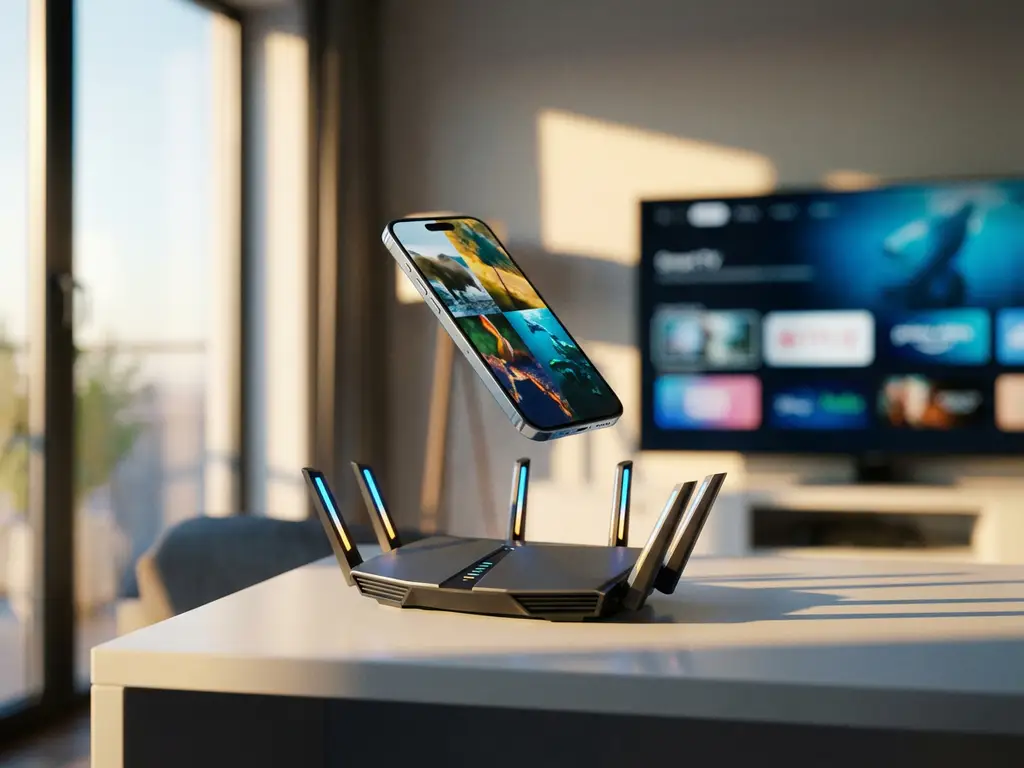
Getting smooth iPhone screen mirroring isn’t just about having the right app—your network plays a huge role in the experience. Whether you’re streaming videos to your TV or sharing photos with friends, the quality of your Wi-Fi connection directly impacts how well your screen mirroring performs.
Understanding why some networks deliver crystal-clear mirroring while others struggle with lag and pixelated video can help you get the best possible experience every time you cast your iPhone to your TV.
What network requirements does iPhone screen mirroring need?
iPhone screen mirroring requires both devices to be connected to the same Wi-Fi network, with a minimum speed of 5 Mbps for basic mirroring and 25 Mbps for smooth HD streaming. The network must support device discovery protocols and maintain stable connections without frequent drops.
Your iPhone and target TV need to communicate through your router, which means they must share the same network connection. This isn’t just about internet speed—it’s about local network performance. The data doesn’t travel to the internet and back; instead, it moves directly between your devices through your router.
For optimal performance, your network should have low latency (under 50 ms) and minimal packet loss. Modern routers typically handle this well, but older equipment or congested networks can create bottlenecks that affect mirroring quality. The 2.4 GHz band works for basic mirroring, but the 5 GHz band provides better performance for HD content due to less congestion and higher bandwidth capacity.
Why does Wi-Fi speed affect screen mirroring quality?
Wi-Fi speed directly determines how much data can transfer between your iPhone and TV per second. Higher speeds allow for better resolution, smoother frame rates, and reduced compression artifacts that make mirrored content look pixelated or choppy.
When you mirror your iPhone screen, you’re essentially streaming live video from your device to your TV. This requires constant data transmission—typically 5–15 Mbps for standard-definition content and 15–50 Mbps for high-definition streaming. If your network speed falls below these thresholds, the mirroring app for iPhone TV automatically reduces quality to maintain a stable connection.
Speed also affects audio synchronization. Slower networks often struggle to keep audio and video in sync, creating that annoying delay where voices don’t match lip movements. This becomes particularly noticeable when watching videos or during video calls. Faster networks have the bandwidth to handle both audio and video streams simultaneously without compromise.
How does network congestion impact iPhone mirroring performance?
Network congestion occurs when multiple devices compete for the same bandwidth, causing screen mirroring to experience lag, reduced quality, or connection drops. Peak usage times and bandwidth-heavy activities like gaming or streaming on other devices can significantly degrade mirroring performance.
Think of your network like a highway—the more cars (devices) using it simultaneously, the slower traffic moves. When family members are streaming Netflix, downloading files, or video chatting, less bandwidth remains available for your screen mirroring. This forces the mirroring app to compress data more aggressively, resulting in lower quality or stuttering playback.
Router placement and interference also contribute to congestion. Walls, floors, and electronic devices can weaken Wi-Fi signals, effectively reducing available bandwidth even when your internet speed is fast. The farther your iPhone or TV is from the router, the more likely you’ll experience performance issues during mirroring sessions.
What’s the difference between mirroring on home vs. public networks?
Home networks typically provide better screen mirroring performance due to dedicated bandwidth, network control, and security settings that allow device discovery. Public networks often block device-to-device communication and have limited bandwidth shared among many users, making reliable mirroring difficult or impossible.
On your home network, you control the environment. You can prioritize bandwidth for your devices, ensure both your iPhone and TV connect to the same network, and adjust router settings for optimal performance. Home routers also typically allow the device discovery protocols that screen mirroring apps need to find and connect to your TV.
Public networks at hotels, coffee shops, or airports present multiple challenges. These networks often isolate devices for security reasons, preventing your iPhone from “seeing” other devices on the network. Even when connections work, shared bandwidth among dozens or hundreds of users creates unpredictable performance. Many public networks also have restrictions or firewalls that block the ports screen mirroring apps require.
How can you optimize your network for better screen mirroring?
Optimize your network by connecting both devices to the 5 GHz band, positioning them close to your router, limiting other bandwidth-heavy activities, and ensuring your router firmware stays updated. Quality of Service (QoS) settings can also prioritize mirroring traffic over less critical data.
Start by checking your router’s dual-band capabilities. Most modern routers broadcast both 2.4 GHz and 5 GHz networks. Connect your iPhone and TV to the 5 GHz network for better performance, as this band typically has less interference and higher speeds. If your devices don’t automatically connect to the faster band, you may need to manually select it in your Wi-Fi settings.
Physical placement matters more than many people realize. Keep your iPhone and TV within 30 feet of your router when possible, and minimize obstacles like walls or large furniture between them. If you have a large home, consider adding a Wi-Fi extender or a mesh network system to ensure strong signals throughout your space.
Finally, manage your network traffic during mirroring sessions. Pause automatic backups, limit streaming on other devices, and close bandwidth-heavy applications. Many routers allow you to set QoS rules that automatically prioritize certain types of traffic—setting video streaming as a high priority can significantly improve your mirroring experience.
