




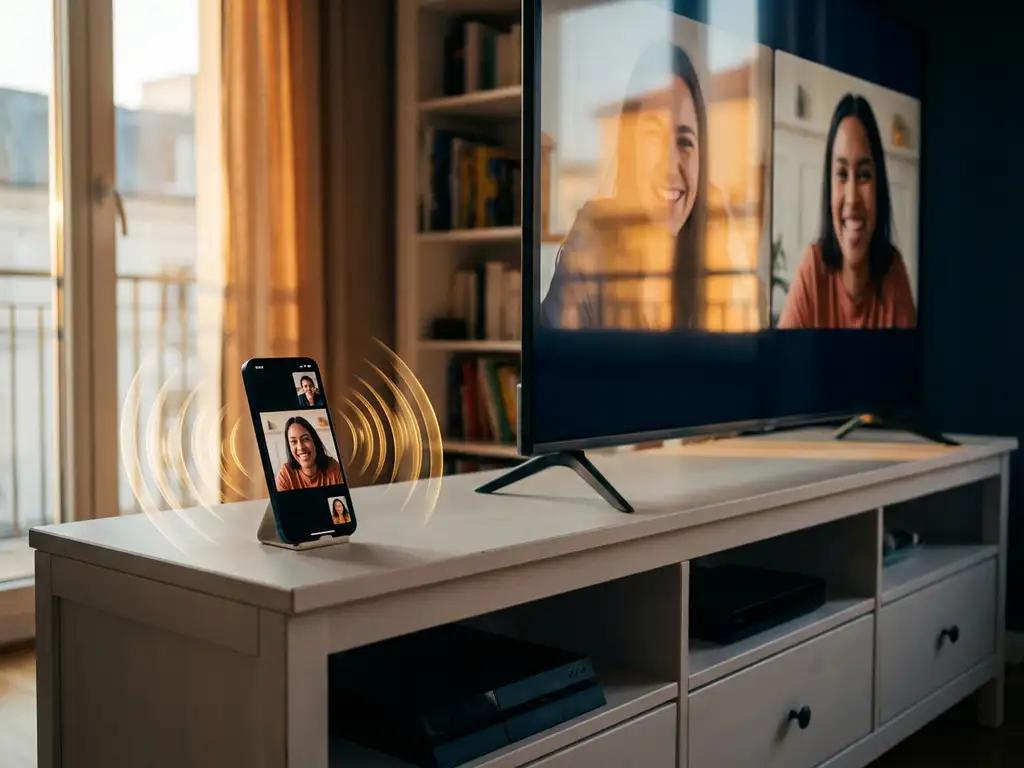
iPhone screen mirroring opens up a world of possibilities, letting you share videos, photos, and apps on the big screen. But nothing ruins the experience quite like hearing that annoying echo or feedback coming from your TV speakers. Whether you’re streaming your favorite show or presenting to colleagues, audio issues can turn a seamless mirroring session into a frustrating technical nightmare.
The good news is that echo and feedback problems during iPhone screen mirroring are completely fixable once you understand what causes them. From simple volume adjustments to choosing the right mirroring app, there are several proven solutions that will get your audio crystal clear in no time.
What causes echo during iPhone screen mirroring?
Echo during iPhone screen mirroring happens when audio from your TV speakers is picked up by your iPhone’s microphone, creating a feedback loop. This occurs because your iPhone continues to use its built-in microphone while simultaneously sending audio to the TV, causing the sound to bounce back and forth between devices.
The most common scenario is when you’re mirroring content that includes live audio input, such as video calls, voice recordings, or apps that access your microphone. Your iPhone captures the TV’s audio output through its microphone, processes it as new input, and sends it back to the TV, creating that characteristic echoing effect.
The distance between your iPhone and TV also plays a crucial role. The closer your device is to the TV speakers, the more likely the microphone is to pick up the amplified audio. This is especially problematic in smaller rooms where sound bounces off walls and creates multiple reflection points.
Network latency can worsen echo issues by creating slight delays between when audio leaves your iPhone and when it plays through the TV. Even a few milliseconds of delay can make echo more noticeable and disruptive to your viewing experience.
Why does screen mirroring feedback happen with certain TV models?
Screen mirroring feedback occurs more frequently with certain TV models due to differences in audio processing capabilities, speaker placement, and built-in delay-compensation features. Smart TVs with powerful speakers positioned close to where users typically place their phones are particularly prone to feedback issues.
Older TV models often lack the sophisticated audio processing that newer smart TVs use to minimize feedback. Modern TVs frequently include echo-cancellation technology and automatic volume-adjustment features that help prevent audio loops from forming during wireless connections.
The TV’s internal audio buffering also affects the likelihood of feedback. Some models process incoming audio streams with minimal delay, while others introduce longer buffering periods that can create timing mismatches between your iPhone’s microphone input and the TV’s audio output.
Samsung and LG smart TVs generally handle screen-mirroring audio better than budget TV brands, thanks to more advanced signal-processing chips. However, even premium models can experience feedback if their speakers are particularly loud or if the room acoustics amplify sound reflections.
How do you fix echo issues when mirroring iPhone to TV?
To fix echo issues when mirroring your iPhone to a TV, immediately lower your TV volume or mute it temporarily, then move your iPhone at least three feet away from the TV speakers. This breaks the feedback loop by preventing your iPhone’s microphone from picking up the TV’s audio output.
Start by adjusting volume levels on both devices. Lower your TV volume to around 30-40% of maximum, then gradually increase it while monitoring for echo. Many users find that keeping the TV volume moderate while increasing the iPhone volume provides the best balance.
Physical positioning makes a huge difference. Place your iPhone behind the TV, on a side table away from the speakers, or in another room entirely if you’re not actively controlling it. The goal is to create enough distance that your iPhone’s microphone cannot detect the TV’s audio output.
If you’re using apps that require microphone access, temporarily disable microphone permissions for those specific apps during mirroring sessions. Go to Settings > Privacy & Security > Microphone and toggle off access for problematic apps.
For persistent echo problems, try using wired headphones connected to your iPhone while mirroring. This routes audio away from your iPhone’s speakers and prevents any sound from reaching the device’s microphone, completely eliminating the feedback loop.
What’s the difference between echo in AirPlay vs. third-party mirroring apps?
AirPlay typically produces less echo than third-party mirroring apps because it uses Apple’s proprietary audio processing and direct communication protocols with compatible devices. Third-party apps like AirBeamTV often experience more echo issues due to different audio-handling methods and network-based transmission delays.
AirPlay benefits from built-in echo-cancellation features when connecting to Apple TV or AirPlay-compatible smart TVs. Apple designed these protocols specifically to minimize audio feedback by automatically adjusting timing and volume levels during the connection process.
Third-party mirroring apps must work within the limitations of standard Wi-Fi protocols and may not have access to the same low-level audio controls that AirPlay uses. This can result in slight delays between audio transmission and playback, making echo more likely to occur.
However, third-party apps offer broader TV compatibility and often include user-adjustable settings for audio-delay compensation. Apps like AirBeamTV work with Samsung, LG, Sony, and other major TV brands that don’t support native AirPlay, giving you more flexibility in choosing your display device.
The severity of the echo also depends on your specific TV model and network setup. Some users find that third-party apps actually perform better than AirPlay on certain smart TV brands, particularly newer Android TV models with optimized wireless display capabilities.
How can you prevent screen mirroring audio problems before they start?
Prevent screen mirroring audio problems by ensuring both your iPhone and TV are connected to the same 5 GHz Wi-Fi network, positioning your iPhone away from the TV speakers, and testing audio levels before starting important presentations or streaming sessions.
Network optimization is crucial for preventing audio issues. Use a strong Wi-Fi connection with minimal interference from other devices. Close unnecessary apps on your iPhone to free up processing power for smooth audio transmission, and ensure your router can handle the bandwidth requirements of high-quality video and audio streaming.
Create an ideal physical setup by placing your iPhone at least three feet from your TV, preferably behind or to the side of the display. Consider using a universal remote control TV app that keeps your device in a fixed position away from the speakers throughout your mirroring session.
Before important presentations or family movie nights, run a quick test with a short video clip to check for echo or delay issues. This gives you time to adjust settings, reposition devices, or switch to alternative connection methods if problems arise.
Keep your iPhone’s operating system and mirroring apps updated to the latest versions. Developers regularly release updates that improve audio processing and fix compatibility issues with new TV models. Regular updates ensure you benefit from the most recent echo-prevention improvements and bug fixes.
