




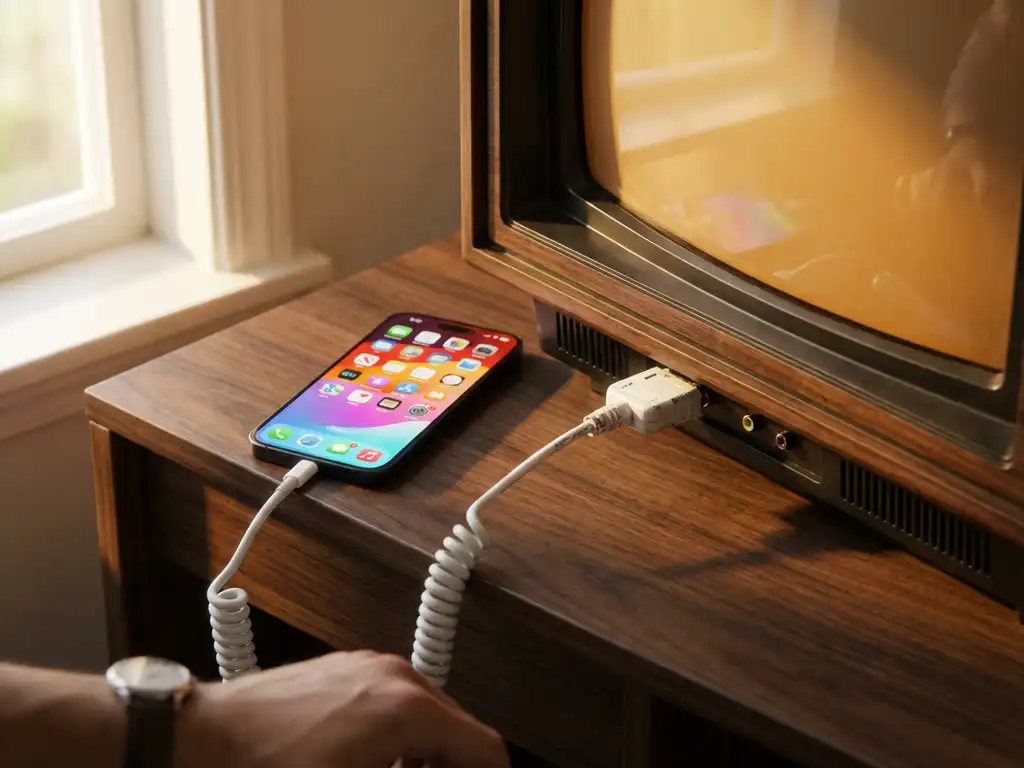
Connecting your iPhone to a vintage TV without built-in smart features requires a different approach than modern wireless screen mirroring. While newer smart TVs work seamlessly with AirBeamTV for wireless casting, older televisions need physical adapters to display your iPhone’s screen.
The good news is that with the right adapter, you can still enjoy your iPhone’s photos, videos, and apps on the big screen. Whether you’re dealing with an older TV with HDMI inputs or an even more vintage model with only composite inputs, there’s likely a solution that will work for your setup.
Can you mirror an iPhone to a vintage TV without smart features?
Yes, you can mirror your iPhone to a vintage TV without smart features by using wired adapters that connect your phone directly to the television. Unlike wireless iPhone screen mirroring solutions that require smart TV capabilities, vintage TVs rely on physical connections through HDMI, VGA, or composite video cables.
The process involves using Apple’s official Lightning adapters or third-party alternatives that convert your iPhone’s digital signal into a format your older TV can display. These adapters essentially act as a bridge between your modern iPhone and vintage television technology.
While this method lacks the convenience of wireless casting, it provides a reliable connection that doesn’t depend on Wi-Fi networks or smart TV features. You’ll get a stable, high-quality display that’s perfect for sharing photos with family, watching videos, or even giving presentations on larger screens.
What adapters do you need to connect an iPhone to vintage TVs?
The most common adapter for connecting iPhones to vintage TVs is a Lightning to HDMI adapter, which works with any TV that has an HDMI input. For older televisions without HDMI, you’ll need a Lightning to VGA adapter or a Lightning to AV adapter for composite video connections.
Apple makes official versions of these adapters, including the Lightning Digital AV Adapter for HDMI connections and the Lightning to VGA Adapter for older computer monitors and projectors. For even older TVs with only red, white, and yellow composite inputs, you’ll need the Lightning to AV Adapter.
Third-party alternatives are available at lower price points, though Apple’s official adapters tend to offer better compatibility and reliability. Regardless of which brand you choose, make sure the adapter is MFi (Made for iPhone) certified to ensure proper functionality with your device.
You’ll also need the appropriate cable to connect the adapter to your TV. HDMI cables are standard for newer vintage TVs, while VGA cables work for computer monitors, and composite AV cables connect to the color-coded input jacks on older televisions.
How do you set up iPhone screen mirroring with HDMI adapters?
Setting up iPhone screen mirroring with an HDMI adapter involves connecting the Lightning to HDMI adapter to your iPhone, plugging an HDMI cable into the adapter, connecting the other end to your TV’s HDMI port, and switching your TV to the correct HDMI input.
Start by ensuring your iPhone is unlocked and ready to use. Connect the Lightning end of the adapter firmly to your iPhone’s charging port. The connection should be snug and secure to prevent signal interruptions.
Next, connect one end of your HDMI cable to the adapter and the other end to an available HDMI port on your vintage TV. Most TVs have multiple HDMI ports, so remember which one you’re using. Turn on your television and use the remote to select the corresponding HDMI input.
Your iPhone screen should appear on the TV immediately once the correct input is selected. The display will mirror everything on your phone, including apps, videos, photos, and even your Home Screen. The connection is typically plug-and-play, requiring no additional setup or configuration.
Why won’t my iPhone display on my vintage TV through the adapter?
Common reasons your iPhone won’t display through an adapter include a faulty or incompatible adapter, loose cable connections, selecting the wrong TV input, or using a non-MFi-certified adapter that doesn’t properly communicate with your iPhone.
First, check all physical connections to ensure they’re secure. The Lightning connector should fit snugly in your iPhone’s port, and the HDMI or other cables should be firmly connected to both the adapter and your TV. Loose connections are the most frequent cause of display issues.
Verify that your TV is set to the correct input. Many vintage TVs have multiple HDMI ports or input options, and you need to match the input selection to the port you’re using. Try cycling through all available inputs to ensure you haven’t missed the right one.
If connections are secure and the input is correct, the adapter itself may be faulty or incompatible. Non-certified adapters often fail to work properly with iPhones due to Apple’s authentication requirements. Consider trying an Apple-certified adapter if you’re using a third-party alternative. For troubleshooting tips and additional guidance, check our knowledge base.
Some older iPhones may also have compatibility issues with certain adapters, particularly if the phone’s software is significantly outdated. Updating to the latest iOS version your device supports can sometimes resolve these compatibility problems.
What’s the difference between Lightning to HDMI and Lightning to VGA adapters?
Lightning to HDMI adapters carry both video and audio signals digitally and work with vintage TVs that have HDMI ports, while Lightning to VGA adapters transmit only video and require a separate audio connection for TVs and monitors with VGA inputs.
HDMI adapters provide the best-quality connection for vintage TVs manufactured in the last 15–20 years. They deliver high-definition video up to 1080p resolution along with digital audio through a single cable. This makes them the most convenient option when your vintage TV has HDMI capability.
VGA adapters work with older computer monitors, projectors, and some vintage TVs that have only VGA input ports. However, VGA is a video-only standard, so you’ll need to connect separate audio cables from your iPhone’s headphone jack or Lightning port to your TV’s audio inputs if you want sound. If you also have a Mac screen to mirror or need to mirror Android devices, similar adapter solutions are available for those platforms.
The video quality difference is also significant. HDMI maintains digital signal quality throughout the connection, while VGA converts the signal to analog, which can result in slightly reduced image sharpness. However, for many vintage TV setups, VGA still provides perfectly acceptable display quality for photos, videos, and presentations. If you need additional help with your setup, you can also use a universal remote control TV app or feel free to contact us for personalized assistance.
