




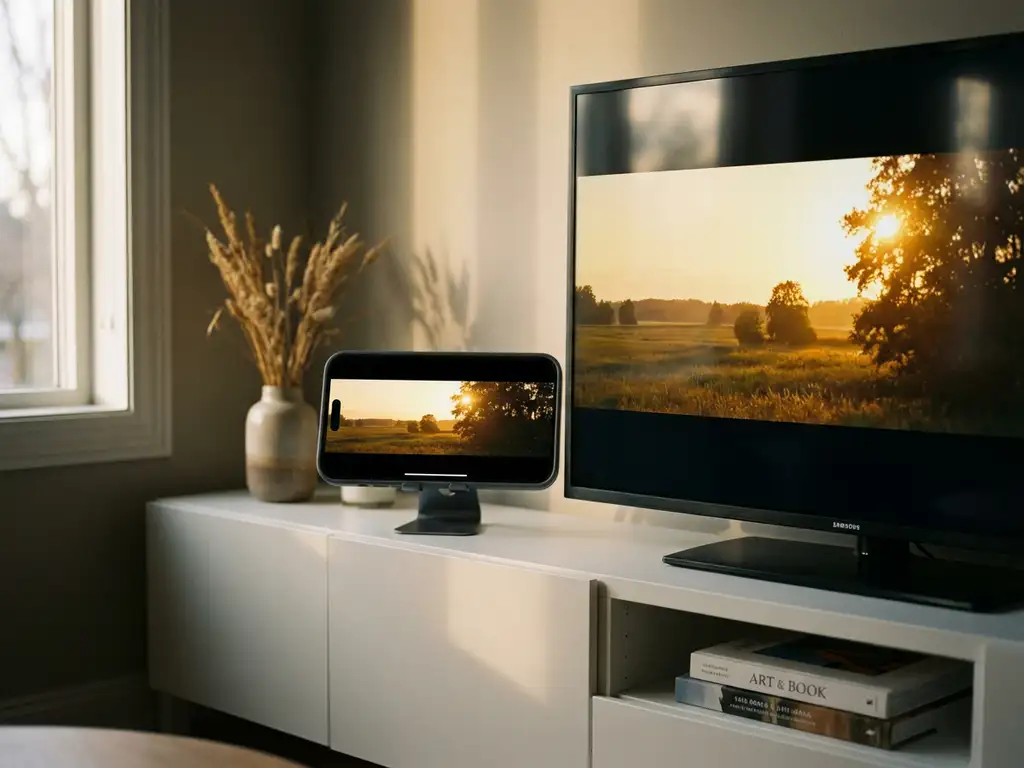
Ever tried mirroring your iPhone to your TV, only to find the image looks cropped or stretched? You’re not alone. Many iPhone users encounter overscan issues when screen mirroring, where parts of their device’s screen get cut off or the image doesn’t fit properly on their television. This frustrating problem can make watching videos, sharing photos, or giving presentations feel like a constant battle with your display.
Understanding what causes overscan during iPhone screen mirroring—and how to fix it—can save you hours of troubleshooting. Let’s break down this common issue and get your screen mirroring working perfectly.
What is overscan, and why does it affect iPhone screen mirroring?
Overscan occurs when your TV displays an image that’s larger than the actual screen area, causing the edges to be cut off or cropped. During iPhone screen mirroring, overscan makes your phone’s content appear zoomed in, with parts of apps, videos, or the interface disappearing beyond the TV’s visible borders.
This happens because many TVs are designed to compensate for older broadcast signals that had inconsistent edge quality. Your TV automatically crops a small border around incoming video signals to hide any potential noise or artifacts. When you mirror your iPhone screen, the TV treats it like any other video input and applies the same cropping, even though your phone’s display doesn’t need it.
The result is a frustrating viewing experience where you can’t see notification bars, app buttons, or video controls properly. Text gets cut off, making it hard to read messages or navigate apps. What should be a seamless way to share your iPhone content on the big screen becomes an exercise in guessing what’s hidden off the edges.
What causes iPhone screen mirroring to show overscan problems?
iPhone screen mirroring overscan problems stem from a mismatch between your phone’s display output and your TV’s default picture settings. Most smart TVs have overscan enabled by default, automatically cropping 3–5% of the incoming signal on all sides.
Several factors contribute to these overscan issues. Your TV’s picture mode settings play the biggest role. Many TVs ship with picture modes like “Vivid” or “Standard” that include aggressive overscan to hide broadcast imperfections. These settings work fine for cable TV but create problems when displaying computer or phone screens that need pixel-perfect accuracy.
Different screen mirroring methods can also trigger overscan in different ways. Whether you’re using AirPlay, third-party apps, or wireless display adapters, each sends a video signal that your TV may interpret as needing edge correction. Some older TV models are particularly aggressive with overscan, while newer smart TVs often have better detection for computer-like signals.
The aspect ratio difference between your iPhone and your TV can worsen overscan effects. Your iPhone has a specific screen ratio that doesn’t perfectly match most TV displays, so the TV has to decide how to scale and position the image, sometimes triggering unnecessary cropping in the process.
How do you fix overscan issues when mirroring iPhone to TV?
To fix iPhone mirroring overscan, access your TV’s picture settings and switch to “PC Mode” or “Game Mode,” or disable overscan entirely. Look for settings labeled “Screen Fit,” “Just Scan,” or “1:1 Pixel Mapping” in your TV’s display menu.
Start by pressing your TV remote’s Settings or Menu button and navigating to Picture or Display settings. Look for options like “Picture Size,” “Screen Format,” or “Aspect Ratio.” Change from settings like “16:9” or “Zoom” to “Screen Fit,” “Just Scan,” “Dot by Dot,” or “1:1.” These modes tell your TV to display the exact image it receives without any cropping.
If you can’t find those specific options, look for “PC Mode” or “Game Mode” in your picture settings. These modes automatically disable overscan because computer displays and gaming require precise pixel accuracy. Some TVs handle HDMI inputs differently, so try changing your HDMI input label to “PC” or “Computer” in the input settings.
For wireless mirroring specifically, restart both your iPhone and your TV after changing these settings. Sometimes the devices need to re-establish their connection to recognize the new display parameters. If you’re using a dedicated screen mirroring app, check whether it has its own display adjustment settings that might override your TV’s configuration. For more detailed troubleshooting guides, visit our knowledge base.
Which TV brands commonly have iPhone mirroring overscan issues?
Samsung, LG, and Sony TVs most commonly show iPhone mirroring overscan issues due to their default picture processing settings. These brands typically ship with overscan enabled across most picture modes, though they all include options to disable it once you know where to look.
Samsung TVs often label the fix as “Screen Fit” in the Picture Size menu, while some models call it “Just Scan.” Older Samsung models might require switching to PC Mode through the input label settings. LG TVs usually offer “Just Scan” or “Set by Program” options in their Aspect Ratio settings, with newer models providing “Original” as another overscan-free choice.
Sony TVs frequently use “Full Pixel” or “Normal” display modes to eliminate overscan, though the exact menu location varies by model year. Roku TVs and other budget brands often have more limited picture adjustment options, but most include a basic “Screen Mirroring” or “PC Mode” setting that reduces overscan effects.
Interestingly, newer smart TVs from all major brands are getting better at automatically detecting screen mirroring signals and adjusting accordingly. However, the default settings still favor traditional TV viewing, so manual adjustment remains the most reliable solution for consistent iPhone mirroring without overscan problems. If you need to mirror Android to TV or mirror your Mac screen, similar overscan issues may occur. For additional support with any mirroring challenges, feel free to contact us or explore more solutions at AirBeam.
