




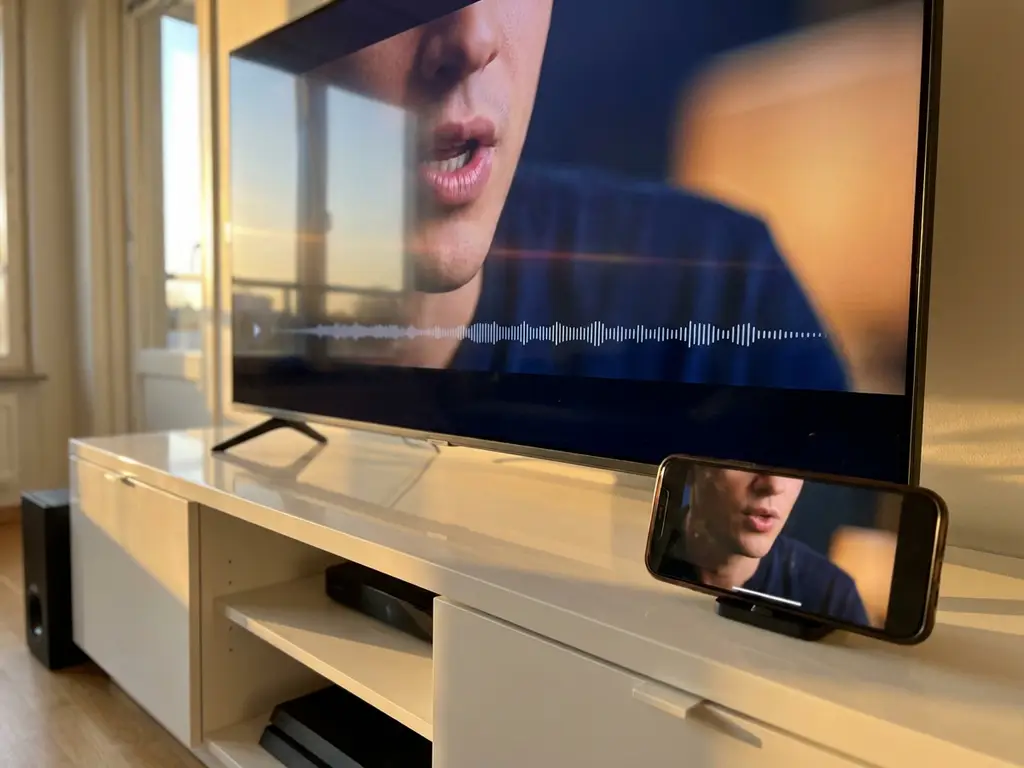
When you’re trying to enjoy your favorite shows or videos on the big screen through iPhone screen mirroring, nothing kills the experience quite like audio that’s out of sync with the video. You may notice voices that don’t match lip movements, sound effects that come too late, or music that feels disconnected from what’s happening on screen.
This frustrating audio lag affects millions of iPhone users who want to cast their device wirelessly to their TV. Understanding why this happens and how to fix it can transform your screen mirroring experience from annoying to seamless.
What causes audio lag during iPhone screen mirroring?
Audio lag during iPhone screen mirroring occurs because audio and video data travel through different processing pathways, with audio typically requiring additional compression and buffering steps that create delays. The wireless transmission process adds extra time as your iPhone encodes the audio, sends it over Wi-Fi, and your TV decodes it before playback.
Several technical factors contribute to this delay. Your Wi-Fi network quality plays a major role since both audio and video data compete for bandwidth, and audio processing often gets lower priority. The distance between your iPhone and your router, network congestion from other devices, and even interference from nearby electronics can slow data transmission.
Your TV’s internal processing also adds delay. Smart TVs need time to decode incoming audio signals, apply any sound-enhancement features, and route the audio to speakers or external sound systems. Older TV models typically have slower processors that increase processing time, while newer models with dedicated audio chips handle the workload more efficiently.
How much audio delay is normal when screen mirroring from iPhone?
Normal audio delay during iPhone screen mirroring ranges from 100 to 500 milliseconds, with most users experiencing delays between 200 and 300 milliseconds. Delays under 200 ms are barely noticeable, while anything over 500 ms becomes clearly apparent and distracting during video playback.
The acceptable delay threshold depends on what you’re watching. For casual video browsing or social media content, delays of up to 400 ms might not bother you much. However, for movies, TV shows, or music videos where lip sync matters, even 250 ms can feel noticeably off and ruin the viewing experience.
Gaming content requires the lowest possible delay since real-time interaction makes any lag immediately obvious. If you’re mirroring games from your iPhone, you’ll want to keep audio delay under 150 ms for a smooth experience. Video calls and live streams also benefit from minimal delay to maintain a natural conversational flow.
Why does audio lag vary between different TV brands and apps?
Audio lag varies between TV brands because each manufacturer uses different audio-processing chips, software algorithms, and internal architectures that handle incoming data at different speeds. Premium TV brands often invest in faster processors and dedicated audio hardware that reduces processing delays.
Samsung and LG TVs typically have lower audio lag due to their advanced processing capabilities and optimized wireless connectivity features. Sony TVs often perform well with audio sync, while budget TV brands may struggle with higher delays due to less powerful internal components. Fire TV and Roku devices also vary in performance based on their generation and processing power.
Different apps create varying amounts of delay because they use different encoding methods and data-compression techniques. Video streaming apps like Netflix or YouTube may add their own processing layers, while simple screen-mirroring apps focus on raw data transmission. Apps that prioritize video quality over speed often introduce more audio delay, while those optimized for real-time performance minimize lag at the cost of some quality.
How can you fix iPhone screen mirroring audio sync issues?
You can fix iPhone screen mirroring audio sync issues by improving your Wi-Fi connection, adjusting TV audio settings, and choosing the right mirroring method. Start by moving closer to your router, reducing network congestion, and ensuring both devices are connected to the same 5 GHz Wi-Fi band for faster data transmission.
Check your TV’s audio settings for any delay compensation or lip-sync adjustment features. Many smart TVs include audio-delay settings that let you manually adjust timing to match video playback. Look for options labeled “Audio Delay,” “Lip Sync,” or “A/V Sync” in your TV’s sound menu, and experiment with small adjustments until the audio matches the video.
Restart both your iPhone and your TV to clear any temporary processing issues that might cause delays. Close unnecessary apps running in the background on your iPhone, since they consume processing power and network bandwidth. If possible, use a wired Ethernet connection for your TV instead of Wi-Fi to eliminate wireless transmission delays on the receiving end.
Consider switching to a dedicated screen-mirroring app designed for your specific TV brand, as these often provide better optimization than generic mirroring methods. Some apps include built-in audio-sync adjustment features that automatically compensate for common delay issues. For additional troubleshooting tips, check our comprehensive knowledge base.
Which screen mirroring methods have the least audio delay?
Direct wired connections, such as Lightning-to-HDMI adapters, provide the least audio delay—typically under 50 milliseconds—because they eliminate wireless transmission and network processing delays entirely. However, this defeats the purpose of wireless mirroring, which most users prefer.
Among wireless methods, AirPlay to Apple TV generally offers the lowest latency due to Apple’s optimized ecosystem integration. Native TV mirroring features built into smart TVs often perform better than third-party apps because they’re designed specifically for that hardware. Similarly, Android screen mirroring faces comparable challenges when connecting to various TV brands.
Dedicated screen-mirroring apps like AirBeamTV often outperform generic casting methods because they’re optimized for specific TV brands and include features to minimize delay. These apps typically provide better performance than built-in iPhone screen-recording and casting features, especially when connecting to non-Apple devices. Users can also mirror their Mac screen using similar optimization techniques.
Chromecast and similar dedicated streaming devices usually offer better performance than built-in smart TV features, as they have more powerful processors dedicated solely to handling incoming streams. The key is choosing a method that’s specifically designed for your device combination rather than relying on universal solutions that try to work with everything. If you continue experiencing issues, don’t hesitate to contact us for personalized support. You can also enhance your setup with a universal remote control TV app to manage your devices more conveniently.
