




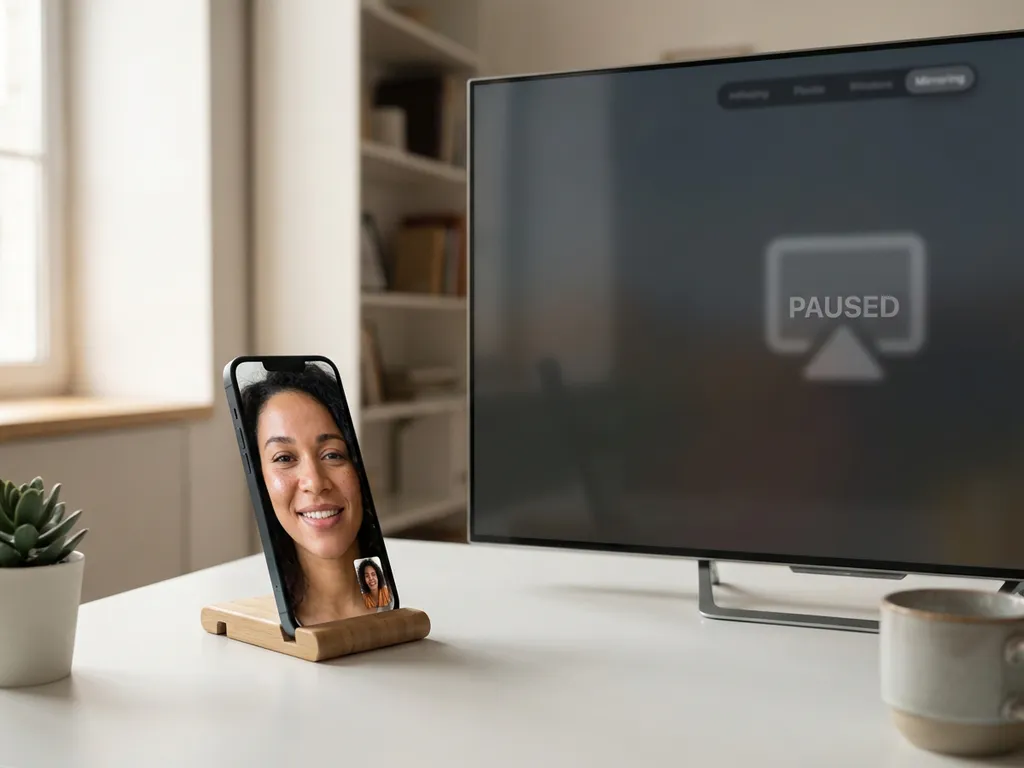
If you’re wondering what happens when FaceTime interrupts your iPhone screen-mirroring session, you’re not alone. Many users run into this issue when trying to share content on their TV while staying connected with friends and family. The good news is that understanding how these features interact can help you plan your screen-sharing sessions more effectively.
Screen mirroring has become an essential way to enjoy content on the big screen, whether you’re streaming videos, sharing photos, or giving a presentation. But when FaceTime calls come in, the interaction between these two features can cause unexpected interruptions.
Does iPhone screen mirroring stop when you receive a FaceTime call?
Yes, iPhone screen mirroring typically pauses or stops when you receive an incoming FaceTime call. The call notification takes priority over the mirroring session, interrupting the connection between your iPhone and the TV display.
When a FaceTime call comes in during active screen mirroring, iOS prioritizes the incoming call interface. This means the mirroring app running in the background is suspended, and your TV screen will either show a frozen image of what was last displayed or revert to the app’s standby screen.
The interruption happens because iOS manages system resources by prioritizing active calls over background processes. Your screen-mirroring app, whether it’s AirBeamTV or another solution, cannot maintain an active connection while the FaceTime interface takes control of your device’s display and processing power.
This behavior is consistent across different mirroring apps and TV brands. Whether you’re casting to a Samsung, LG, or any other smart TV, an incoming FaceTime call will disrupt the mirroring session in the same way.
Can you use screen mirroring while on a FaceTime call?
No, you cannot actively use screen mirroring while participating in a FaceTime call on the same iPhone. The FaceTime app requires full access to your device’s camera, microphone, and display resources, preventing other apps from mirroring your screen simultaneously.
When you’re on a FaceTime call, your iPhone dedicates processing power to maintaining video and audio quality. Screen-mirroring apps need similar system resources to capture and transmit your screen content to the TV. Running both features at the same time would strain your device’s performance and likely result in poor quality for both experiences.
However, there are some workarounds depending on your setup. If you have multiple Apple devices, you could use one device for the FaceTime call while using another for screen mirroring. For example, you might take the FaceTime call on your iPad while continuing to mirror content from your iPhone to the TV.
Another option is to switch to speakerphone mode for a voice-only call, though this still doesn’t allow simultaneous video calling and screen mirroring on the same device. You can also use a universal remote control TV app to manage your TV independently during calls.
How do you resume screen mirroring after a FaceTime call ends?
To resume screen mirroring after a FaceTime call ends, simply reopen your mirroring app and tap “Start Mirroring” again. Most apps will remember your previous TV selection, making the reconnection process quick and straightforward.
Here’s the typical process for getting back to mirroring:
- End your FaceTime call completely
- Open your screen-mirroring app (like AirBeamTV)
- Select your TV from the drop-down menu if needed
- Tap “Start Mirroring” or “Start Broadcast”
- Your iPhone screen should appear on your TV within seconds
Reconnection usually happens faster than the initial setup because your iPhone and TV have already established the connection parameters. Your Wi-Fi network information and TV pairing details remain stored in the app, eliminating the need to search for devices again.
If you’re experiencing connection issues after the call, try closing the mirroring app completely and reopening it. Sometimes the app needs a fresh start to reconnect properly to your TV after the FaceTime interruption. For additional troubleshooting tips, check out our knowledge base for detailed solutions.
Why does FaceTime interfere with screen mirroring apps?
FaceTime interferes with screen mirroring apps because both features compete for the same iPhone system resources, including camera access, display control, and network bandwidth. iOS prioritizes active calls over background apps, causing the mirroring connection to pause or disconnect.
The interference occurs at multiple levels. First, FaceTime requires exclusive access to your iPhone’s camera and microphone for video calls. Screen-mirroring apps also need access to the display to capture what’s on your screen. When FaceTime launches, it claims these resources, forcing the mirroring app to suspend its activities.
Network bandwidth also plays a role. Both FaceTime and screen mirroring rely on your Wi-Fi connection to function properly. FaceTime video calls require significant upload bandwidth to maintain call quality, while screen mirroring needs bandwidth to transmit your screen content to the TV. Running both simultaneously could overwhelm your network connection.
Additionally, iOS is designed to ensure the best possible user experience for calls. When you receive a FaceTime call, the system automatically manages background apps to preserve battery life and maintain call stability. This protective behavior means your mirroring session is paused until the call ends.
Understanding this limitation helps you plan more effectively. If you expect important calls while screen mirroring, consider using a separate device for calls or scheduling your mirroring sessions for times when you’re less likely to be interrupted. For Android users facing similar challenges, you can explore our guide on how to mirror Android to TV, or Mac users can learn about mirroring your Mac screen as alternative solutions.
