




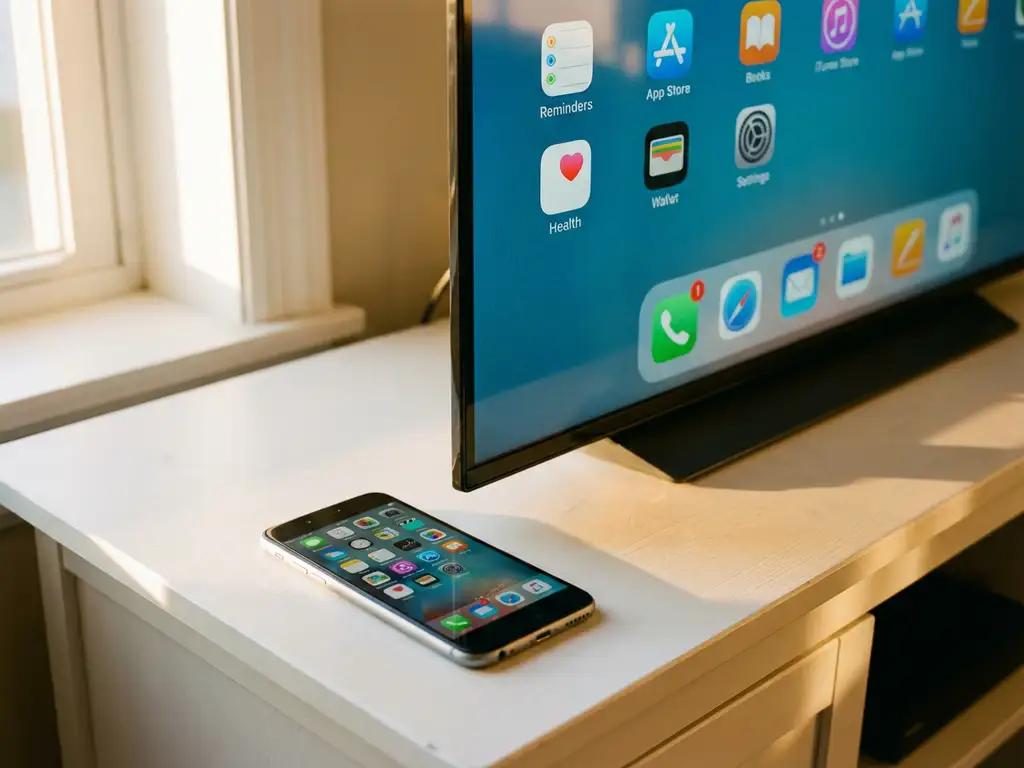
If you’re using an older iPhone and struggling to get screen mirroring to work, you’re not alone. Many iPhone users discover that their device’s iOS version affects which screen mirroring apps work properly. The good news is that several iPhone screen mirroring solutions support older iOS versions, though your options may be more limited than they are with newer devices.
Understanding which apps work with your specific iOS version can save you time and frustration when trying to cast your iPhone screen to your TV. Let’s explore your options and help you find a solution that works with your current setup.
Which iPhone screen mirroring apps support older iOS versions?
Most screen mirroring apps require iOS 12.0 or later, but some, such as AirBeamTV, support devices running iOS 11 and later. Popular options include AirBeamTV Screen Mirroring, which works across a wide range of iOS versions and TV brands without requiring an Apple TV or additional hardware.
The key is finding apps specifically designed for broad compatibility. AirBeamTV offers dedicated apps for different TV brands, including Samsung, LG, Sony, Roku, and Fire TV. These apps are built to work with older iOS versions while still providing reliable wireless screen mirroring to your television.
Other apps that may support older iOS versions include third-party mirroring solutions available through the App Store. However, always check an app’s system requirements before downloading, as compatibility can vary between screen mirroring applications.
What iOS version do I need for screen mirroring to work?
For basic screen mirroring functionality, you typically need iOS 11.0 or later, though some apps require iOS 12.0 or newer. Apple’s built-in AirPlay feature requires iOS 12.3 or later for optimal performance, but third-party apps often support older versions.
The specific iOS version requirement depends on which screen mirroring method you choose. Apple’s native AirPlay works best with iOS 13 and later, while third-party apps like AirBeamTV are designed to work with a broader range of iOS versions, including devices that can’t update to the latest iOS.
If your iPhone runs iOS 10 or earlier, your options become more limited. Most modern screen mirroring apps have dropped support for these older versions due to security and performance requirements. In these cases, you may need to consider hardware solutions, such as HDMI adapters, instead of wireless mirroring.
Why won’t screen mirroring work on my older iPhone?
Screen mirroring issues on older iPhones typically stem from outdated iOS versions that lack the necessary wireless protocols, insufficient processing power for real-time video encoding, or compatibility gaps between your device and modern TV software.
Older iOS versions may not support the latest wireless standards that smart TVs expect for screen mirroring. Additionally, older iPhones may struggle with the computational demands of encoding and transmitting video wirelessly in real time, leading to poor performance or connection failures.
Another common issue is that many smart TV manufacturers update their software to work optimally with newer devices, potentially dropping support for older iPhone models. Your Wi-Fi network setup can also affect performance, as older iPhones may not handle certain network configurations as effectively as newer models. If you need help troubleshooting these issues, check out our knowledge base for detailed solutions.
How can I mirror my iPhone if I can’t update iOS?
If you can’t update iOS, try downloading AirBeamTV Screen Mirroring, which supports older iOS versions and works with most major TV brands. Simply download the app, connect to the same Wi-Fi network as your TV, select your television from the drop-down menu, and tap “Start Mirroring.”
The process is straightforward: install the AirBeamTV app from the App Store, open it on your iPhone, and let it automatically search for available TVs on your network. Depending on your TV brand, you may need to download a companion receiver app on your television, but the setup remains simple and doesn’t require any additional hardware. For Android users facing similar challenges, you can explore our guide on how to mirror Android to TV as well.
If wireless solutions don’t work reliably with your older iPhone, consider using a Lightning-to-HDMI adapter as a backup option. While this requires a cable connection, it provides a stable mirroring solution that doesn’t depend on iOS version or wireless compatibility issues. Mac users can also benefit from our comprehensive guide on how to mirror your Mac screen. If you continue experiencing difficulties, don’t hesitate to contact us for personalized support, or enhance your setup with our universal remote control TV app.
