




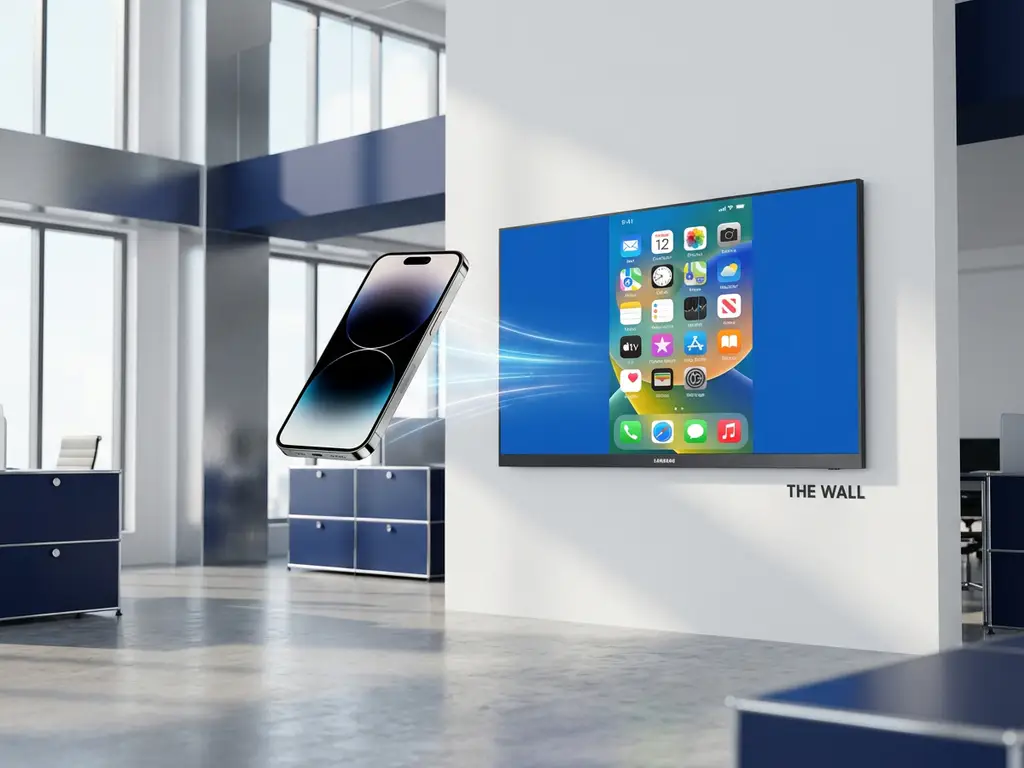
Digital signage displays are everywhere these days, from retail stores to conference rooms, and many people wonder whether they can mirror their iPhone screen to these larger displays. The good news is that mirroring an iPhone to digital signage displays is absolutely possible, and it’s much simpler than you might think.
Whether you’re presenting to a room full of colleagues or want to share photos and videos on a bigger screen, mirroring your iPhone to digital displays opens up a world of possibilities. Let’s walk through everything you need to know to get your iPhone content displayed on any digital screen.
What is iPhone screen mirroring to digital signage displays?
iPhone screen mirroring to digital signage displays is the process of wirelessly displaying your iPhone’s screen content on larger digital screens in real time. This technology allows you to show everything on your iPhone—including apps, photos, videos, presentations, and websites—directly on digital displays without any cables.
The mirroring process works over your Wi-Fi network, creating a wireless connection between your iPhone and the digital display. When you mirror your screen, whatever appears on your iPhone instantly appears on the larger display, making it perfect for presentations, entertainment, or sharing content with groups.
Digital signage displays include smart TVs, interactive displays, projection screens, and dedicated digital signage monitors commonly found in businesses, schools, and public spaces. The beauty of screen mirroring is that it turns any compatible display into an extension of your iPhone, giving you the freedom to interact with your device while everyone watches on the big screen.
Can you mirror iPhone to any digital display without Apple TV?
Yes, you can mirror your iPhone to most digital displays without an Apple TV by using specialized screen-mirroring apps. These apps work with popular smart TV brands, including Samsung, LG, Sony, Roku, and Fire TV, eliminating the need for expensive hardware or cables.
The key is using a dedicated screen-mirroring application that creates a direct wireless connection between your iPhone and the digital display. Unlike Apple’s built-in AirPlay feature, which requires an Apple TV, these apps work independently over your Wi-Fi network. You simply download the app, connect to the same Wi-Fi network as your display, and start mirroring.
This approach is particularly helpful when you’re dealing with non-Apple displays or when an Apple TV isn’t available. Many businesses and public spaces use various brands of digital displays, and having a universal solution means you’re not limited by hardware compatibility. The process typically takes just a few minutes to set up and works reliably once connected.
How do you set up iPhone screen mirroring to digital displays?
Setting up iPhone screen mirroring to digital displays involves three simple steps: download a screen-mirroring app, connect both devices to the same Wi-Fi network, and start the mirroring process. The entire setup typically takes less than five minutes.
First, download a screen-mirroring app from the App Store on your iPhone. Look for apps that specifically support your type of digital display, whether it’s a Samsung smart TV, an LG display, or another brand. Most apps from AirBeam offer free trials, so you can test the connection before purchasing.
Next, ensure both your iPhone and the digital display are connected to the same Wi-Fi network. This is crucial because mirroring happens over your wireless connection. If you’re in a business environment, you might need to ask about guest Wi-Fi access or make sure your device is on the same network as the display.
Finally, open the mirroring app on your iPhone, select your target display from the list of available devices, and tap “Start Mirroring.” Your iPhone screen should appear on the digital display within seconds. Some displays may require you to download a universal remote control TV app, but the mirroring app will guide you through the process if needed.
Why won’t my iPhone connect to the digital display?
The most common reason your iPhone won’t connect to a digital display is that both devices aren’t on the same Wi-Fi network. Your iPhone and the digital display must share the same wireless connection for mirroring to work properly.
Wi-Fi connectivity issues account for about 80% of connection problems. Check that your iPhone shows a strong Wi-Fi signal and that the digital display is also connected to the network. In some cases, displays may be on a different network segment or have restricted access that prevents device discovery.
Other common issues include outdated app versions, display compatibility problems, or network firewalls blocking the connection. Try restarting both your iPhone and the digital display, then make sure you’re using the latest version of your mirroring app. Some corporate networks have security settings that prevent device-to-device communication, which can block mirroring entirely.
If you’re still having trouble, try moving closer to the Wi-Fi router to improve signal strength, or test a different Wi-Fi network to rule out network-specific issues. Sometimes, simply closing and reopening the mirroring app can resolve temporary connection glitches. For additional troubleshooting tips, you can also mirror your Mac screen as an alternative, check the knowledge base for detailed guides, explore options to mirror Android to TV if you have multiple devices, or contact us for personalized support.
