




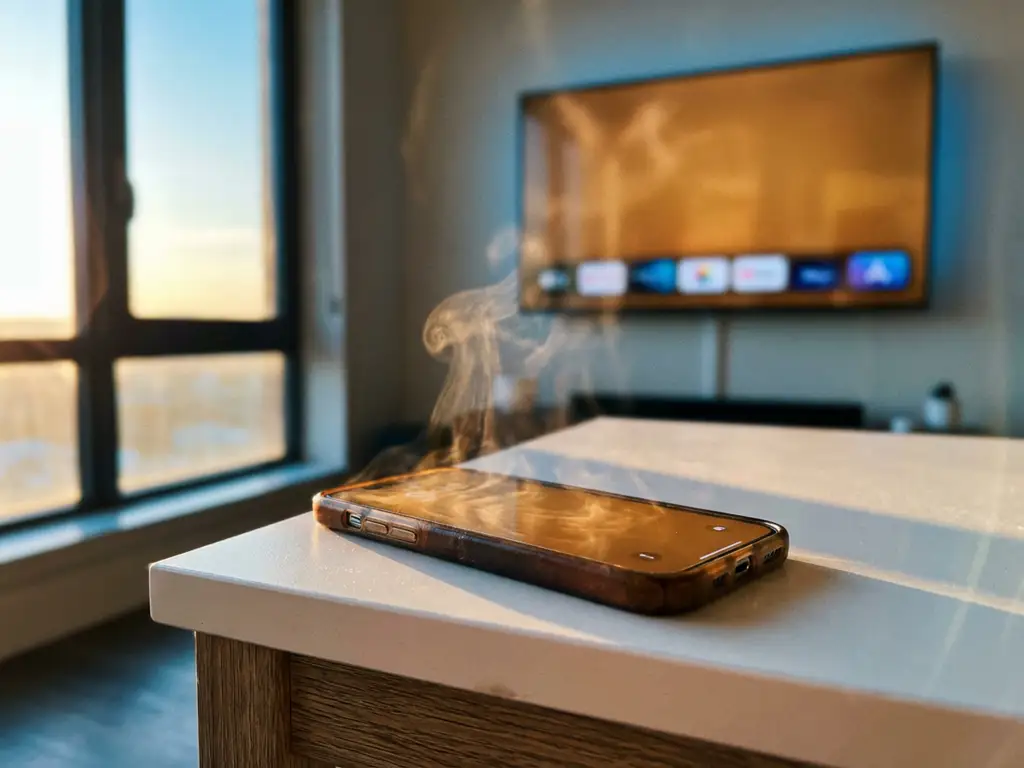
iPhone overheating during screen mirroring is a common concern for many users, especially during extended casting sessions. When you’re wirelessly displaying your iPhone screen on your TV, your device works harder than usual to process and transmit video data, which naturally generates additional heat.
Understanding why this happens and how to manage it can help you enjoy uninterrupted screen mirroring sessions without worrying about damaging your device. Let’s explore the causes, effects, and practical solutions for iPhone overheating during mirroring.
Why does my iPhone get hot during screen mirroring?
Your iPhone gets hot during screen mirroring because the device’s processor and wireless components work intensively to encode video data, compress it, and transmit it wirelessly to your TV in real time. This continuous processing significantly increases your phone’s workload compared to normal use.
Several factors contribute to this heat generation. The iPhone’s CPU must capture everything displayed on your screen, convert it into a video stream, and simultaneously manage the wireless connection to your TV. Your device is essentially running a live video encoder while maintaining network connectivity, which demands substantial processing power.
Background apps also play a role in heating. When screen mirroring is active, your iPhone continues running other applications and system processes, adding to the overall computational load. Additionally, the wireless radio works harder to maintain a stable connection and transmit large amounts of data quickly, generating heat in the process.
Battery charging during mirroring compounds the issue. If you’re charging your iPhone while casting, the combination of processing heat and charging heat can cause temperatures to rise more rapidly than usual.
What happens when iPhone overheats while mirroring?
When your iPhone overheats during mirroring, the device automatically implements thermal protection measures, including reduced performance, a dimmed display, a disabled camera flash, and potential app shutdowns. In severe cases, your iPhone may completely stop screen mirroring and display a temperature warning.
The first signs of overheating typically include slower app performance and a noticeably warm device back. Your iPhone’s screen may dim automatically to reduce heat generation, and you might notice delayed responses when tapping or swiping. The device prioritizes essential functions over performance during thermal stress.
Screen mirroring quality often degrades as temperatures rise. You may experience choppy video transmission, connection drops, or reduced frame rates as your iPhone throttles its processing power to manage heat. The wireless connection itself might become unstable, causing frequent disconnections from your TV.
Apple’s built-in thermal management system will eventually force your iPhone to pause or stop mirroring entirely if temperatures reach critical levels. You’ll see a temperature warning message, and the device will need time to cool down before resuming normal operation. This protection prevents permanent hardware damage but interrupts your viewing experience.
How long can you mirror before iPhone overheats?
Most iPhones can mirror continuously for 30 minutes to 2 hours before overheating, depending on the device model, ambient temperature, screen brightness, and active applications. Newer iPhone models with more efficient processors typically handle longer mirroring sessions better than older devices.
Environmental factors significantly impact mirroring duration. In cool room temperatures around 68-72°F, your iPhone can mirror longer without overheating. However, in warm environments above 80°F or in direct sunlight, overheating may occur within 15-30 minutes of continuous use.
Your iPhone model makes a substantial difference. Newer models like the iPhone 14 and 15 series feature more efficient processors and better thermal management, allowing for extended mirroring sessions. Older models, particularly the iPhone 8 and earlier, may overheat more quickly due to less efficient hardware.
The type of content you’re mirroring also affects duration. Streaming high-resolution videos or playing graphics-intensive games generates more heat than displaying static presentations or simple apps. Complex visual content requires more processing power, reducing the time before overheating occurs.
How do you prevent iPhone from overheating during mirroring?
Prevent iPhone overheating during mirroring by reducing screen brightness, closing unnecessary background apps, removing your phone case, avoiding charging while casting, and taking regular breaks every 30-45 minutes. Keep your device in a cool environment away from direct sunlight or heat sources.
Start by optimizing your iPhone’s settings before mirroring. Lower your screen brightness to 50% or less, as the display generates significant heat. Close all unnecessary apps running in the background by double-tapping the Home button and swiping up on unused apps. Disable Location Services and turn off automatic app updates during mirroring sessions.
Environmental management plays a crucial role in heat prevention. Remove your iPhone case to improve heat dissipation, as cases trap heat around the device. Position your phone away from direct sunlight, heating vents, or other heat sources. Consider using a universal remote control TV app to manage your TV settings without adding extra load to your mirroring session.
Take proactive breaks during long casting sessions. Stop mirroring every 30-45 minutes for 5-10 minutes to allow your iPhone to cool down. This practice prevents heat buildup and maintains optimal performance throughout your viewing experience. If you notice your device getting warm, pause mirroring immediately rather than waiting for overheating warnings.
What should you do when iPhone gets too hot while casting?
When your iPhone gets too hot while casting, immediately stop screen mirroring, close the mirroring app, turn off your device for 10-15 minutes, and place it in a cool, dry location away from direct sunlight. Never use refrigeration or ice, as rapid temperature changes can damage internal components.
Stop all intensive activities immediately when you notice excessive heat. Close the screen mirroring application and any other running apps to reduce processor load. Turn off your iPhone completely rather than just putting it to sleep, as this allows all components to rest and cool down more effectively.
Create optimal cooling conditions for your device. Place your iPhone on a cool, hard surface like a table or countertop rather than soft surfaces that retain heat. Ensure good air circulation around the device and avoid enclosed spaces like drawers or pockets. A room-temperature environment between 68-72°F provides ideal cooling conditions.
Wait for complete cooling before resuming use. Most iPhones need 10-20 minutes to return to normal operating temperatures after overheating. You’ll know your device has cooled sufficiently when it feels room temperature to the touch and powers on without displaying temperature warnings. Once cooled, you can resume mirroring with the prevention strategies mentioned earlier to avoid repeat overheating. For additional troubleshooting tips and solutions, check out our comprehensive knowledge base. If you’re experiencing persistent overheating issues with AirBeam TV apps, you can also explore Android mirroring alternatives or consider using Mac screen mirroring instead. For personalized assistance, don’t hesitate to contact us for expert support.
