




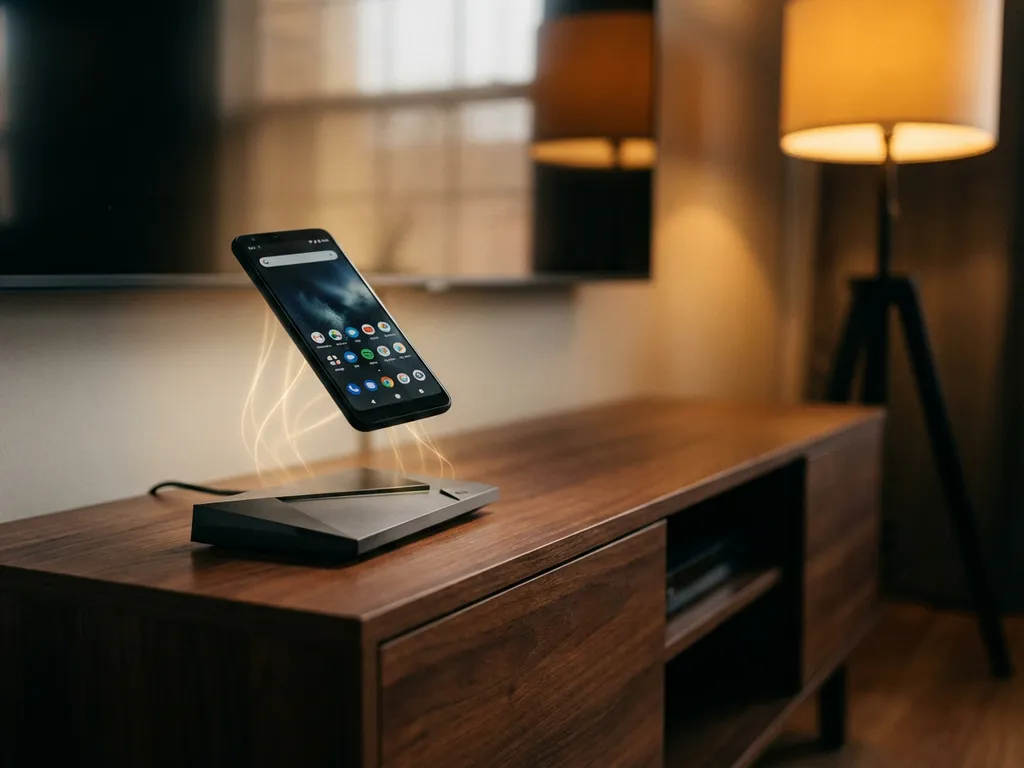
Streaming your iPhone screen to your TV doesn’t have to be complicated or expensive. While Apple designed iPhones to work seamlessly with Apple TV, many people own other streaming devices, such as the Nvidia Shield, and wonder whether they can still enjoy iPhone screen mirroring without buying additional Apple hardware.
The good news is that modern screen-mirroring technology has evolved beyond the limitations of Apple’s ecosystem. Whether you’re trying to share photos with family, stream videos on a bigger screen, or present work content, there are reliable ways to mirror your iPhone to various streaming boxes without needing AirPlay or an Apple TV.
Can you mirror iPhone to Nvidia Shield directly?
No, you can’t mirror your iPhone directly to an Nvidia Shield using built-in features. The Nvidia Shield runs on Android TV, which doesn’t natively support Apple’s AirPlay protocol, which iPhones use for wireless screen mirroring.
However, this doesn’t mean you’re stuck with a small screen. Third-party screen-mirroring apps bridge this compatibility gap by creating their own wireless connection between your iPhone and the Nvidia Shield. These apps work independently of Apple’s AirPlay system, allowing you to cast your iPhone screen to Android TV devices like the Shield.
The process typically involves downloading a mirroring app on your iPhone and installing a companion receiver app on your Nvidia Shield through the Google Play Store. Once both devices are connected to the same Wi-Fi network, you can start mirroring your iPhone screen wirelessly. This solution eliminates the need for expensive hardware or complicated cable setups.
What’s the difference between Nvidia Shield and Apple TV for iPhone mirroring?
Apple TV provides native iPhone screen mirroring through AirPlay, while the Nvidia Shield requires third-party apps to mirror an iPhone’s screen. Apple TV connects seamlessly with iPhones using built-in protocols, whereas the Shield needs additional software to establish compatibility.
With Apple TV, iPhone mirroring happens instantly through AirPlay. You simply swipe down on your iPhone, tap Screen Mirroring, select your Apple TV, and your screen appears on the TV immediately. The connection is stable, supports high-definition video, and includes audio streaming without any additional setup.
The Nvidia Shield, being an Android TV device, doesn’t recognize Apple’s AirPlay signals. Instead, you need to download screen-mirroring apps that create their own wireless connection protocol. While this adds an extra step, modern mirroring apps provide smooth HD streaming that rivals Apple TV’s performance.
The main advantage of using Apple TV is simplicity and guaranteed compatibility. The Nvidia Shield’s advantage lies in its versatility, supporting not only iPhone mirroring through apps but also Android devices, gaming capabilities, and a wider range of streaming services—often at a lower price point than Apple TV.
How do you mirror iPhone screen to streaming boxes without AirPlay?
You can mirror an iPhone screen to streaming boxes without AirPlay by downloading third-party screen-mirroring apps that create their own wireless connection between your iPhone and the streaming device. These apps bypass Apple’s AirPlay requirement entirely.
The process follows a simple three-step approach. First, download a screen-mirroring app on your iPhone from the App Store. Second, install the corresponding receiver app on your streaming box through its app store. Third, open the mirroring app on your iPhone, select your streaming device from the available options, and tap “Start Mirroring.”
Both your iPhone and streaming box must be connected to the same Wi-Fi network for this to work. The mirroring app creates a direct wireless connection that transmits your iPhone’s screen data to the streaming device, which then displays it on your TV. This method works with most popular streaming boxes, including Fire TV, Roku, Android TV devices, and various smart TV platforms.
The quality of the mirroring experience depends on your Wi-Fi network strength and the specific app you choose. Most modern mirroring apps support HD video streaming and audio transmission, providing a viewing experience comparable to native AirPlay connections. For detailed guidance on specific apps and troubleshooting, you can check our comprehensive knowledge base.
Which streaming boxes work best with iPhone screen mirroring?
Apple TV works best with iPhone screen mirroring due to native AirPlay support, followed by Fire TV and Roku devices, which have reliable compatibility with third-party mirroring apps. Android TV devices like the Nvidia Shield also work well but require additional app installation.
Apple TV remains the gold standard because it requires no additional software. Your iPhone recognizes it immediately, and screen mirroring happens with a few taps. The connection is stable, supports 4K resolution, and includes audio streaming without quality loss.
Fire TV devices rank second for iPhone mirroring compatibility. Amazon’s Fire TV supports numerous screen-mirroring apps through its app store, and the Android-based system runs iPhone mirroring apps reliably. The setup process is straightforward, and most users experience smooth streaming performance.
Roku devices also provide excellent iPhone mirroring capabilities through their channel store. While Roku’s operating system is different from Android TV, it supports several high-quality mirroring applications that work seamlessly with iPhones. The platform’s focus on streaming makes it particularly well suited to mirroring video content.
Android TV devices, including the Nvidia Shield, Sony smart TVs, and other Google TV-powered boxes, work effectively with iPhone mirroring apps. The Google Play Store offers multiple mirroring solutions, giving users options to find the app that works best for their specific setup and performance requirements. Whether you’re also looking to mirror your Mac screen or need additional support, AirBeam provides comprehensive solutions for all your screen mirroring needs. If you have specific questions about your setup, don’t hesitate to contact us for personalized assistance. You can also enhance your experience with a universal remote control TV app to manage your devices conveniently.
