




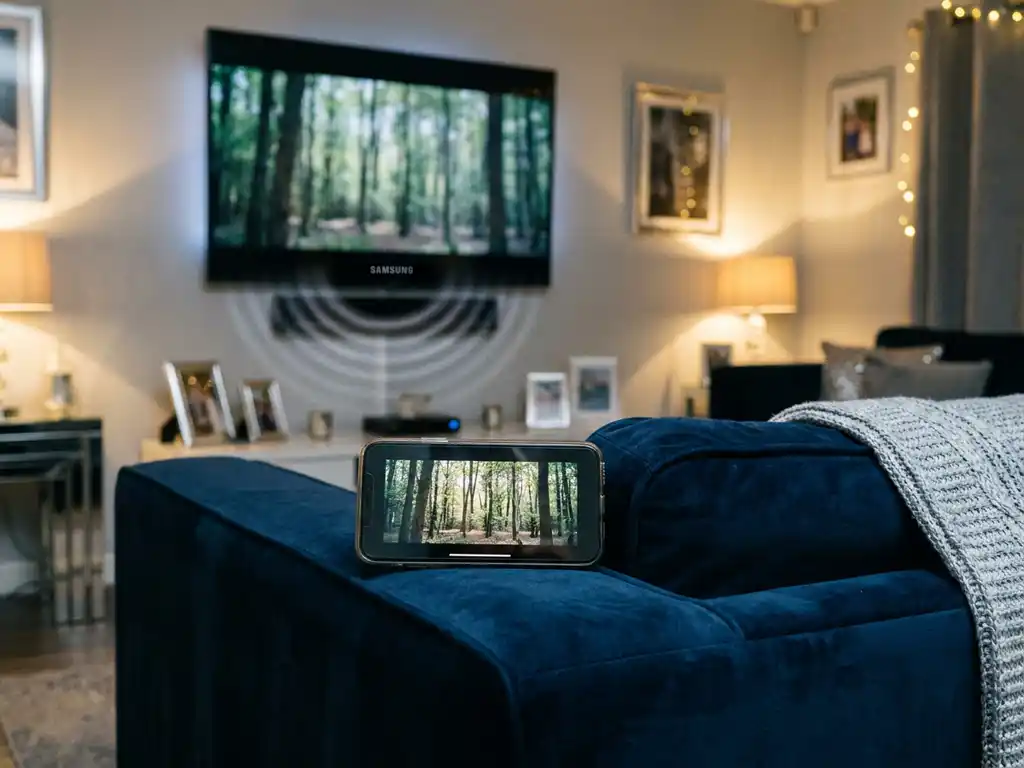
Audio delay when you mirror iPhone to Samsung TV is one of those problems that feels minor until you are actually watching something. The video plays on the big screen while the sound arrives a beat too late, and suddenly every conversation in your show looks like a badly dubbed foreign film. The good news is that this is almost always fixable, and you do not need to be a tech expert to sort it out.
Work through the steps below in order. Most people find the issue is resolved before they even reach the end.
Check your Wi-Fi connection first
Screen mirroring sends both video and audio from your phone to your TV over your Wi-Fi network. When that connection is weak or congested, the two streams can fall out of sync. Before you change any settings, it is worth ruling out your network as the cause.
- Move your phone and your Samsung TV closer to your Wi-Fi router if possible, or at least make sure there are no thick walls or large appliances between them.
- Check that both your iPhone and your Samsung TV are connected to the same Wi-Fi network and, where possible, the same band. If your router broadcasts both a 2.4 GHz and a 5 GHz network, connect both devices to the 5 GHz band for a faster, more stable signal.
- Restart your router by unplugging it, waiting 30 seconds, and plugging it back in. This clears congestion and often improves connection quality immediately.
- Ask others in your household to pause any heavy downloads or streams while you are mirroring. Bandwidth competition is a surprisingly common cause of audio lag.
Once your router has restarted and your devices are on the same network, start a short mirroring session and check whether the audio delay has improved. If it has, great. If the sound is still drifting, move on to the next step.
Adjust the audio delay setting in the AirBeamTV app
With your Wi-Fi checked, the next step is to look inside the mirroring app itself. A dedicated audio delay control lets you nudge the sound forward or backward until it lines up with the picture. This is the most direct fix for lip-sync issues when you mirror iPhone to Samsung TV.
- Open the screen mirroring app on your iPhone and start a mirroring session to your Samsung TV.
- While the session is active, look for the audio delay or audio sync slider in the app settings or control panel.
- Play a video that has clear speech or music so you can hear whether the audio is ahead of or behind the picture.
- Adjust the slider in small increments. If the sound arrives after the picture, increase the delay value. If the sound arrives before the picture, decrease it.
- Keep adjusting until the audio and video feel naturally in sync.
You should notice the difference almost immediately as you move the slider. Once the voices and the picture match up, leave the setting where it is. The app will remember your preference for future sessions.
Change the sound settings on your Samsung TV
Your Samsung TV also has its own audio processing features, and some of them can introduce a delay. Sound modes that apply heavy processing, such as virtual surround or dialogue enhancement, take a fraction longer to process than a simple stereo signal. That small delay adds up and pushes the audio out of sync with the video.
- Press the Home button on your Samsung remote and open Settings.
- Navigate to Sound and then select Expert Settings.
- Look for HDMI Audio Format or Digital Output Audio Format and set it to PCM rather than Dolby Digital or Auto. PCM is an uncompressed format that requires less processing and tends to stay in sync more reliably.
- Return to the Sound menu and find Sound Mode. Switch it to Standard and turn off any enhancements such as Dolby Atmos processing, virtual surround, or equalizer presets.
- If your TV has an Audio Delay or AV Sync Adjustment option under Expert Settings, use it to manually offset the sound until it matches the picture on screen.
After saving these changes, play your video again and check the sync. Switching to PCM and turning off audio enhancements resolves the delay for many users without any further adjustment needed.
Still out of sync? Try these quick fixes
If you have worked through the steps above and the audio is still lagging, a few additional checks are worth trying before you give up.
- Restart everything. Close the mirroring app completely, turn your Samsung TV off and back on, and reopen the app. A fresh session clears temporary glitches that can cause persistent sync issues.
- Check for app and TV firmware updates. An outdated app or TV software can introduce bugs that affect audio timing. Update your mirroring app through the App Store and check your Samsung TV for firmware updates under Settings and Support.
- Reduce background activity on your iPhone. Close apps running in the background, especially ones that use audio or video. These compete for processing power and can throw off the sync.
- Lower the video quality setting. If your app offers a quality or resolution option, try dropping it one level. Lower video quality requires less processing, which can bring audio and video back into alignment on slower networks.
- Try a different audio output on your TV. If your Samsung TV is connected to a soundbar or external speakers via Bluetooth or optical cable, try switching to the TV’s built-in speakers temporarily. External audio systems add their own processing delay and may be the actual source of the problem.
Work through these one at a time and test after each change. Layering multiple adjustments at once makes it harder to identify what actually fixed the issue.
How AirBeamTV Helps with Audio Sync When Mirroring
We built our screen mirroring apps specifically to handle the real-world challenges that come up when you cast your iPhone to a Samsung TV, including audio delay. Rather than leaving you to figure out complex workarounds, we give you practical tools inside the app itself.
- Built-in audio delay control lets you fine-tune sync directly from your iPhone without touching your TV settings.
- Optimized for Samsung TVs along with all other major brands, including LG, Sony, Panasonic, Hisense, and TCL, so the app works with your specific television model rather than against it.
- No extra hardware required. No Apple TV, no cables, no adapters. Just download the app, connect to your Wi-Fi, and start mirroring.
- Simple setup designed for everyday users, not developers. If you can open an app, you can get it working.
If you are still running into audio delay after trying the steps above, download the AirBeamTV app for Samsung TV and use the built-in sync control to dial in the perfect setting for your setup. Most users are up and running in under three minutes. You can also manage your TV directly from your phone with this universal remote control TV app.
