




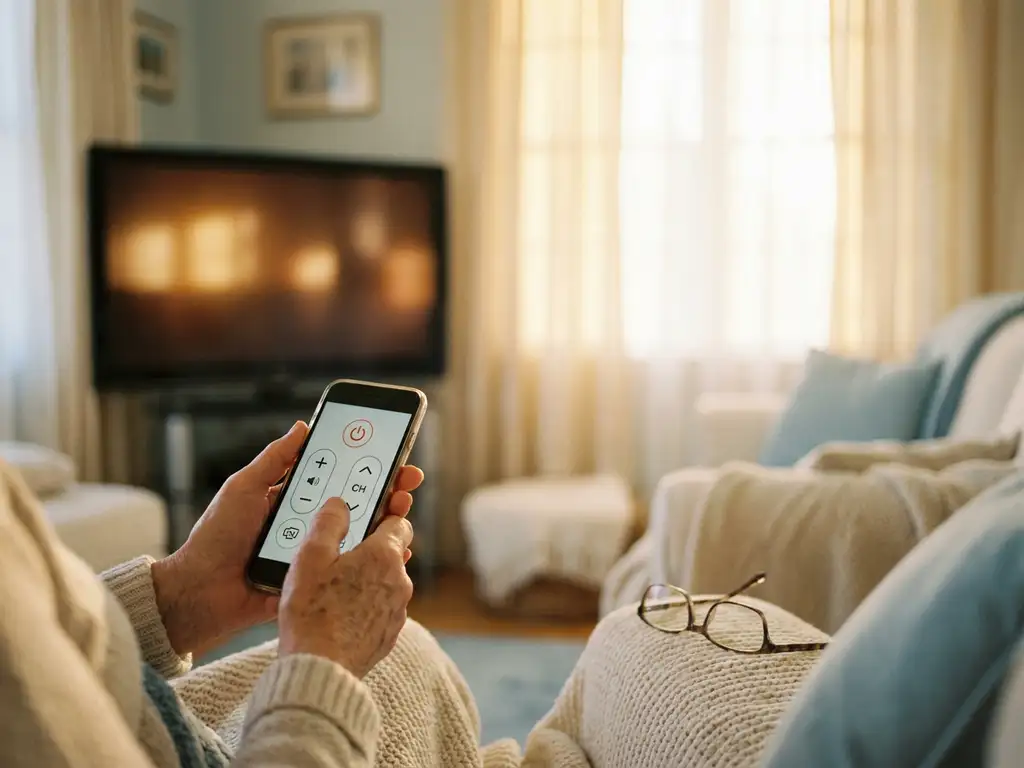
Yes, a universal TV remote app can absolutely be used easily by older adults. The best apps are designed with simplicity in mind: large buttons, clear labels, and a straightforward setup that takes just a couple of minutes. If you can connect to Wi-Fi and tap a screen, you can use one. Below, we cover the most common questions people have before downloading a universal TV remote app.
What features make a TV remote app easy for seniors to use?
A TV remote app is easy for seniors to use when it offers large, clearly labeled buttons, a simple layout, and a setup process that does not require codes or technical knowledge. The most senior-friendly apps also provide haptic feedback, which gives a small vibration when a button is pressed so users know the action registered.
Here are the features that make the biggest difference for older adults:
- Large touchscreen buttons that are easy to tap without precision
- Clear labels for every function, such as volume, mute, and channel
- Haptic feedback so users feel a response when they press something
- Automatic TV detection so there is no need to enter setup codes manually
- Minimal menus with only the controls that are actually needed
- A built-in keyboard and touchpad for when typing or scrolling is needed
Apps that require long setup processes or bury basic controls inside complicated menus tend to frustrate users of any age. For older adults, simplicity is not just a preference, it is a requirement. The fewer steps between opening the app and controlling the TV, the better.
How does a universal TV remote app connect to a TV?
A universal TV remote app connects to a TV through your home Wi-Fi network. Both your phone and your TV need to be connected to the same Wi-Fi network. Once they are, the app scans for compatible devices automatically and lets you select your TV from a list. No Bluetooth pairing, no codes, and no cables are needed.
The connection process typically works like this:
- Download the remote app on your phone or tablet
- Make sure your phone and TV are on the same Wi-Fi network
- Open the app and let it scan for devices
- Select your TV from the list that appears
- Start controlling your TV immediately
This Wi-Fi-based approach is much more reliable than older infrared remote apps, which required you to point your phone directly at the TV. With a Wi-Fi connection, you can control your TV from another room if needed, and the signal does not get blocked by furniture or walls.
What’s the difference between a remote app and a screen mirroring app?
A remote app replaces your physical TV remote, letting you control your TV from your phone. A screen mirroring app does something different: it sends what is on your phone or tablet screen to the TV so everyone in the room can see it on the big screen. They solve two different problems and are often used together.
Think of it this way:
- Remote app: You use your phone to change channels, adjust volume, or navigate your TV’s menus. The content stays on the TV.
- Screen mirroring app: You use your phone to send content from your device, such as photos, videos, or websites, to the TV screen.
For older adults, a remote app is useful when the physical remote is lost, broken, or just hard to use. A screen mirroring app is useful when someone wants to share family photos or a video from their phone on a bigger screen without fiddling with cables. Both are practical tools, and many people find they want both at some point.
Are there free universal TV remote apps that work for older adults?
Yes, there are free universal TV remote apps available, though most offer a limited set of features in the free version. Basic controls like volume and channel switching are usually included for free, while more advanced features such as touchpad input, keyboard control, or support for multiple devices may require a paid upgrade. For many older adults, the free version covers everything they need.
When evaluating a free remote app, look for these things:
- Does it support your specific TV brand without a paid plan?
- Are the core controls, such as volume, mute, and power, available for free?
- Is the interface clean and easy to read in the free version, or cluttered with ads?
- Does it connect automatically, or does the free version require manual setup?
Heavy advertising in free apps can be confusing, especially for users who are not used to navigating around promotional content. If ads are a concern, a low-cost paid version is often worth it for the cleaner experience it provides.
Which TV brands are supported by universal remote apps?
Most universal TV remote apps support all major Smart TV brands, including Samsung, LG, Sony, TCL, Hisense, Philips, and Panasonic. Many also support popular streaming devices like Roku and Amazon Fire TV. As long as your TV is a Smart TV connected to Wi-Fi, it is very likely supported by a good universal remote app.
Here is a quick overview of commonly supported brands and devices:
- Smart TVs: Samsung, LG, Sony, TCL, Hisense, Philips, Panasonic, Toshiba
- Streaming devices: Roku, Amazon Fire TV
- Older TVs: Only supported if connected to a streaming stick or smart device
If you have an older TV that is not a Smart TV, a universal remote app will not work directly with it. However, plugging in a Roku stick or Fire TV stick turns any TV with an HDMI port into a smart device that most remote apps can control.
How AirBeamTV Helps with TV Remote Control for Older Adults
We built our Universal TV Remote App with exactly this kind of user in mind: someone who wants straightforward control over their TV without a complicated setup or a learning curve. Here is what makes it practical for older adults and anyone who just wants things to work:
- Automatic TV detection: Open the app and it finds your TV on the Wi-Fi network. No codes, no manual entry.
- Large, clearly labeled controls: Volume, mute, power, channel, and source switching are all front and center.
- Haptic feedback: Every button press gives a small vibration so you always know the action went through.
- Touchpad and keyboard input: Useful for searching on your TV without hunting for letters on a tiny remote.
- Support for all major brands: Samsung, LG, Sony, TCL, Roku, Amazon Fire TV, and more are all covered in one app.
- No extra hardware: Just your phone or tablet and your home Wi-Fi network.
And if you ever want to go further and share what is on your phone screen directly on the TV, our screen mirroring apps make that just as simple. Download the app, connect to the same Wi-Fi, and you are ready to go.
